Orchidée: un dessin au crayon aquarelle
L'auteur de ce tutoriel est Tatyana Fedorova.
Ce tutoriel est créé dans AliveColors, mais vous pouvez obtenir le même résultat dans n'importe quel éditeur de photo compatible avec le plugin AKVIS Sketch. L'auteur a également utilisé cette photo dans la tutoriel pour AKVIS ArtWork.
Tatyana a écrit:
"Les plugins de AKVIS offrent une opportunité fantastique pour obtenir un mélange extraordinaire de l'art et la photographie grâce au développement des technologies informatiques et de nouveaux algorithmes. Pour ma première expérience avec AKVIS j'ai choisi les plugins AKVIS Sketch et AKVIS ArtWork. Tout est très rapide et facile. Continuez votre excellent travail!"
-
Étape 1. Ouvrez l'image originale dans l'éditeur de photo avec la commande Fichier -> Ouvrir.
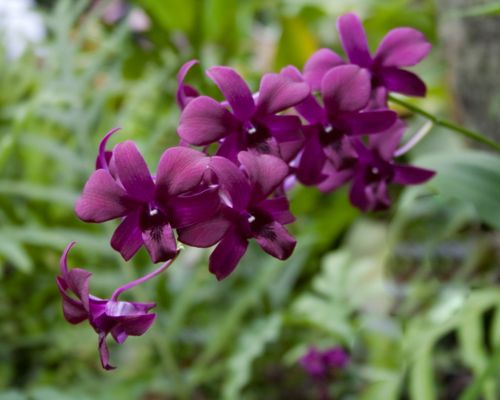
Image originale -
Étape 2. Appelez le plug-in AKVIS Sketch: Effets -> AKVIS -> Sketch.
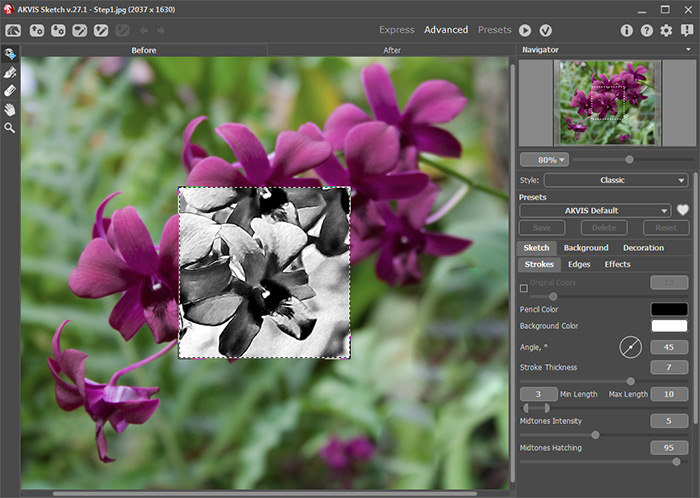
Espace de travail de AKVIS Sketch -
Étape 3. Un échantillon de l'image traitée avec le preset choisi sera affiché dans la fenêtre Aperçu rapide. Réglez les valeurs des paramètres pour atteindre le résultat souhaité.
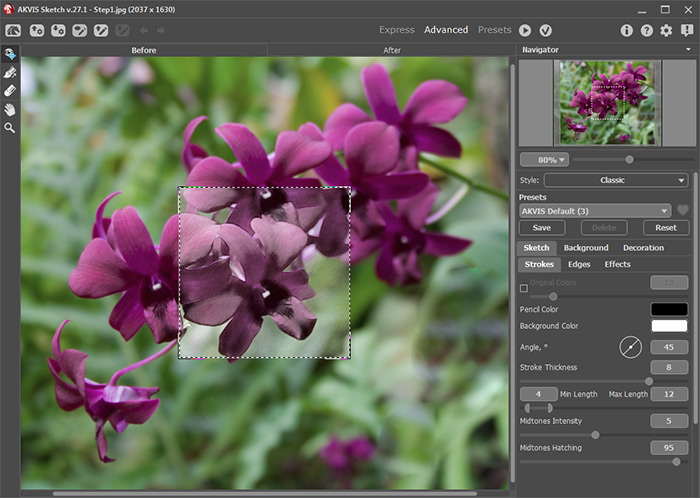
Valeurs des paramètres -
Étape 4. Pour utiliser l'effet de flou pour le fond, cliquez sur l'onglet Fond, choisissez le mode Dessin & Flou à partir du menu déroulant, l'ordre du flou Dessin flou, et la méthode Radial - Zoom.
Utilisez le crayon bleu (L'outil Zone d'effet)
 pour marquer les zones de l'image qui restent inchangées. Utilisez le crayon vert (l'outil Flou)
  pour indiquer la zone qui sera floue. Cliquez sur le bouton
  pour traiter la photo avec les nouveaux paramètres.
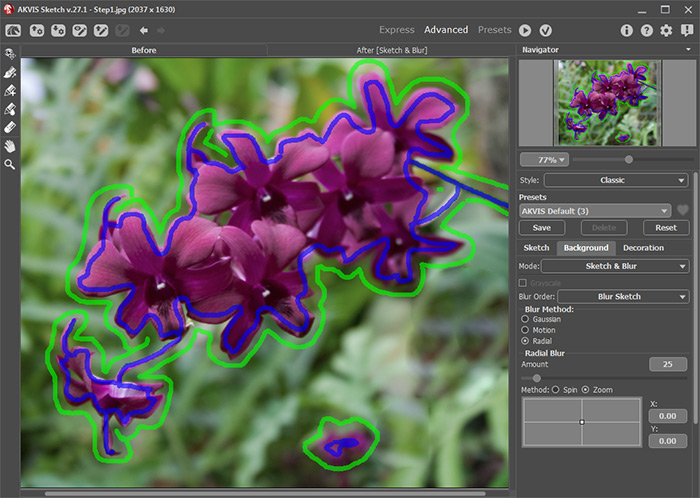
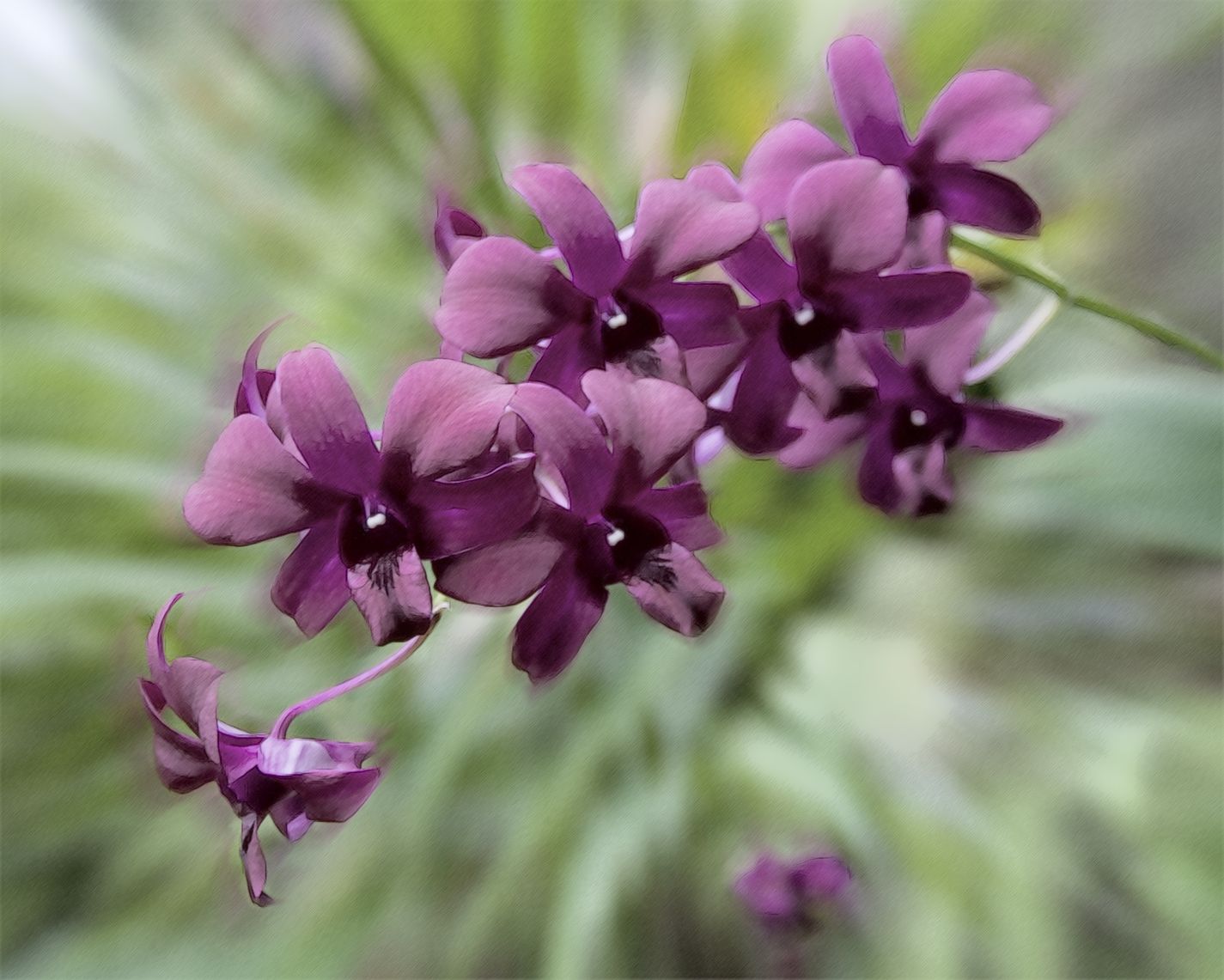
Traits dessinés -
Étape 5. Cliquez sur
 pour appliquer le résultat et fermer la fenêtre du plug-in. Le plug-in AKVIS Sketch se ferme et la peinture apparaît dans l'espace de travail de AliveColors.
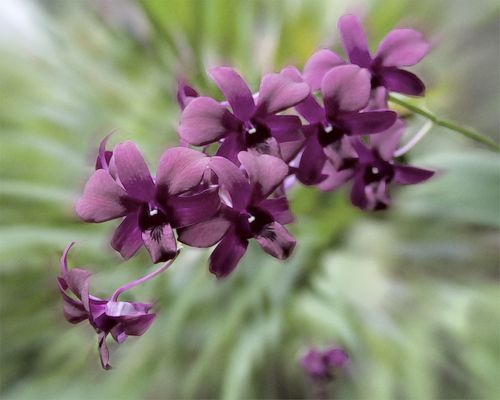
Orchidée: cliquez pour afficher l'image en taille réelle
Sketch v. 28.1 - 10 jours d'essai
