Orchid: a Drawing in Watercolor Pencil
The author of this tutorial is Tatyana Fedorova.
This tutorial is created in AliveColors, but you can do the same in any other photo editor compatible with AKVIS Sketch plugin. The author also used the same image in a tutorial for AKVIS ArtWork.
Tatyana writes:
AKVIS plugins give one a fantastic opportunity to get a phenomenal mixture of art and photography multiplied by the power of the computer and the intelligence of software. For my first experience with AKVIS I choose the AKVIS Sketch and AKVIS ArtWork plug-ins. Everything is so quick and easy. Keep up your excellent work!
-
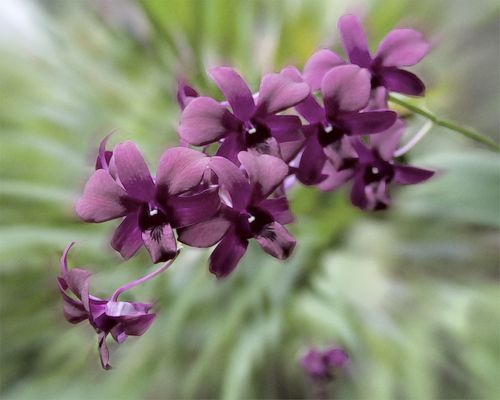
Step 1. Open original image in photo editor with the command File -> Open.
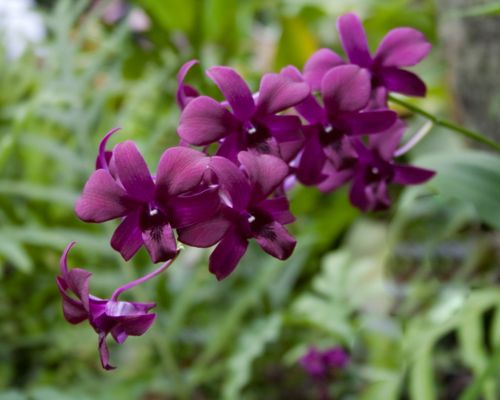
Original photo -
Step 2. Call the AKVIS Sketch plugin using the menu item Effects -> AKVIS -> Sketch.
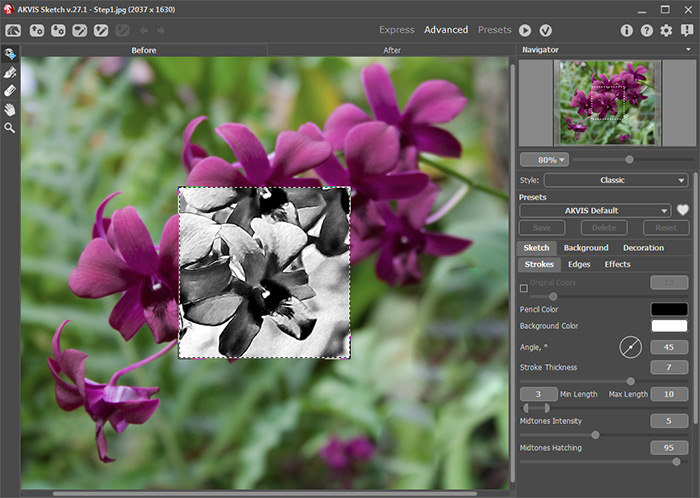
Workspace of AKVIS Sketch -
Step 3. A sample of the image processed with the current preset will be shown in the Preview Window. Adjust the values of the Sketch parameters in the Settings Panel to achieve the desired result on the flower. We are not interested in how the background looks at this stage.
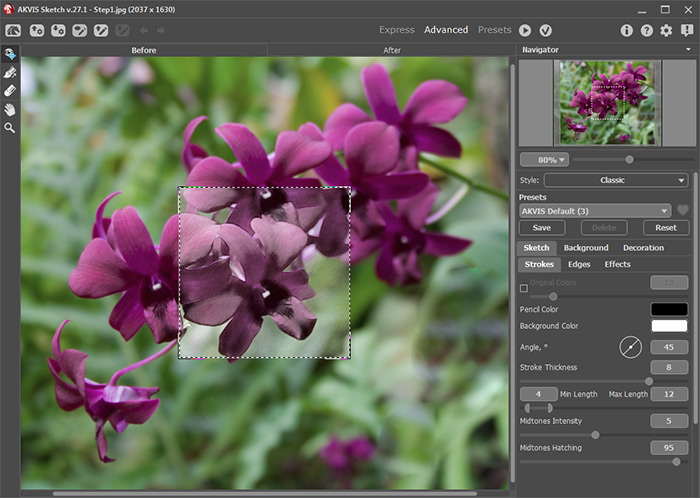
Settings -
Step 4. To use a blur effect for the background, click on the Background tab, choose Sketch & Blur mode from the drop-down menu, the Blur Sketch processing order, and blur method Radial Zoom.
Use the blue pencil (Effect Area Tool)
 to mark areas in the image that will remain unchanged. Use the green pencil (Blur Area Tool)
  to indicate the area to be blurred. Click on the button
  to process the photo with the new settings.
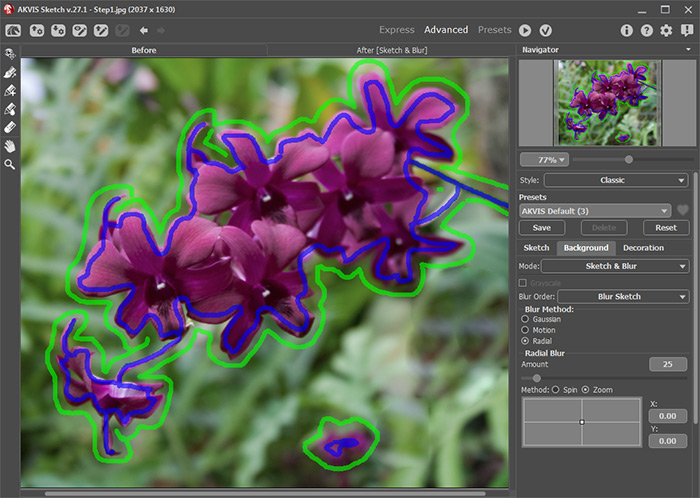
Drawn strokes -
Step 5. Click on
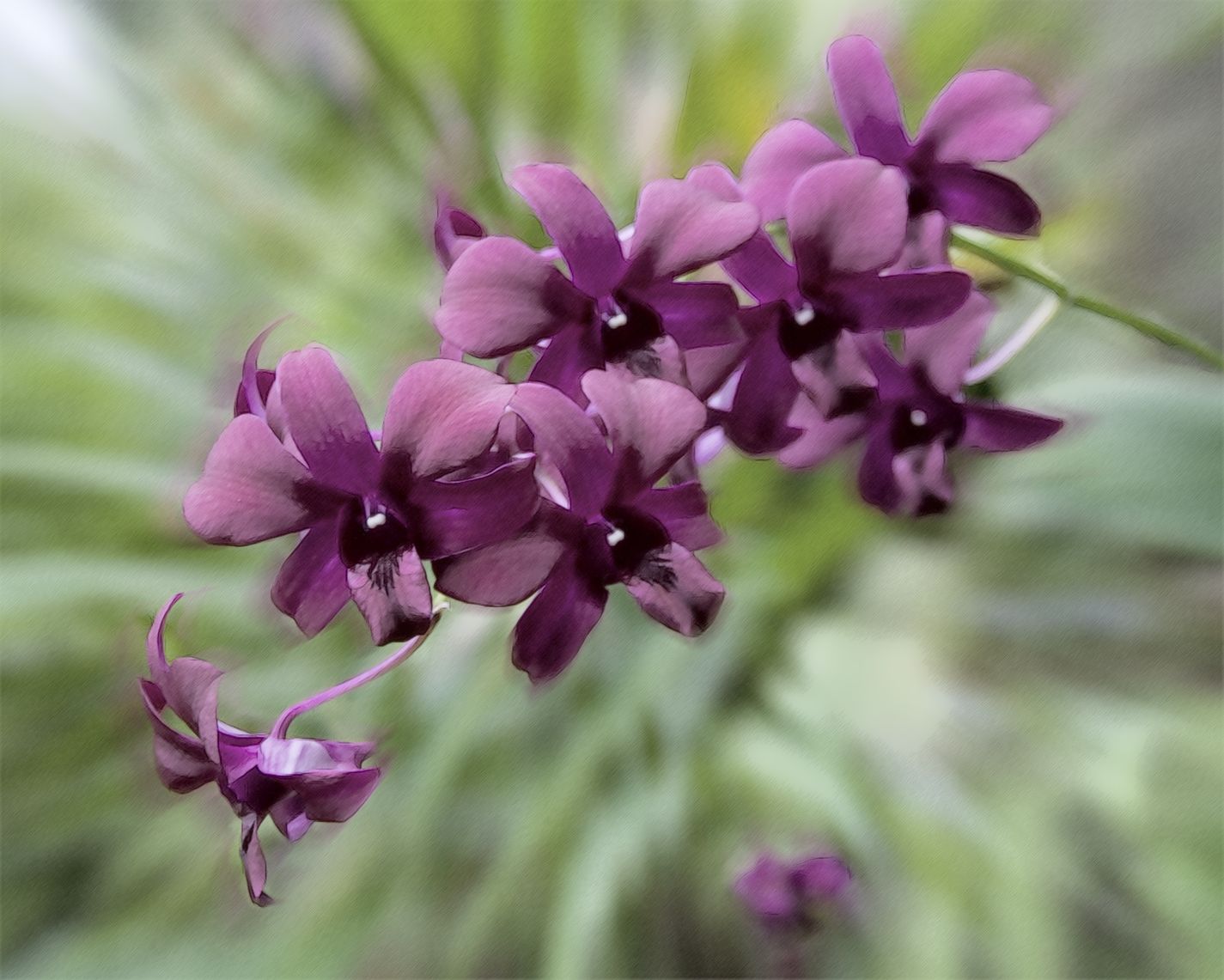
 to apply the changes. This closes the AKVIS Sketch plugin to reveal AliveColors’s workspace containing the processed sketch image with its watercolor effect.
Orchid (click on the image to enlarge)
Sketch v. 28.1 - 10日間の評価期間
