Transformation of a Video into a Cartoon
The Batch Processing feature in AKVIS Sketch allows automatic applying of the software to a group of files. It can be helpful if you want to create a comic book or a cartoon from a video.
If you use the standalone version, just click on  and adjust the settings.
If you use the plugin in AliveColors, you will need to create an action with the help of File -> Automate -> Batch Processing command first, and then apply the action to a folder with images. An action can contain more than one command (AKVIS Sketch) so that you can process a large number of images in one way.
In this tutorial, we'll show how to transform a short video into a black and white cartoon. It's possible to make a color cartoon, it depends on the program's settings.
We used an MOV video file as an example.
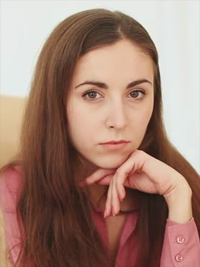
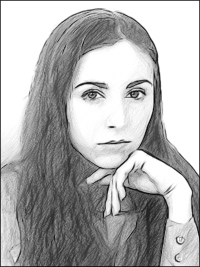
- Step 1. In your hard disk, create two folders: 'frames-original' and 'frames-sketch'.
- Step 2. Convert video files to frames and put these frames into 'frames-original' folder. We use the Avidemux 2.5 program.
- Step 3. After your video is converted into frames, we choose one of the frames out of 'frames-original' folder and open it in AliveColors. We chose the 212th frame.

Video Frame - Step 4. Call AKVIS Sketch from filter menu (Effects -> AKVIS -> Sketch).
The software offers these photo to sketch conversion styles: Classic, Artistic, Maestro, and Multistyle, - each with a series of presets and with the possibility to create a wide variety of pencil drawings for every taste.
It's a matter of taste, which style to choose. We will combine the positive points of the Classic and Artistic styles: well-defined contours of the first style and marvelous hatching of the second one.
Firstly, select the Classic style of the photo-to-sketch conversion. Save the settings as a preset (for example, sketch-classic) to use them in the future.
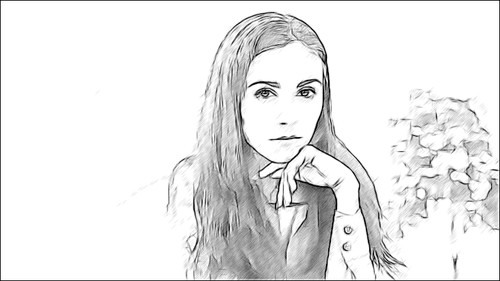
Pic. 1. Classic StyleThen select the Artistic style and adjust the parameters. Save the settings as a preset (for example, sketch-artistic). Close the plug-in's window.
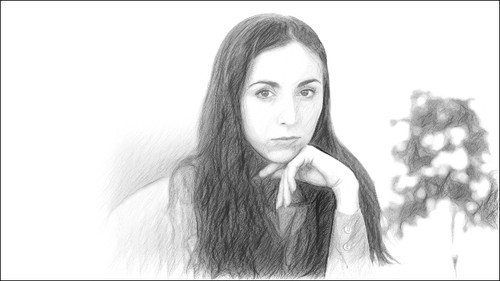
Pic. 2. Artistic Style - Step 5. Now create an action in AliveColors.
Open Actions panel and click the Create New Set button
 . In the appeared window, set a name for the new set of actions, for example, Film.
Press the Create New Action button
 in the bottom of the panel and set the action name, for example sketch-combine.
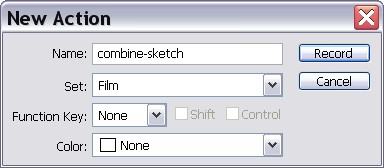
Press Record button
 , the recording of the action will start.
Operations:
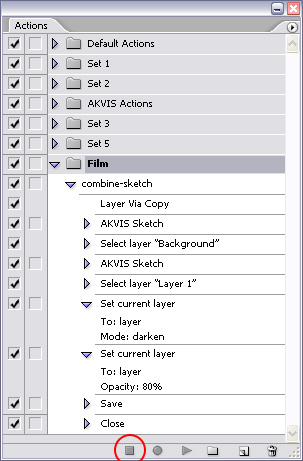
- Duplicate the layer.
- Call AKVIS Sketch plug-in and select the sketch-classic preset. Apply the result (Pic. 1) by pressing
 .
.
- Choose the background layer.
- Call the Sketch plug-in again, select the Artistic style and the sketch-artistic preset. Apply the result (Pic. 2) by pressing .
- Activate the upper layer, select Darken from the blend mode drop-down list, and set Opacity = 80%.
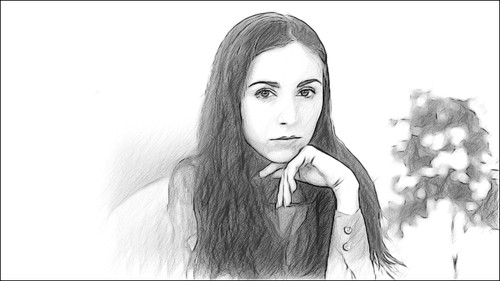
Here is the result (for 212th frame).
- Step 6. Stop action recording by pressing Stop button
 in the bottom of the Actions panel.
- Step 7. The action is created, we can proceed to batch processing of the video frames. In the File menu of the editor choose Automate -> Batch Processing command. In the appearing Batch Processing folder assign all the data and settings.
- The Source Folder field is used to select the source of the image. Choose 'frames-original' folder.
- In the Target Folder field select 'frames-sketch' folder.
- In the Save As list, select a file format.
- In the File Name field, specify the names of the output files.
- In the actions list, select the Film group, and then the sketch-combine action.
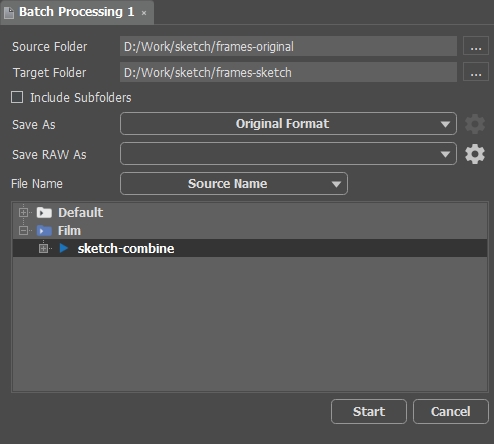
Press Start button in the Batch Processing window and AliveColors will start processing one frame after another out of the 'frames-original' folder and save them into 'frames-sketch' folder.
- Step 8. All we have to do now is to assemble separate cartoon frames back into a video. You can watch the resulted black and white cartoon.
You can also make a color cartoon, it depends on the parameters of AKVIS Sketch!
Sketch v. 28.1 - Free 10-day Trial
