Cardinal : A Scene From Nature


Please enter your email to be kept posted on updates and discounts:
 
 
  Products     Download     Online Store     Tutorial     Support     Company      Customer Room
en  fr  de  es  pt  it  jp  ru    
 

Tutorial: AKVIS Sketch

Cardinal: A Scene From Nature


The author of this tutorial is Nancy Knadler.

She writes: "This tutorial was inspired by a Christmas card my boss at work received. It was a sketch of a cardinal in a winter scene. Our school’s mascot is a cardinal bird so I looked for a photo of a cardinal to use as my initial image".
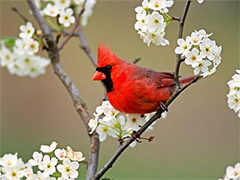
    Original image Result

Nancy describes how to make this nice image:

  • Step 1. I opened the image in Adobe Photoshop (but you can use the image editor of your choice).
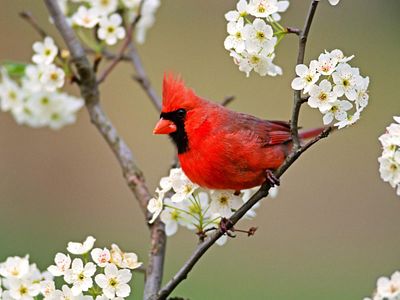
    Source image
    Source image
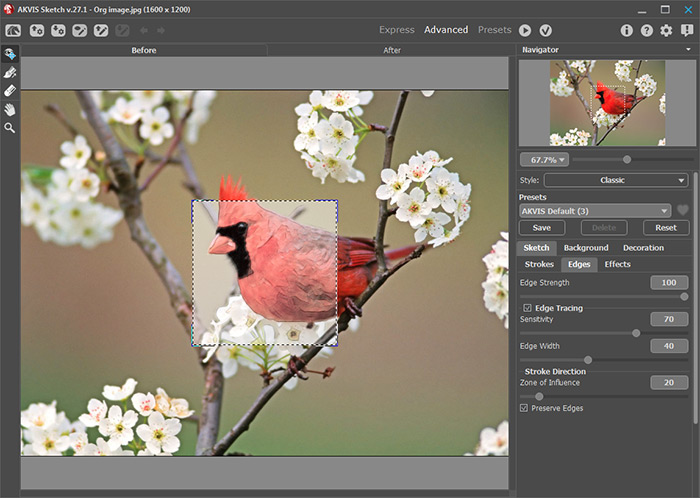
  • Step 2. I took the photo into AKVIS Sketch by clicking Filter from the menu and selecting AKVIS –> Sketch. The image opens in the Sketch window.
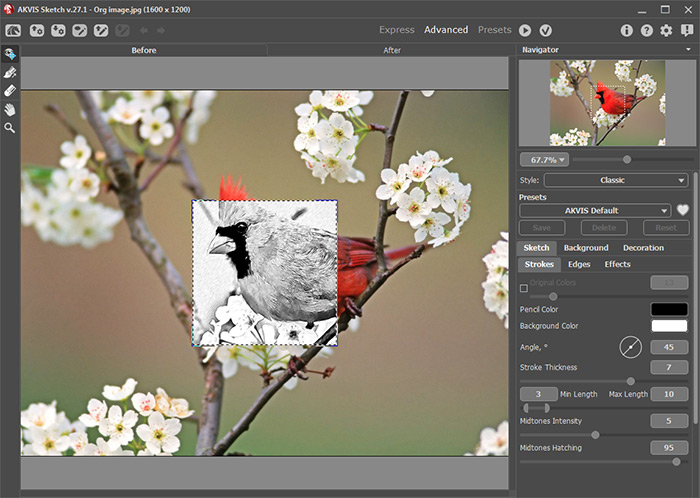
    The AKVIS Sketch window
    The AKVIS Sketch window

    I ran the watercolor option in Sketch using the following parameters:

    In the Effects group:

      Watercolor = 50;
      Coloration = 61;

    In the Strokes group:

      Min./Max. Length = 10/20;
      Midtones Intensity = 3;
      Midtones Hatching = 77;

    In the Edges group:

      Edge Strength = 100;
      Sensitivity = 70;
      Edge Width = 40.

    I pressed the run button , liked what I saw and pressed the button to return to my photo editor, Photoshop.

    Convert a photo into watercolor
    Convert a photo into watercolor
  • Step 3. I reran the AKVIS Sketch plug-in on my watercolor layer, this time choosing the Charcoal option using the following parameters:

    In the Effects group:

      Watercolor = 0;
      Charcoal = 10;
      Coloration = 100;

    In the Strokes group:

      Angle = 60;
      Min./Max. Length = 13/20;
      Midtones Intensity = 1;
      Midtones Hatching = 1;

    In the Edges group:

      Edge Strength = 80;
      Sensitivity = 23;
      Edge Width = 95.
  • Step 4. Before returning to Photoshop, I decided to add a texture to my photo to spice it up a bit. I clicked the Canvas tab while still in AKVIS Sketch and chose a texture with the following parameters:
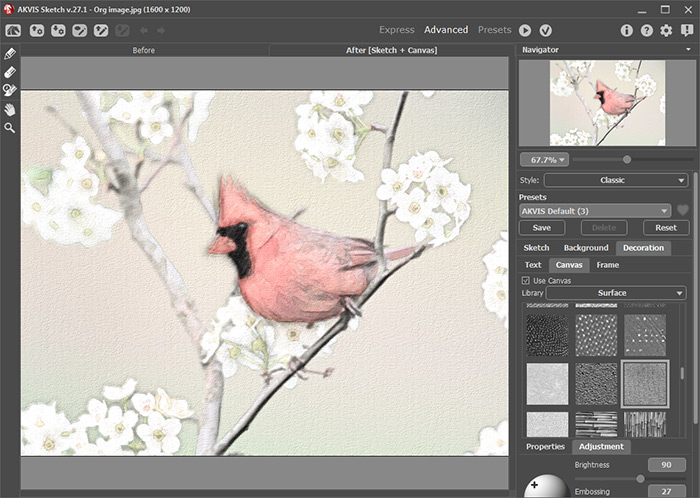
    Convert a watercolor into charcoal sketch with canvas
    Convert a watercolor into charcoal sketch with canvas

    Click on to process the image using the new painting parameter settings.

    Press the button to return to Photoshop.

  • Step 5. To complete my image, I colored my background a light cool blue in Photoshop.

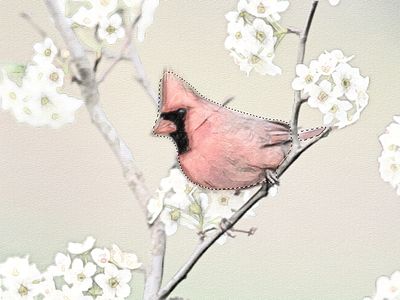
    First you should select the most simple object - the bird (with for example the Polygonal Lasso , or another of Adobe Photoshop's selection tools).

    Selecting the bird's body and tail

    Then invert the selection by choosing Select -> Inverse from the Select menu, so that the background but not the bird is selected:
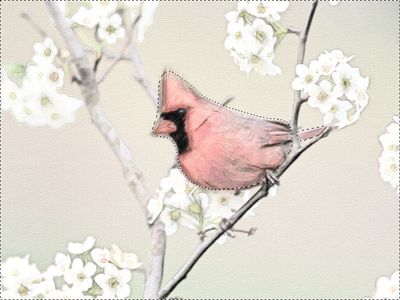
    Selecting the background

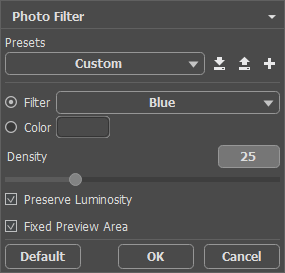
    Apply Photo Filter (a standard Photoshop filter) to the selection by choosing Image -> Adjustments -> Photo Filter.

    Applying Photo Filter

    The result is shown in the following drawing:
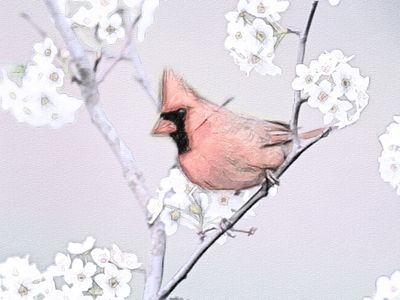
    Recolored background
  • Step 6. At this point, I wanted to set the entire photo off, so I opened my image in AKVIS ArtSuite to frame the picture. After experimenting with different frame styles in ArtSuite I chose a Classic Frame, checking Average Brightness box and moving the Texture Brightness slider to 135%. I think it added the perfect touch to frame my image.
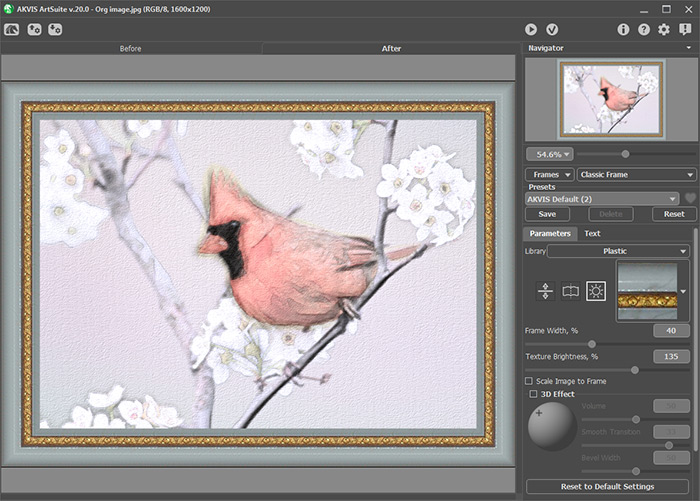
    The AKVIS ArtSuite window
    The AKVIS ArtSuite window

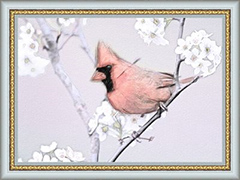
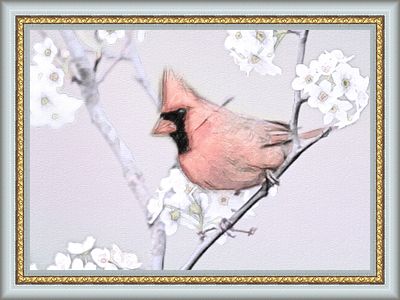
    Here is my framed painting:

    Result
    Figure of a bird (click to enlarge)
 
How It Works How It Works
   — Workspace — Workspace
   — How To Use The Program — How To Use The Program
   — Classic Style — Classic Style
   — Artistic Style — Artistic Style
   — Background Effects — Background Effects
   — Add Text/Signature — Add Text/Signature
   — Drawing on a Canvas — Drawing on a Canvas
   — Working with the Presets — Working with the Presets
   — Preferences — Preferences
   — Batch Processing — Batch Processing
Examples Examples
   — Pencil Sketch: Let's Draw a Tulip — Pencil Sketch: Let's Draw a Tulip
   — Convert a Photo to a Color Sketch — Convert a Photo to a Color Sketch
   — Transform a Video into a Cartoon — Transform a Video into a Cartoon
   — Sketch Gallery — Sketch Gallery
   — Pastel Drawing Technique — Pastel Drawing Technique
   — AKVIS Sketch in Architecture — AKVIS Sketch in Architecture
   — Graphite Pencil Portrait — Graphite Pencil Portrait
   — Watercolor Drawing — Watercolor Drawing
   — Artistic Processing — Artistic Processing
   — Watercolor Painting out of Photo — Watercolor Painting out of Photo
   — Winter Dream: Fairy-Tale Forest — Winter Dream: Fairy-Tale Forest
   — A Woman in a Tub: a Real Work of Art — A Woman in a Tub: a Real Work of Art
   — Watercolor Portrait — Watercolor Portrait
   — Pencil Sketch of a Pet — Pencil Sketch of a Pet
   — Postcard Framed in Pencil Drawing — Postcard Framed in Pencil Drawing
   — Baseball Photo to Color Drawing — Baseball Photo to Color Drawing
   — Make a Sketch from a Wolf Photo — Make a Sketch from a Wolf Photo
   — Motorshow: a Pencil Drawing — Motorshow: a Pencil Drawing
   — Wild Beast of Prey: Watercolor — Wild Beast of Prey: Watercolor
   — A Hand Draws a Hand — A Hand Draws a Hand
   — Convert Vector Drawing to Sketch — Convert Vector Drawing to Sketch
   — Portrait out of a Newspaper Clipping — Portrait out of a Newspaper Clipping
   — Quiet Harbor:  a Watercolor Painting — Quiet Harbor: a Watercolor Painting
   — Sweet Couple: Create a Postcard — Sweet Couple: Create a Postcard
   — Black-and-White Image in Photo Frame — Black-and-White Image in Photo Frame
   — Dream to Reality: How to Blend... — Dream to Reality: How to Blend...
   — Christmas Card from a Photo — Christmas Card from a Photo
   — Artist at Work — Artist at Work
   — Stop the Moment! (Sketch&Blur) — Stop the Moment! (Sketch&Blur)
   — Versailles: Traveling to the Past — Versailles: Traveling to the Past
   — Drawing on Aged Paper — Drawing on Aged Paper
   — Self-Expression: Sketch in a Minute — Self-Expression: Sketch in a Minute
   — Two Beloved Dogs — Two Beloved Dogs
   — Orchid: Drawing in Watercolor Pencil — Orchid: Drawing in Watercolor Pencil
   — Shiny Apple: An Artist's Touch — Shiny Apple: An Artist's Touch
   — Cardinal: A Scene From Nature — Cardinal: A Scene From Nature
   — Variations On A Rose — Variations On A Rose
   — Cute Girl: а Pastel Drawing on Paper — Cute Girl: а Pastel Drawing on Paper
   — On a Bright Street (Sketch&Photo) — On a Bright Street (Sketch&Photo)
   — Mount Saint Michel Watercolor — Mount Saint Michel Watercolor
   — Gala Evening — Gala Evening
   — Radiant Girl: a Detailed Color Portrait — Radiant Girl: a Detailed Color Portrait
   — Parisian Chic — Parisian Chic
   — Toy Story: Create Your Own Comics — Toy Story: Create Your Own Comics
   — Video Clip Processing — Video Clip Processing
   — Creation of a Short-Film Storyboard — Creation of a Short-Film Storyboard
   — Smudging Technique on a Sketch — Smudging Technique on a Sketch
   — Making Embroidery Patterns — Making Embroidery Patterns
   — Quicktime Transition — Quicktime Transition
   — Red Oleander (Old Drawing Effect) — Red Oleander (Old Drawing Effect)
   — Seeing Eye Dog  (Comic Book) — Seeing Eye Dog (Comic Book)
   — Produce Illustrations for an RPG Article — Produce Illustrations for an RPG Article


back to top


   Privacy Policy | Site Map | Search at AKVIS    
   Contact Us | Twitter | Facebook | YouTube Channel    
| English  |Français  |Deutsch  |Español  |Português  |Italiano  |日本語  |Pусский  | © 2004-2012 AKVIS. All rights reserved.