Cardinal: A Scene From Nature
The author of this tutorial is Nancy Knadler.
She writes: "This tutorial was inspired by a Christmas card my boss at work received. It was a sketch of a cardinal in a winter scene. Our school’s mascot is a cardinal bird so I looked for a photo of a cardinal to use as my initial image".
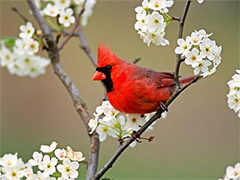
Original Image
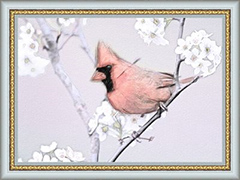
Result
Nancy describes how to make this nice image:
-
Step 1. I opened the image in AliveColors (but you can use the image editor of your choice).
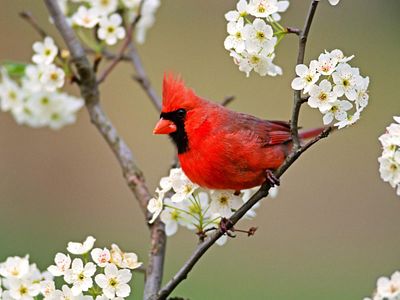
Source Photograph -
Step 2. I took the photo into AKVIS Sketch by clicking Effects from the menu and selecting AKVIS –> Sketch. The image opens in the Sketch window.
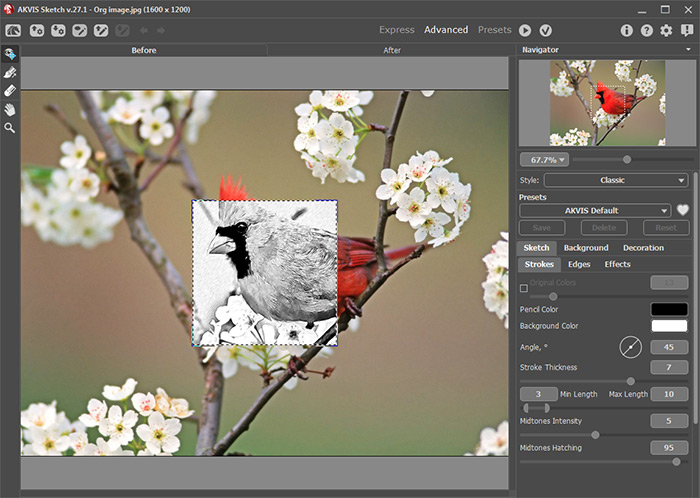
AKVIS SketchTo create a watercolor picture in Sketch I used these settings:
In the Strokes group:
Min./Max. Length = 10/20;
Midtones Intensity = 3;
Midtones Hatching = 77;In the Edges group:
Edge Strength = 100;
Sensitivity = 70;
Edge Width = 40.In the Effects group:
Watercolor = 50;
Coloration = 61;I pressed the run button
 , liked what I saw and pressed the button
  to return to my photo editor.
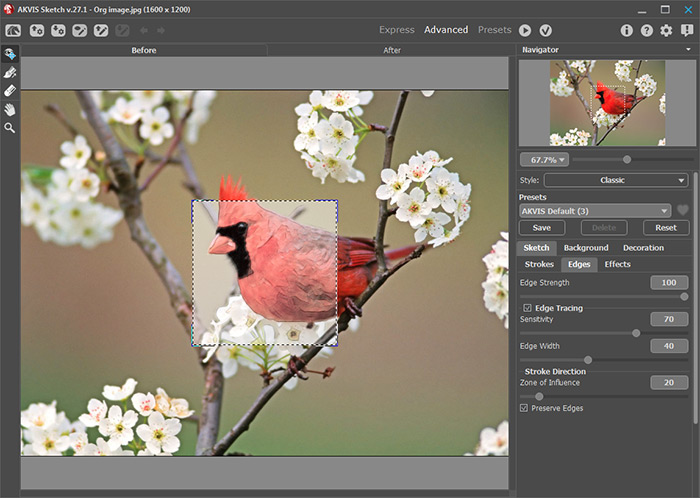
Photo into Watercolor -
Step 3. I reran the AKVIS Sketch plug-in on my watercolor layer, this time choosing the charcoal effect using the following parameters:
In the Strokes group:
Angle = 60;
Min./Max. Length = 13/20;
Midtones Intensity = 1;
Midtones Hatching = 1;In the Edges group:
Edge Strength = 80;
Sensitivity = 23;
Edge Width = 95.In the Effects group:
Watercolor = 0;
Charcoal = 10;
Coloration = 100; -
Step 4. Before returning to AliveColors, I decided to add a texture to my photo to spice it up a bit. I clicked the Canvas tab while still in AKVIS Sketch and chose a texture with the following parameters:
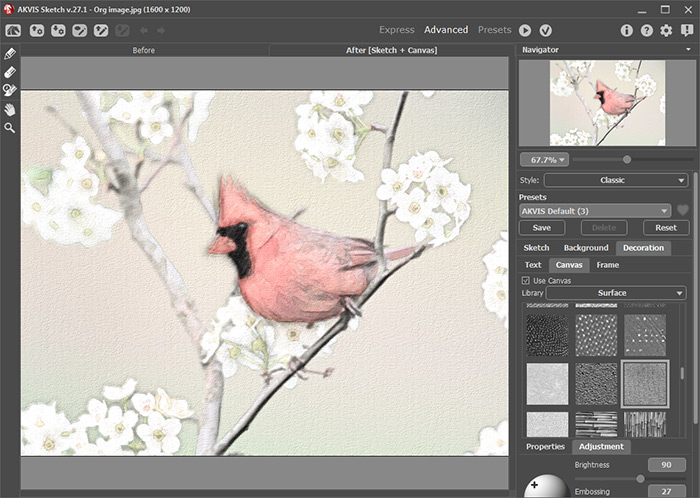
Charcoal Sketch on CanvasClick on
to process the image using the new painting settings.
Press the
button to return to AliveColors.
-
Step 5. To complete my image, I colored my background a light cool blue in AliveColors.
First you should select the most simple object - the bird (with for example the Lasso
 ).
).
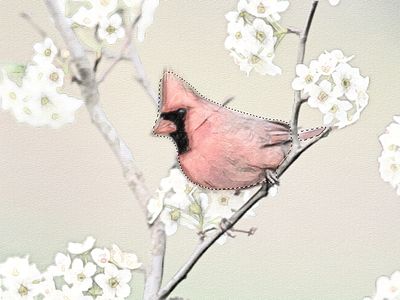
Then invert the selection by choosing Select -> Invert from the Select menu, so that the background but not the bird is selected:
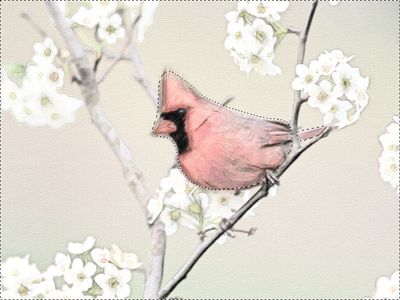
Apply Photo Filter to the selection by choosing Image -> Adjustment -> Photo Filter.
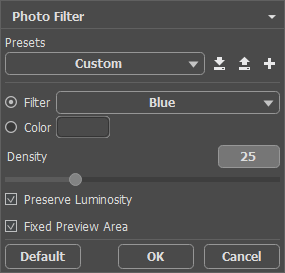
The result is shown in the following drawing:
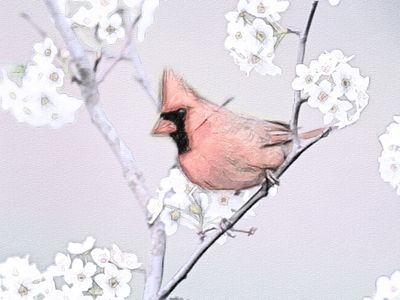
-
Step 6. At this point, I wanted to set the entire photo off, so I opened my image in AKVIS ArtSuite to frame the picture. After experimenting with different frame styles in ArtSuite I chose a Classic Frame, checking Average Brightness box and moving the Texture Brightness slider to 135%. I think it added the perfect touch to frame my image.
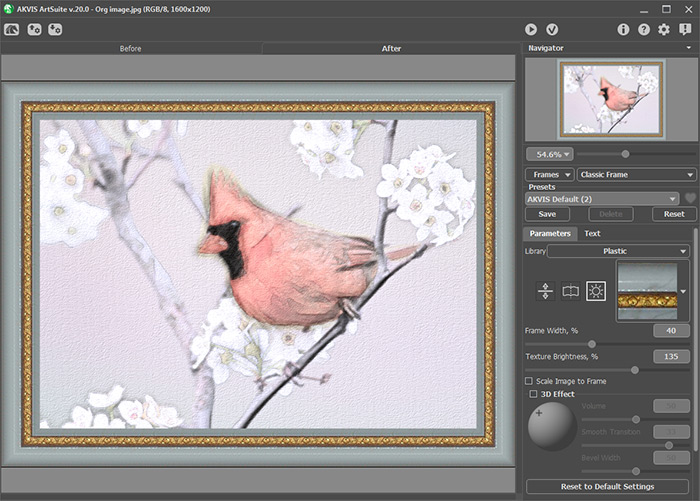
AKVIS ArtSuiteHere is my framed painting:
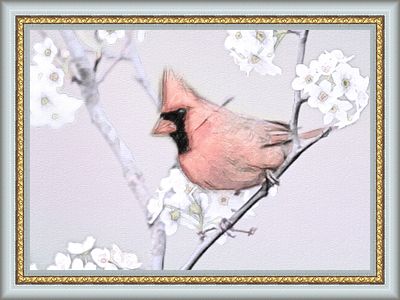
Bird - Picture in Frame (click to enlarge)

Sketch v. 28.1 - 10日間の評価期間
