Quicktime Transition


Please enter your email to be kept posted on updates and discounts:
 
 
  Products     Download     Online Store     Tutorial     Support     Company      Customer Room
en  fr  de  es  pt  it  jp  ru    
 

Tutorial: AKVIS Sketch

Quicktime Transition


The author of this tutorial is Andre Villanueva.


In this tutorial, we are going to use AKVIS Sketch with Photoshop (CS4+) to easily create a QuickTime movie that starts out with a sketch and transitions to a full-color photo!

Materials needed:

  • Photoshop CS4+;
  • AKVIS Sketch (This tutorial assumes you have installed as a plug-in);
  • QuickTime plug-in;
  • A model photo.
    Source image Result
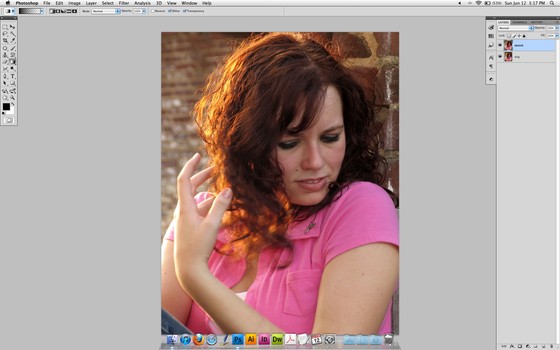
  • Step 1. Start with a model photo.

    Original image
    Original image
  • Step 2. With that layer active, press +J (Mac) / Ctrl+J (Windows) to quickly make a duplicate. Name the duplicate layer “Sketch.”
  • Step 3. With the “Sketch” layer still active, go to Filter -> AKVIS -> Sketch.
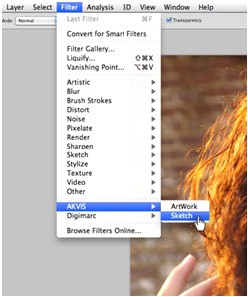
    Call AKVIS Sketch plug-in
    Call AKVIS Sketch plug-in
  • Step 4. You will now be taken to the AKVIS Sketch interface. Use the handy presets drop-down to select some nice pre-configured settings. Don’t be afraid to fine-tune the settings. I chose AKVIS Default.
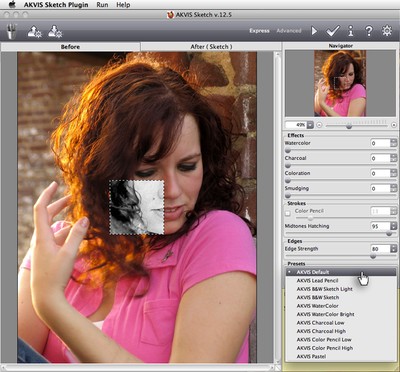
    AKVIS Sketch window
    AKVIS Sketch window
  • Step 5. Click the After tab. Aftera few moments of rendering, you will see how the image will look after the current settings are applied. If you are satisfied, click . If not, continue to tweak the settings.
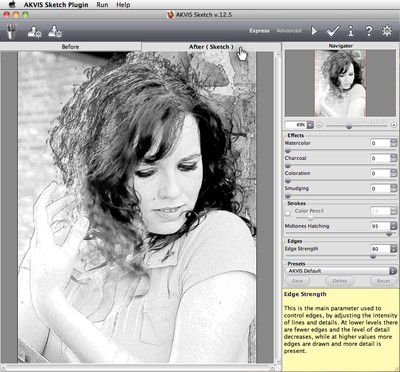
    Processed image
    Processed image
  • Step 6. You will now be back in Photoshop, and the AKVIS Sketch filter will be applied to the “Sketch” layer.
  • Step 7. Let’s open up the Animation panel. Go to Window -> Animation.
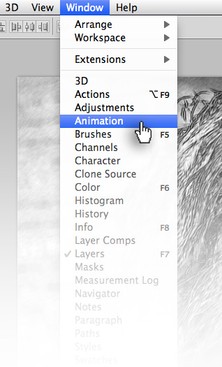
    Open up Animation panel
    Open up Animation panel
  • Step 8. If the Animation is in Timeline mode, open up the panel menu and choose Convert to Frame Animation. You will see one frame, and the thumbnail should reflect the active “Sketch” layer.
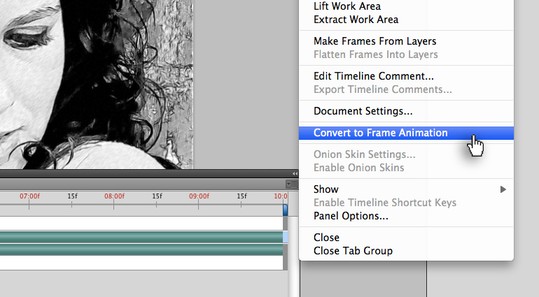
    Panel menu
    Panel menu
  • Step 9. You will see a time delay setting below the frame. Make sure that is set to 0.1 sec. Also, on the bottom left of the Animation panel, the Loop setting should be set to Once.
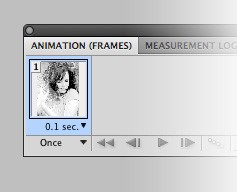
    Frame settings
    Frame settings
  • Step 10. Click Duplicate Selected Frame to make your second frame. Toggle off the visibility icon to the left of the “Sketch” layer in the Layers panel. The second frame in the Animations panel should now reflect the original photo layer.
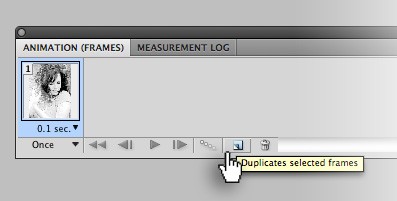
    Duplicate Selected Frame
    Duplicate Selected Frame
  • Step 11. With the second frame still selected, click the Tween icon at the bottom of the Animation panel.
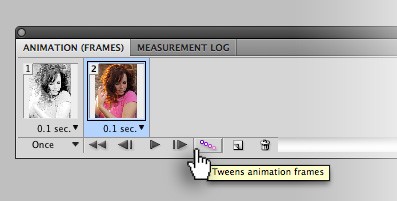
    Tween icon
    Tween icon
  • Step 12. A window will appear. Make sure to Tween With: Previous Frame. Set the Frames to Add: 10.
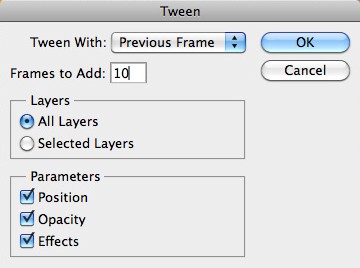
    Tweening
    Tweening
  • Step 13. You will see that 10 frames will be added in between the two initial frames, for a total of 12 frames.
  • Step 14. Go to File -> Export -> Render Video.
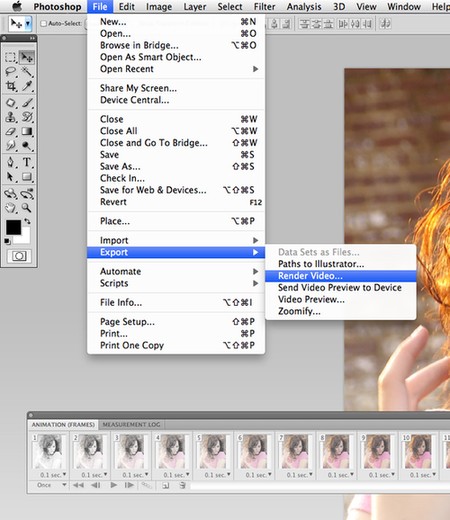
    Export
    Export
  • Step 15. Name your video, choose your save destination, leave the settings to default (unless you are an expert), and click Render.
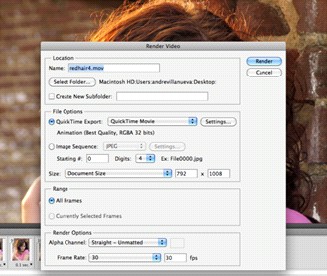
    Render video
    Render video
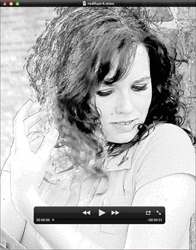
  • Step 16. You will now have a QuickTime movie that shows your AKVIS Sketch blooming to full photographic beauty!
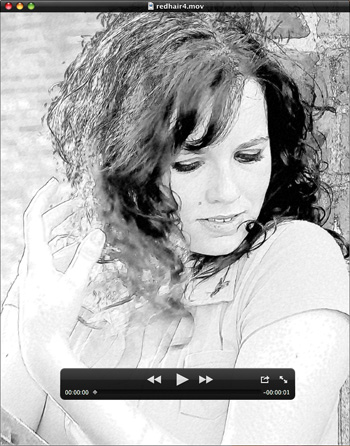
    Result
    Result


How It Works How It Works
   — Workspace — Workspace
   — How To Use The Program — How To Use The Program
   — Classic Style — Classic Style
   — Artistic Style — Artistic Style
   — Background Effects — Background Effects
   — Add Text/Signature — Add Text/Signature
   — Drawing on a Canvas — Drawing on a Canvas
   — Working with the Presets — Working with the Presets
   — Preferences — Preferences
   — Batch Processing — Batch Processing
Examples Examples
   — Pencil Sketch: Let's Draw a Tulip — Pencil Sketch: Let's Draw a Tulip
   — Convert a Photo to a Color Sketch — Convert a Photo to a Color Sketch
   — Transform a Video into a Cartoon — Transform a Video into a Cartoon
   — Sketch Gallery — Sketch Gallery
   — Pastel Drawing Technique — Pastel Drawing Technique
   — AKVIS Sketch in Architecture — AKVIS Sketch in Architecture
   — Graphite Pencil Portrait — Graphite Pencil Portrait
   — Watercolor Drawing — Watercolor Drawing
   — Artistic Processing — Artistic Processing
   — Watercolor Painting out of Photo — Watercolor Painting out of Photo
   — Winter Dream: Fairy-Tale Forest — Winter Dream: Fairy-Tale Forest
   — A Woman in a Tub: a Real Work of Art — A Woman in a Tub: a Real Work of Art
   — Watercolor Portrait — Watercolor Portrait
   — Pencil Sketch of a Pet — Pencil Sketch of a Pet
   — Postcard Framed in Pencil Drawing — Postcard Framed in Pencil Drawing
   — Baseball Photo to Color Drawing — Baseball Photo to Color Drawing
   — Make a Sketch from a Wolf Photo — Make a Sketch from a Wolf Photo
   — Motorshow: a Pencil Drawing — Motorshow: a Pencil Drawing
   — Wild Beast of Prey: Watercolor — Wild Beast of Prey: Watercolor
   — A Hand Draws a Hand — A Hand Draws a Hand
   — Convert Vector Drawing to Sketch — Convert Vector Drawing to Sketch
   — Portrait out of a Newspaper Clipping — Portrait out of a Newspaper Clipping
   — Quiet Harbor:  a Watercolor Painting — Quiet Harbor: a Watercolor Painting
   — Sweet Couple: Create a Postcard — Sweet Couple: Create a Postcard
   — Black-and-White Image in Photo Frame — Black-and-White Image in Photo Frame
   — Dream to Reality: How to Blend... — Dream to Reality: How to Blend...
   — Christmas Card from a Photo — Christmas Card from a Photo
   — Artist at Work — Artist at Work
   — Stop the Moment! (Sketch&Blur) — Stop the Moment! (Sketch&Blur)
   — Versailles: Traveling to the Past — Versailles: Traveling to the Past
   — Drawing on Aged Paper — Drawing on Aged Paper
   — Self-Expression: Sketch in a Minute — Self-Expression: Sketch in a Minute
   — Two Beloved Dogs — Two Beloved Dogs
   — Orchid: Drawing in Watercolor Pencil — Orchid: Drawing in Watercolor Pencil
   — Shiny Apple: An Artist's Touch — Shiny Apple: An Artist's Touch
   — Cardinal: A Scene From Nature — Cardinal: A Scene From Nature
   — Variations On A Rose — Variations On A Rose
   — Cute Girl: а Pastel Drawing on Paper — Cute Girl: а Pastel Drawing on Paper
   — On a Bright Street (Sketch&Photo) — On a Bright Street (Sketch&Photo)
   — Mount Saint Michel Watercolor — Mount Saint Michel Watercolor
   — Gala Evening — Gala Evening
   — Radiant Girl: a Detailed Color Portrait — Radiant Girl: a Detailed Color Portrait
   — Parisian Chic — Parisian Chic
   — Toy Story: Create Your Own Comics — Toy Story: Create Your Own Comics
   — Video Clip Processing — Video Clip Processing
   — Creation of a Short-Film Storyboard — Creation of a Short-Film Storyboard
   — Smudging Technique on a Sketch — Smudging Technique on a Sketch
   — Making Embroidery Patterns — Making Embroidery Patterns
   — Quicktime Transition — Quicktime Transition
   — Red Oleander (Old Drawing Effect) — Red Oleander (Old Drawing Effect)
   — Seeing Eye Dog  (Comic Book) — Seeing Eye Dog (Comic Book)
   — Produce Illustrations for an RPG Article — Produce Illustrations for an RPG Article


back to top


   Privacy Policy | Site Map | Search at AKVIS    
   Contact Us | Twitter | Facebook | YouTube Channel    
| English  |Français  |Deutsch  |Español  |Português  |Italiano  |日本語  |Pусский  | © 2004-2012 AKVIS. All rights reserved.