Sketch from Photo: Artistic Style
The Artistic style in AKVIS Sketch is designed to create expressive drawings that look like the handmade work of a real artist.
In this style, it is easy to create both a quick sketch and a carefully drawn and shaded pencil drawing. The main advantage of this style is the ability to play with hatching and to vary the number of shadings and shadows to get natural tonal transitions. This style requires a good photograph. The best results can be achieved if the original photo was taken in the right light and has good contrast.
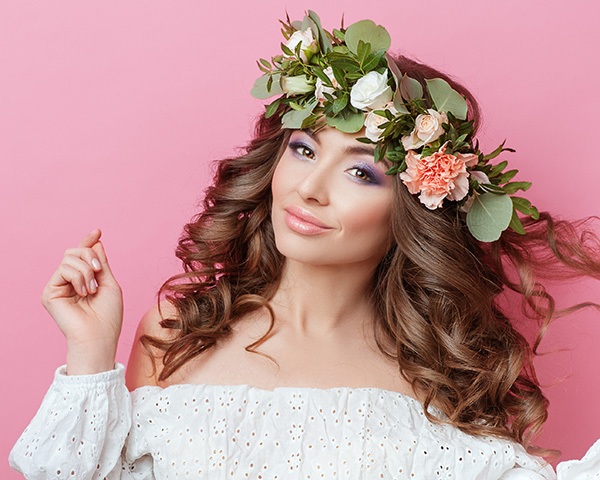
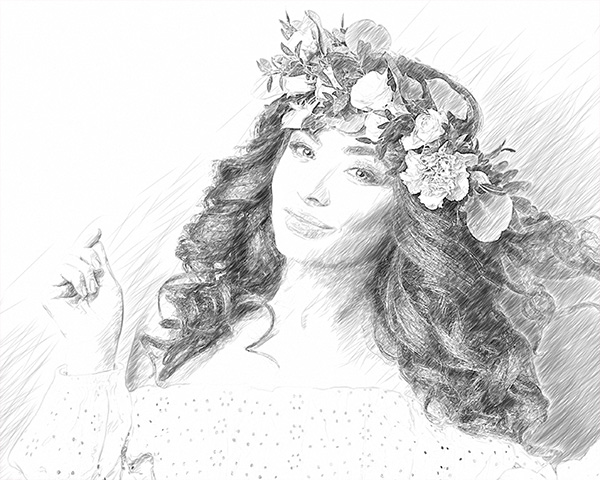
Blend with Original (0-100). The effect can be merged with the original image by changing the transparency of the result. With a value of 0, no blending occurs. The higher the parameter, the more the original colors are mixed with the result.

Blend with Original = 0

Blend with Original = 50
In the Mode drop-down list, you can set the blending method.

Normal

Linear Burn
The photo-to-drawing conversion parameters in the Artistic style are grouped in two tabs: Strokes and Effects.
Strokes tab (hatching parameters):
Original Colors. When the check-box is enabled, the program creates a color pencil drawing using the color range from the original image. When the check-box is disabled, the program uses the colors selected with the color plates below.
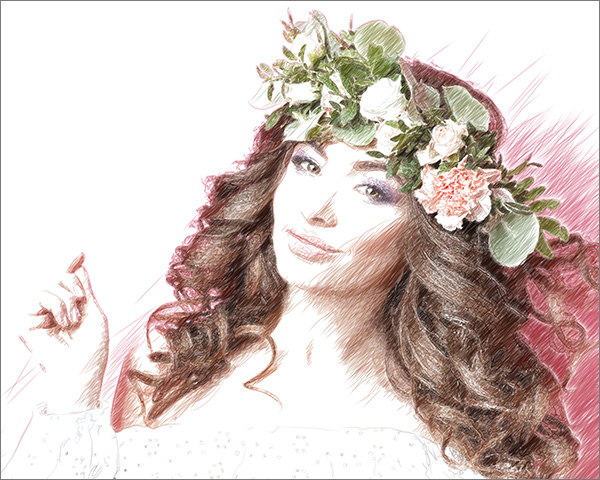
Color Drawing
You can change the saturation of the colors by moving the slider to the right of the check-box. As the value of this parameter is increased, the colors in the image become more intense and bright.
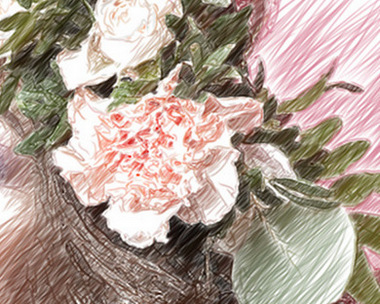
Saturation = 0
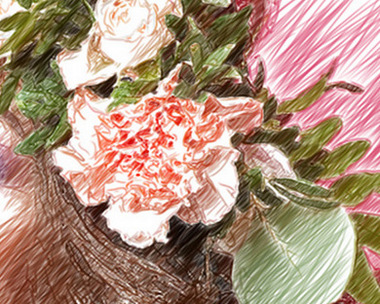
Saturation = 50
Pencil Color and Background Color. If the Original Colors check-box is disabled, you can use two color plates to set colors for pencil strokes and background. Click the plate and select a color from the standard dialog. Right mouse click the plates to reset the colors to their default values (black and white).
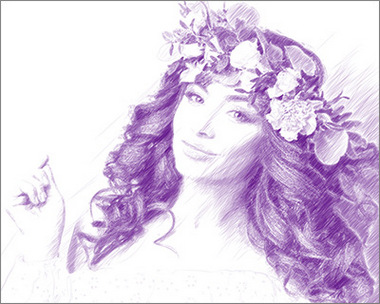
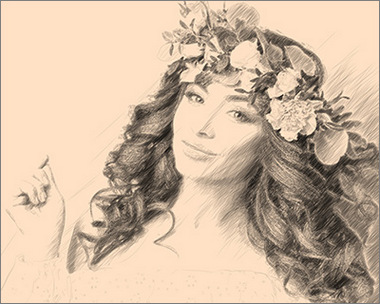
Changing Colors
Angle (0-180). This parameter sets the pitch angle of the strokes. By default, the strokes are drawn at a 45 degree angle.
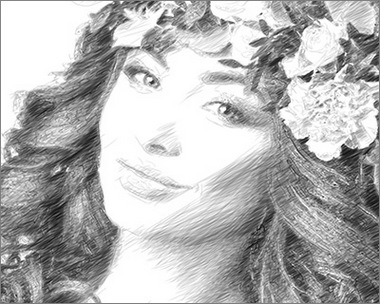
Angle = 30
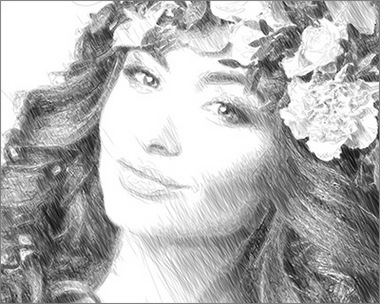
Angle = 120
Min Length/Max Length (1-100). The parameter sets the full range of the possible stroke lengths. The stroke length is controlled by the position of two sliders on the same scale: the left slider sets the minimum stroke length while the right slider controls the maximum stroke length. You will see only the strokes greater than the minimum and shorter than the maximum settings.
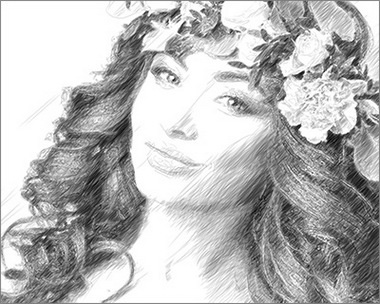
Min Length/Max Length = 5/25
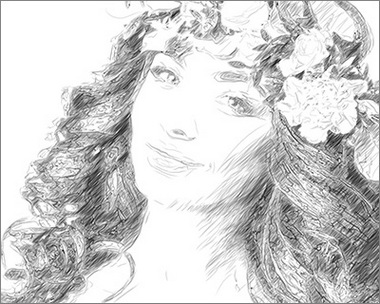
Min Length/Max Length = 20/50
Uniformity (1-50). The parameter defines a type of hatching. In large values the light and dark areas of the image are hatched evenly. Decreasing of the value leads to the selective hatching: the dark areas become more intense and get more strokes, while on the light areas we see less hatching.
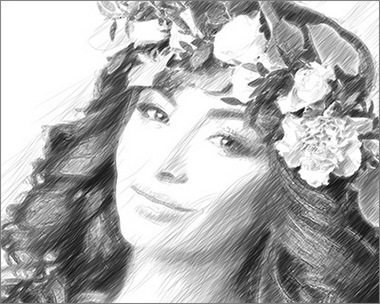
Uniformity = 15
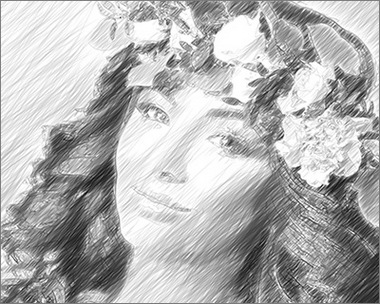
Uniformity = 45
Sensitivity (1-100). The parameter helps to find the edges on the image. The higher the value the more contours will be drawn. To remove odd lines reduce the value of the parameter.
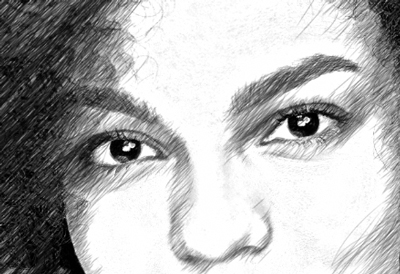
Sensitivity = 40
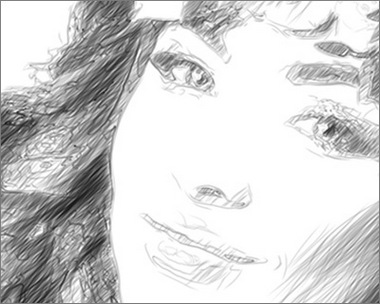
Sensitivity = 90
Hatching Density (1-100). It defines the number of strokes in the image. The higher the value, the less white areas remain.
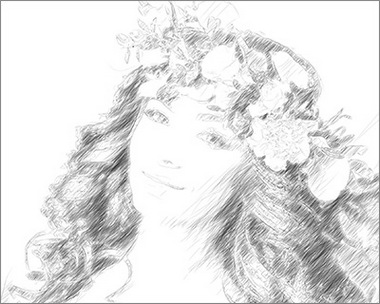
Hatching Density = 5
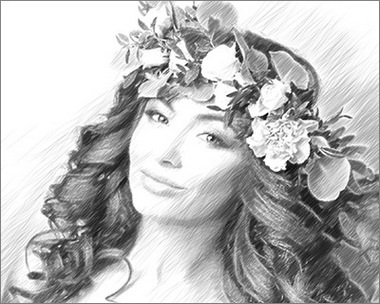
Hatching Density = 50
Stroke Thickness (10-100). This parameter sets the stroke size. If you reduce the value of the parameter the strokes on the picture get thinner and harder, if you increase the value the strokes get wider and blurred on their edges.
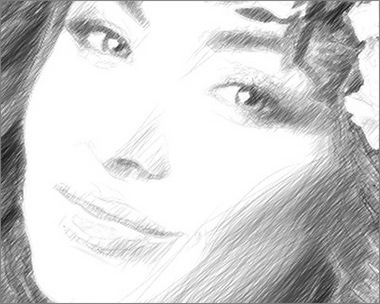
Stroke Thickness = 15
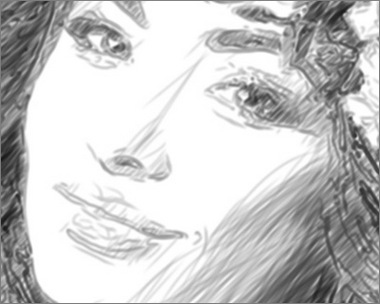
Stroke Thickness = 65
Brightness (1-100). The parameter adjusts the brightness of the strokes. The lower the value, the lighter the strokes are. If you increase the value the strokes become more dense and saturated.
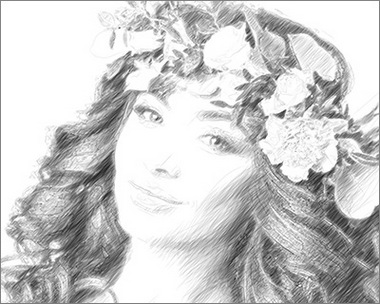
Brightness = 5
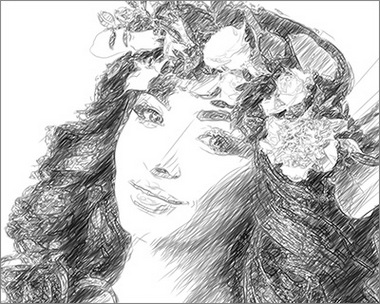
Brightness = 25
Hatching Intensity (1-100). This parameter changes the intensity of the strokes, as if drawn with different pressure and brightness.
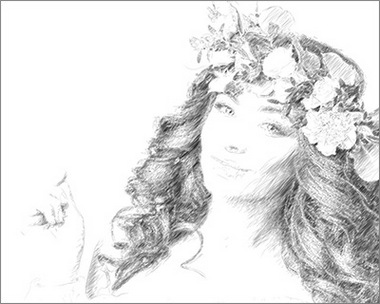
Hatching Intensity = 5
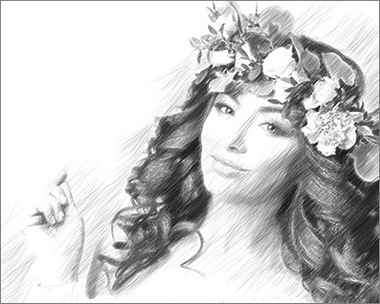
Hatching Intensity = 50
Effects tab:
Charcoal (0-10). The parameter changes the drawing technique from a fine pencil drawing to charcoal. The higher the value of the parameter, the more the result looks like a charcoal drawing.
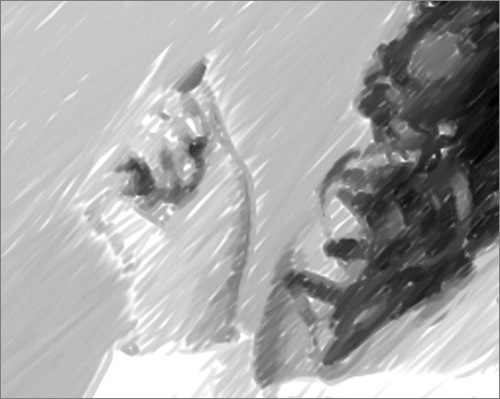
Charcoal = 7
Shadows (1-30). The parameter enhances shadows giving your drawing more volume and depth.
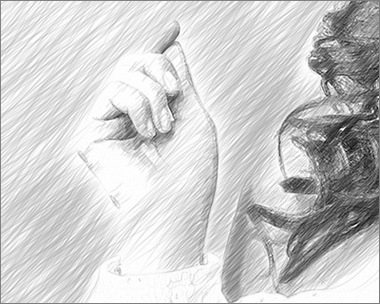
Shadows = 1
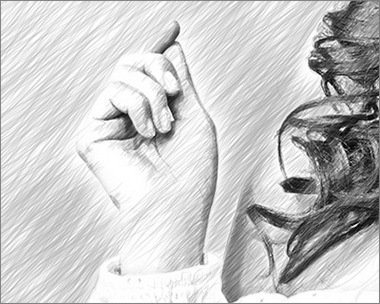
Shadows = 10
Noise (0-100). The parameter adds noise to the image.
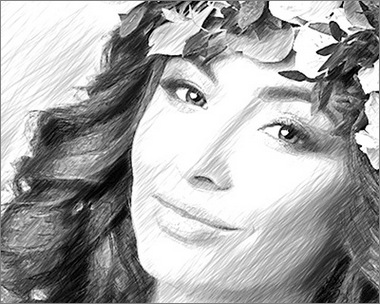
Noise = 10
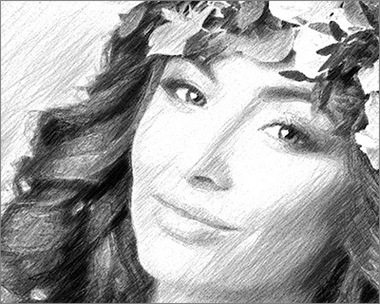
Noise = 100
Contrast (0-100). The parameter increases the difference between highlights and shadows. Using this setting, you can get rid of unnecessary details and make the drawing look "cleaner".
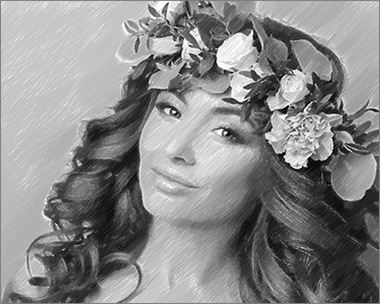
Contrast = 0
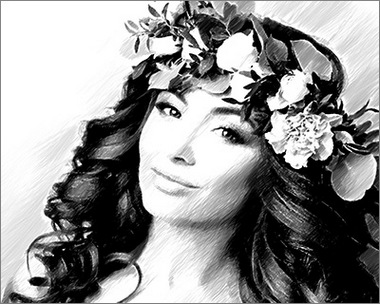
Contrast = 50
Cross-hatching check-box. It activates the special mode of drawing when the pencil strokes are drawn in different directions and intersect.
Attention! This option is only available for the Home Deluxe and Business licenses. In the Home version, you can use this feature only with the watermark. All presets with this option (marked with *) in the Home version can be applied with the AKVIS watermark. To hide the watermark in the Home version, disable the check-box. It's possible to upgrade the license to unlock the premium features.
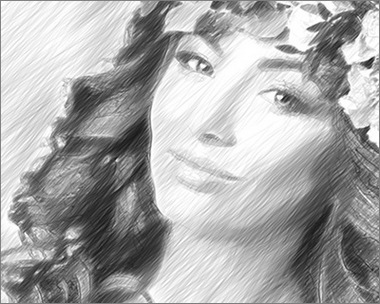
Hatching (the check-box is disabled)
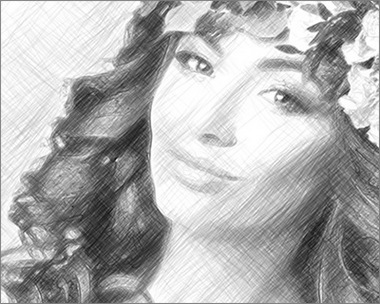
Cross-hatching (the check-box is enabled)
Parameters of cross-hatching:
Rotation Angle (-90 to 90). It defines the angle between the main and additional hatching.
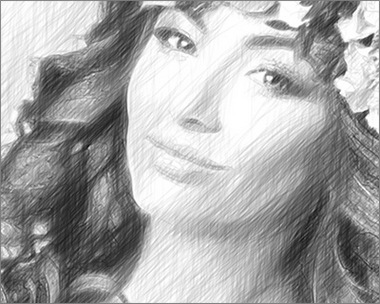
Rotation Angle = 40
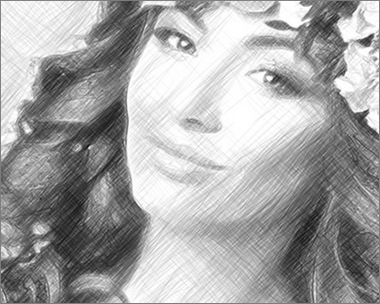
Rotation Angle = 90
Frequency (5-50). It controls the intensity of the additional hatching.
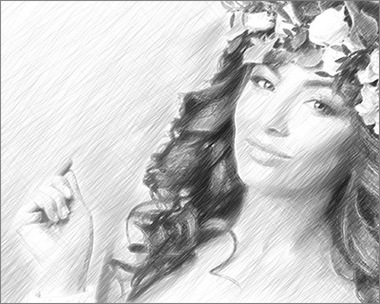
Frequency = 10
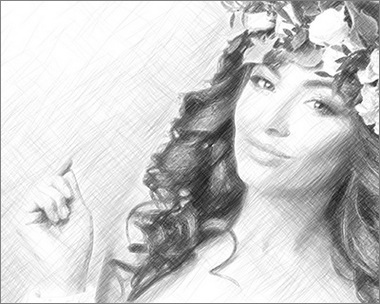
Frequency = 50
The parameters in the Feathering group allow to create a smearing effect, imitate smudging of strokes. Use them to get smoother, softer, and fuzzier lines.
Radius (1-10). This parameter specifies the size of the areas to be blurred.
Strength (1-100). The parameter specifies the amount of blur. The higher the value, the stronger the feathering effect.
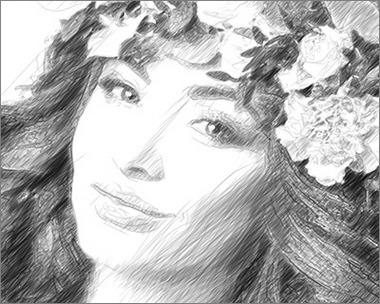
Radius = 1, Strength = 10
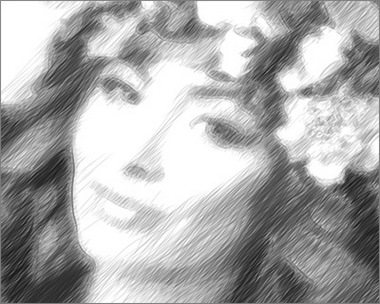
Radius = 5, Strength = 60
Sketch v. 28.1 - Free 10-day Trial
