Pencil Sketch of a Pet
This brief tutorial by David Kelly explains how AKVIS Sketch was used in conjunction with Corel Paint Shop Pro to create a realistic looking color sketch from an existing photograph, with a blurred background.
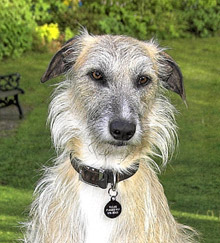
Original Image
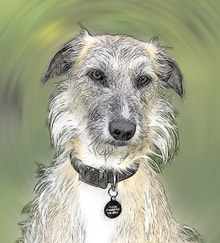
Result
The author writes: "Although this example was created with AKVIS Sketch plug-in used in conjunction with Corel Paint Shop Pro 9, similar results can be obtained with other compatible image editing software packages. Download the unrestricted AKVIS Sketch ten-day free trial and try Sketch out for yourself. You will not be disappointed!"
Note: AKVIS Sketch allows achieving such a result without a photo editor. Using the settings of the Background tab you can blur some parts of the image and imitate a blend of the original photo and the drawing. You can work with the standalone edition as well as with the plugin version.
Let's follow the steps David described:
-
Step 1. I opened the original photo in PSP9.
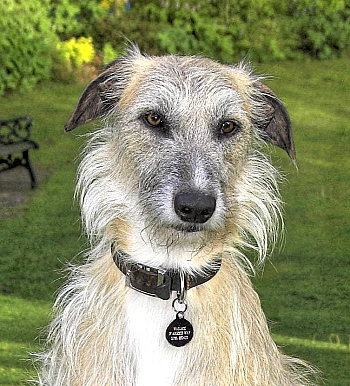
Original Photograph - Step 2. Then I used PSP9's freehand "point-to-point" selection tool to select the dog.
- Step 3. Saved the selection to an Alpha channel; Selections - Load/Save Selection - Save Selection to Alpha Channel - name then save. Saving a selection makes it easy to recall without having to redraw the selection if a mistake is made.
- Step 4. Named and saved image as a Paint Shop Pro image file.
-
Step 5. Inverted the selection, Ctrl+Shift+I. This transferred the selection from the dog to the background area enabling it to be edited separately from the foreground image, i.e. the dog. Next a radial blur effect was applied to the background.
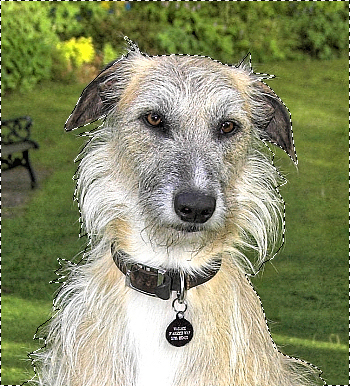
Selection -
Step 6. Selected Adjust -> Blur -> Radial Blur, then entered these settings:
- Blur type = Spin.
- Blur strength (%) = 21, plus Elliptical selected.
- Center: Horizontal offset (%) = 0, Vertical offset (%) = 0, Protect center (%) = 19.Named and saved the radial blur settings as a preset then clicked OK to apply the radial blur effect to the image's background and to return to PSP9's workspace.
-
Step 7. Removed the selection, Ctrl+D.
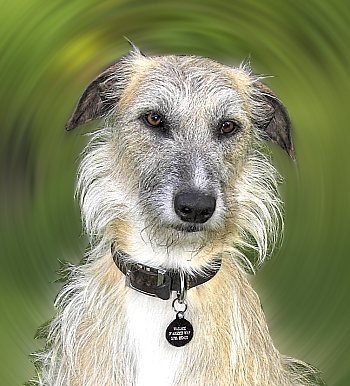
Blurring - Step 8. Called AKVIS Sketch from within PSP9: Effects -> Plugins -> AKVIS -> Sketch.
-
Step 9. Left clicked Sketch's Run button
 to initially apply its default settings.
-
Step 10. Adjusted each of Sketch's Effects and Strokes field's slider controls individually.
These adjustments produced the final parameter values seen below:
- Watercolor = 10,
- Charcoal = 2,
- Coloration = 100,
- Angle = 45,
- Stroke Thickness = 6,
- Min Length/Max Length = 3/10,
- Midtones Intensity = 1,
- Midtones Hatching = 4. -
Step 11. Once satisfied with the final result left clicked Sketch's Apply button
 . This closed Sketch to reveal PSP9's workspace containing the finished color sketch image, which can be seen below.
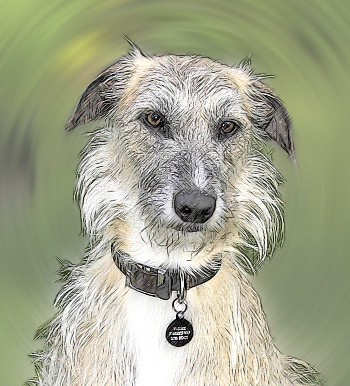
Color Sketch - Step 12. Named and saved the completed color sketch as a TIFF image file.
Sketch v. 28.1 - Free 10-day Trial
