Pencil Sketch of a Pet: Photo-to-Sketch Conversion


Tragen Sie Ihre E-Mail ein, um den AKVIS-Newsletter zu abonnieren.
 
 
  Produkte     Download     Online Store     Tutorial     Support     Impressum      Kundenbereich
en  fr  de  es  pt  it  jp  ru    
 

Tutorial: AKVIS Sketch

Pencil Sketch of a Pet


Entschuldigung. Jetzt ist die Information nur auf Englisch vorhanden. Die deutsche Version wird bald veröffentlicht werden.

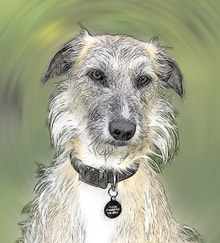
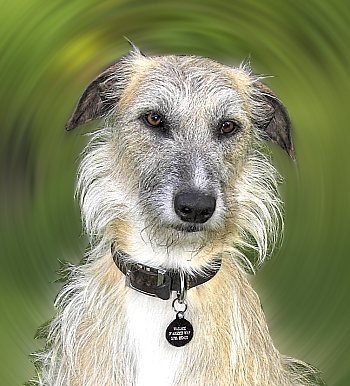
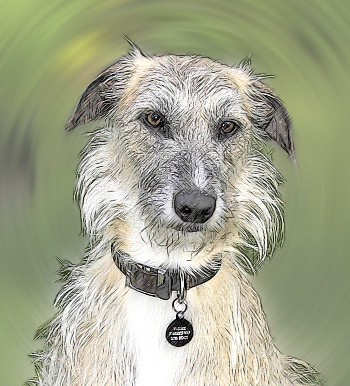
This brief tutorial by David Kelly explains how AKVIS Sketch was used in conjunction with Paint Shop Pro 9 to create a realistic looking colour sketch from an existing photograph.
Source image Result
Source image Result

The author writes:

"Although this example was created with AKVIS Sketch plug-in used in conjunction with Corel Paint Shop Pro 9, similar results can be obtained with other compatible image editing software packages. Download the unrestricted AKVIS Sketch ten-day free trial and try Sketch out for yourself. You will not be disappointed."

      Note from the AKVIS team:
      Moreover, the current version of AKVIS Sketch allows achieving such a result without using of a photo editor. With the Background tab you can blur some parts of the image and imitate a blend of the original photo and the drawing. Now you can work with the standalone edition as well as with the plugin version.

Let's follow the steps David described:

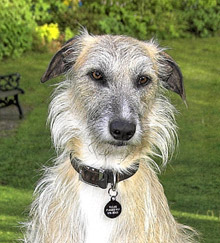
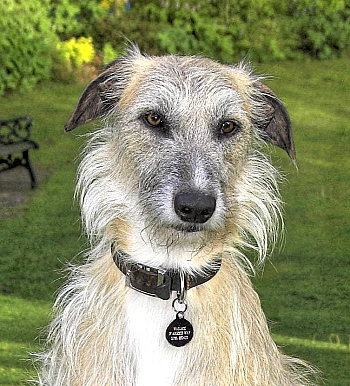
  • Step 1. I opened the original photo in PSP9.
    Original photograph
    Original photograph
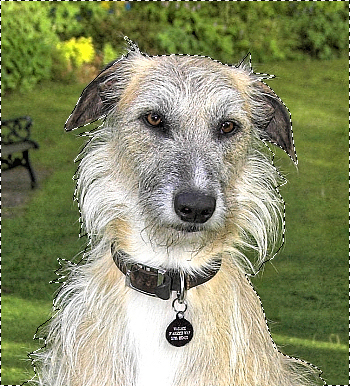
  • Step 2. Then I used PSP9's freehand "point-to-point" selection tool to select the dog.
  • Step 3. Saved the selection to an Alpha channel; Selections - Load/Save Selection - Save Selection to Alpha Channel - name then save. Saving a selection makes it easy to recall without having to redraw the selection if a mistake is made.
  • Step 4. Named and saved image as a Paint Shop Pro image file.
  • Step 5. Inverted the selection, Ctrl+SHIFT+I. This transferred the selection from the dog to the background area enabling it to be edited separately from the foreground image, i.e. the dog. Next a radial blur effect was applied to the background.
    Background selected
    Background selected
  • Step 6. Selected Adjust - Blur - Radial Blur, then entered these settings:

    - Blur type = Spin.

    - Blur strength (%) = 21, plus Elliptical selected.

    - Center: Horizontal offset (%) = 0, Vertical offset (%) = 0, Protect center (%) = 19.

    Named and saved the radial blur settings as a preset then clicked OK to apply the radial blur effect to the image's background and to return to PSP9's workspace.

  • Step 7. Removed the selection, Ctrl+D.
    Selection removed
    Selection removed
  • Step 8. Called AKVIS Sketch from within PSP9 - Effects - Plugins - AKVIS - Sketch.
  • Step 9. Left clicked Sketch's Run button to initially apply its default settings.
  • Step 10. Adjusted each of Sketch's Effects and Strokes field's slider controls individually.

    These adjustments produced the final parameter values seen below:

    - Watercolor = 10,

    - Charcoal = 2,

    - Coloration = 100,

    - Angle = 45,

    - Size = 6,

    - Min Length/Max Length = 3/10,

    - Midtones Intensity = 1,

    - Midtones Hatching = 4,

    - Sharpen = 14.

  • Step 11. Once satisfied with the final result left clicked Sketch's Apply the result to the image button . This closed Sketch to reveal PSP9's workspace containing the finished colour sketch image, which can be seen below.
    The completed colour sketch
    The completed colour sketch
  • Step 12. Named and saved the completed colour sketch as a Tiff image file.
 
Vorgehensweise Vorgehensweise
   — Arbeitsbereich — Arbeitsbereich
   — Funktionsweise — Funktionsweise
   — Klassischer Stil — Klassischer Stil
   — Künstlerischer Stil — Künstlerischer Stil
   — Hintergrund-Effekte — Hintergrund-Effekte
   — Text (Signatur) hinzufügen — Text (Signatur) hinzufügen
   — Zeichnung auf Leinwand imitieren — Zeichnung auf Leinwand imitieren
   — Presets benutzen — Presets benutzen
   — Optionen — Optionen
   — Stapelverarbeitung — Stapelverarbeitung
Beispiele Beispiele
   — Zeichnung einer Blume — Zeichnung einer Blume
   — Farbzeichnung aus Foto — Farbzeichnung aus Foto
   — Umwandlung eines Videos in ein Cartoon — Umwandlung eines Videos in ein Cartoon
   — Zeichnung in Pastell-Technik — Zeichnung in Pastell-Technik
   — Porträt-Zeichnung — Porträt-Zeichnung
   — Aquarellbild aus Foto — Aquarellbild aus Foto
   — Gemälde erstellen — Gemälde erstellen
   — Wintertraum — Wintertraum
   — Fotos künstlerisch bearbeiten — Fotos künstlerisch bearbeiten
   — Strichzeichung aus Foto — Strichzeichung aus Foto
   — Aquarellbild eines Wolfes — Aquarellbild eines Wolfes
   — Portrait aus einem Zeitungsausschnitt — Portrait aus einem Zeitungsausschnitt
   — Stiller Hafen — Stiller Hafen
   — Ein süßes Paar — Ein süßes Paar
   — Eingerahmte Schwarz-Weiß-Zeichnung — Eingerahmte Schwarz-Weiß-Zeichnung
   — Vom Traum zur Realität — Vom Traum zur Realität
   — Künstler bei der Arbeit — Künstler bei der Arbeit
   — Freunde im Café (Zeichnung & Unschärfe) — Freunde im Café (Zeichnung & Unschärfe)
   — Zeichnung auf vergilbtem Papier — Zeichnung auf vergilbtem Papier
   — Strichzeichnung aus Foto: Anime Mädchen — Strichzeichnung aus Foto: Anime Mädchen
   — Zwei Lieblings-Hunde — Zwei Lieblings-Hunde
   — Orchideen: ein Aquarellbild — Orchideen: ein Aquarellbild
   — Richtung der Schraffierung festlegen — Richtung der Schraffierung festlegen
   — Zeichnung aus Foto: Kardinalvogel — Zeichnung aus Foto: Kardinalvogel
   — Varianten einer Rose — Varianten einer Rose
   — Überblendung von Foto&Zeichnung — Überblendung von Foto&Zeichnung
   — Mont Saint Michel — Mont Saint Michel
   — Galaabend — Galaabend
   — Pariser Chic — Pariser Chic
   — Zeichnungen in Videoclip — Zeichnungen in Videoclip
   — Schattierungen festlegen — Schattierungen festlegen
   — Blindenführhund: Comics erstellen — Blindenführhund: Comics erstellen


nach oben


   Datenschutzhinweis | Sitemap | Suchwort eingeben    
   Kontakt | Twitter | Facebook | YouTube Channel    
| English  |Français  | Deutsch  |Español  |Português  |Italiano  |日本語  |Pусский  | © 2004-2012 AKVIS. Alle Rechte vorbehalten.