Schloss Versailles: Reise in Die Vergangenheit
Die Autorin dieses Beispiels ist Irine Briz (Comer See, Italien).
"Als ich vor einiger Zeit beim Durchblättern eines Fotoalbums auf ein Bild von Versailles stieß, war ich wieder einmal von seiner Schönheit überwältigt. Ich stellte mich vor, wie der Schloß in der Vergangenheit ausgesehen haben muss. Es inspirierte mich dazu, ein ungewöhnliches Bild zu erstellen, wo die Vergangenheit und die Gegenwart auf eine fantastische Weise fliessend ineinander übergehen.
Um diese Idee zu verwirklichen, verwenden wir das Programm AKVIS Sketch."
- Schritt 1. Starten Sie das Programm AKVIS Sketch.
-
Schritt 2. Öffnen Sie ein Foto, indem Sie auf
 klicken. Gleich nach dem Laden des Bildes wird es automatisch bearbeitet. Das Ergebnis wird in dem Vorschaufenster des Original-Registers angezeigt.
-
Schritt 3. Wir werden das Foto in eine Zeichnung später umwandeln. Und jetzt klicken Sie auf das Hintergrund-Register und wählen Sie den Modus Zeichnung & Foto.
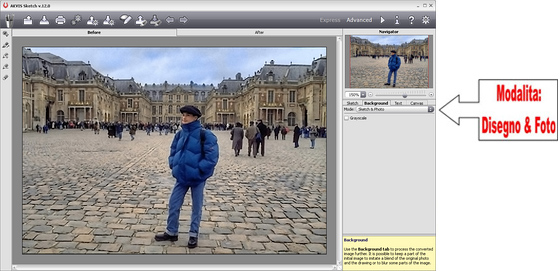
Modus auswählen -
Schritt 4. Mit dem roten Stift
 markieren Sie die Bereiche, die unverändert bleiben sollen.
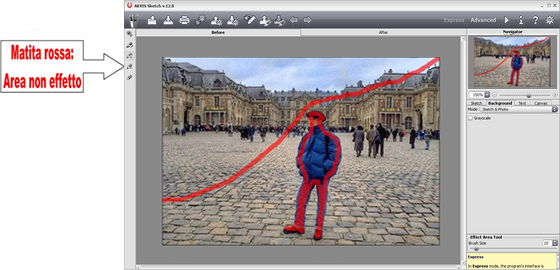
Bereich des Fotos (Roter Stift) -
Schritt 5. Benutzen Sie den blauen Stift
 , um die Bereiche zu markieren, die in eine Zeichnung umgewandelt werden sollen. Fehler können mit dem Radiergummi-Werkzeug
  beseitigt werden.
Die Größe des Stiftes und des Radiergummis kann über den Parameter Pinselgröße geändert werden, der mit einem rechten Mausklick auf das Bild angezeigt wird.
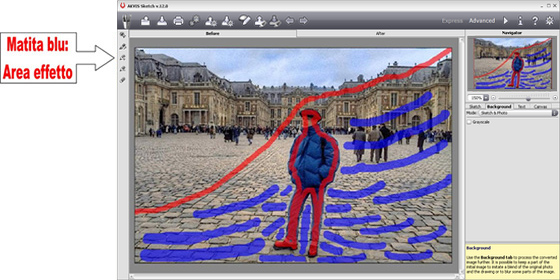
Zeichnung-Bereich (Blauer Stift) -
Schritt 6. Klicken Sie auf
 , um die Bearbeitung zu starten. Das Ergebnis wird in dem Ergebnis-Register angezeigt.
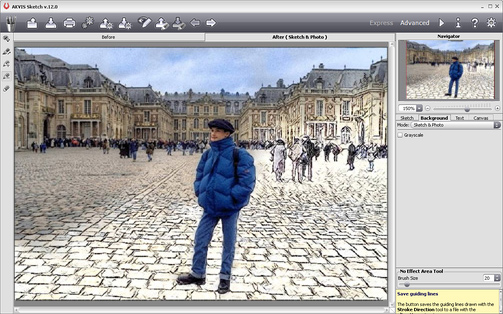
Kombination von Zeichnung und Foto -
Schritt 7. Wenn Sie mit dem Bearbeitungsergebnis zufrieden sind, können Sie mit Detailverbesserung beginnen.
Wählen Sie das Zeichnung-Register und passen Sie die Parameter wie folgt an:
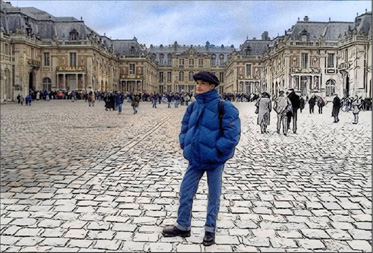
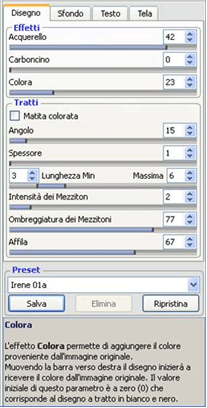
Ich bevorzuge, dass die Zeichnung "sanfter" aussieht. Sie können aber die Einstellungen anders anpassen:
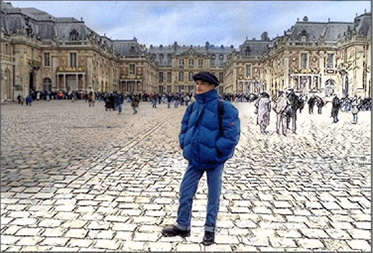
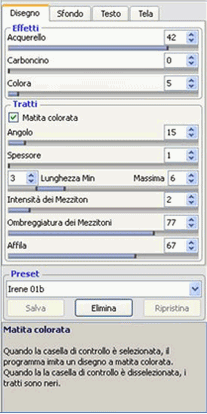
-
Schritt 8. Vielleicht möchten Sie Ihr Kunstwerk signieren. Dazu wählen Sie das Register Text, aktivieren Sie das Kontrollkästchen Text hinzufügen und tragen Sie Ihren Namen oder Titel des Bildes ins Feld ein. Passen Sie die Schrift, ihre Größe und Farbe, sowie die Position der Signatur an.
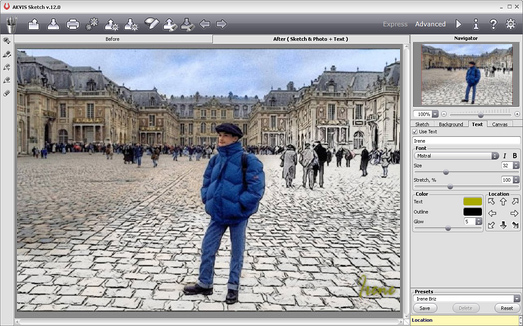
Signatur hinzufügenUm das Ergebnis zu speichern, klicken Sie auf
 .
.
Nun wurde meine Idee mit ein paar Mausklicken verwirklicht!
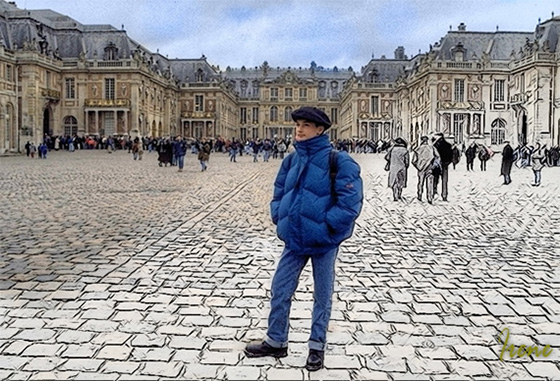
Ergebnis
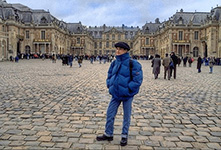
Originalbild
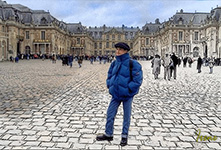
Ergebnis
Sketch v. 28.1 - 10-Tage-Testversion
