Versailles: Travelling To The Past
The author of this example is Irine Briz (Lake Como, Italy).
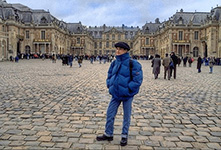
"While thumbing through a photo album, I lingered on a photo of the Versailles Palace, and was once again surprised by its beauty. I reflected on how it would have looked in the past. It inspired me to make an image where the past and present merge!
In order to realize what I saw in my mind’s eye, we will take advantage of the capabilities of the program AKVIS Sketch."
 |
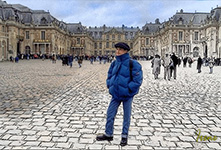 |
| Original Image | Result |
- Step 1. Start the program AKVIS Sketch.
-
Step 2. Open a photo by pressing
 . Soon after the images loads, a preview of the processed image with default settings can be seen in the Quick Preview Window in the Before tab.
-
Step 3. The photo will be transformed into a drawing later. For now click on the Background tab and select Sketch & Photo. The tools on the left become active.
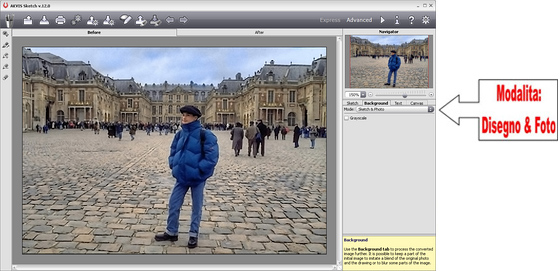
Choosing an operation mode for the image -
Step 4. With the help of the red pencil tool
 we will indicate the areas that will be left in their original condition.
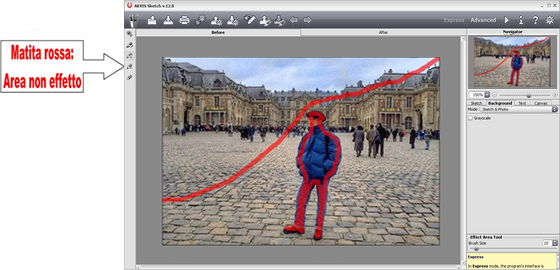
Photograph Area (Red Pencil) -
Step 5. Use the blue pencil
 to indicate the areas that will be transformed into a drawing. Mistakes can be removed by the Eraser tool
  .
.
The size of the pencils and eraser can be changed with the parameter Brush Size, which is shown by right clicking on the image.
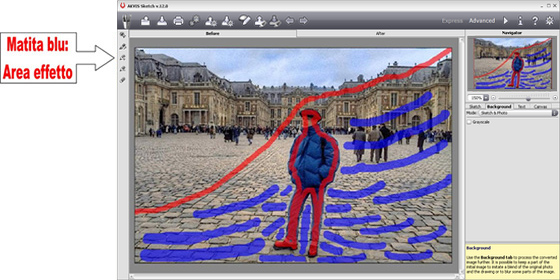
Drawing Area (Blue Pencil) -
Step 6. Press the
 button to start the sketch process. The result will be shown in the After tab.
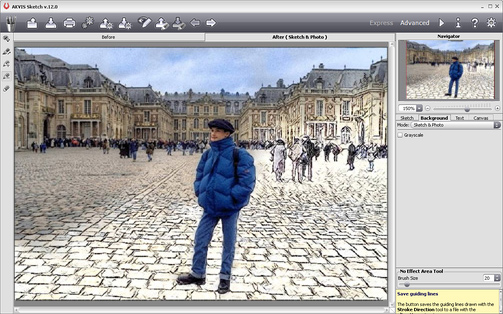
Combination of Drawing and Photograph -
Step 7. If the selected areas turned out well, we can focus on perfecting the details of the sketch.
Select the Sketch tab and make changes to the parameters with the following settings.
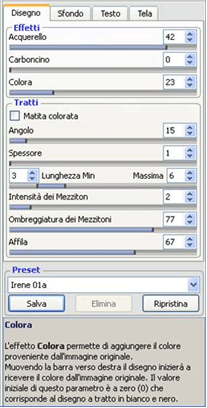
Remember that the Coloration parameter is the only one whose change can be seen immediately, without having to press the button
.
I preferred the gentler appearance of the first version, but if you prefer a bolder look, check the box next to Original Colors and select different values for the parameters.
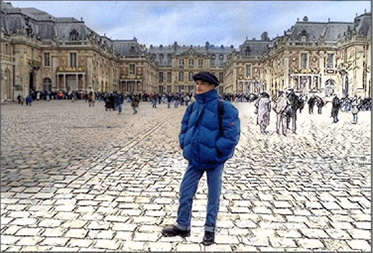
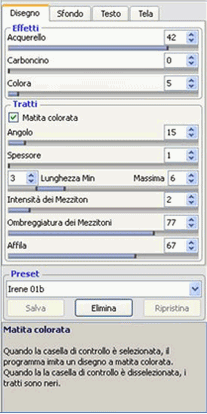
-
Step 8. Perhaps you would like to sign your work of art. To do so, click on the Text tab, check the box next to Use Text and enter your name (or the title of the drawing) into the field, select its font, its size and color, and also its position on the image.
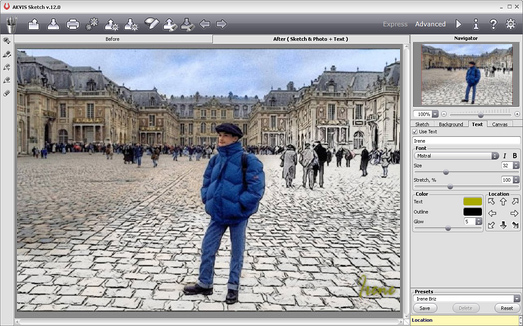
Addition of SignatureTo save the result press the
 button.
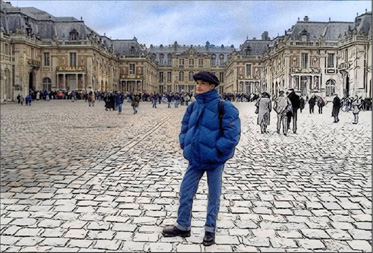
And look - with just a few clicks my dream has been realized!
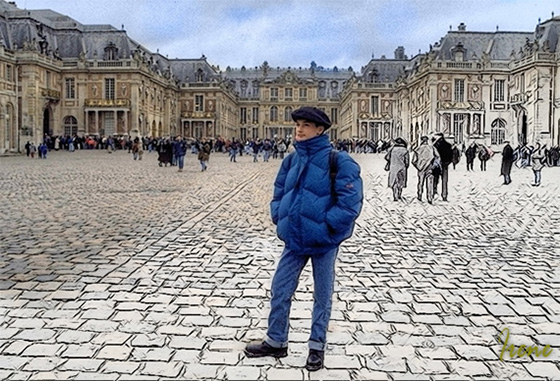
Result
Sketch v. 28.1 - 10日間の評価期間
