Autoshow: eine Zeichnung aus einem Foto
Der Autor ist Alexey Pasko. Das Beispiel wurde in Adobe Photoshop CS mit den Plugins AKVIS Enhancer und AKVIS Sketch erstellt.
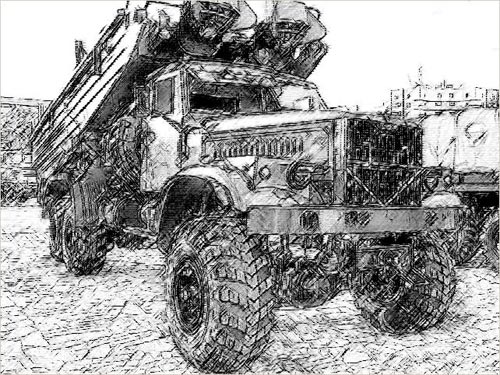
Das Ziel des Tutorials ist es, ein Foto von der Automobilausstellung in eine Bleistiftzeichnung zu verwandeln.
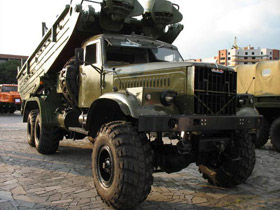
Ausgangsbild
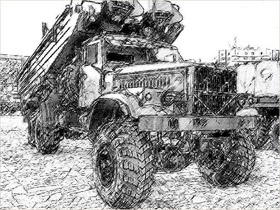
Ergebnis
-
Schritt 1.Zunächst sollten wir möglichst viele Details zur Geltung bringen. Je mehr Details auf dem Foto sichtbar sind, desto detaillierter wird die Bleistiftzeichnung.
Erstellen Sie eine Kopie der Hintergrundebene und rufen Sie AKVIS Enhancer auf. Das Plugin hilft Ihnen, Details im Schatten hervorzuheben.
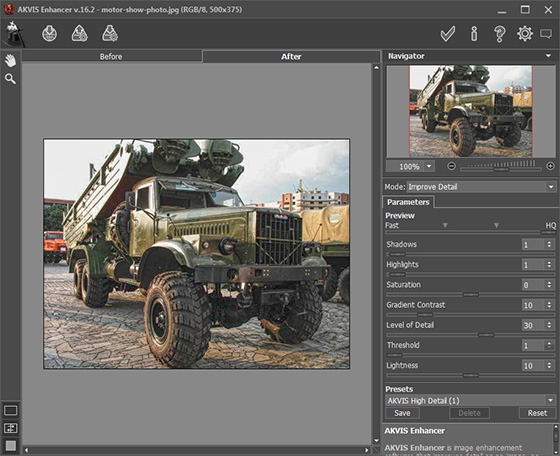
Dann benutzen Sie den Filter Unscharf maskieren, um die Schärfe des Bildes sowie seine Detailstufe zu erhöhen. Passen Sie die Einstellungen wie folgt an: Stärke - 70%, Radius - 0.5 Pixel, Schwellenwert - 0 Stufen.
Das Bild sieht nun so aus:
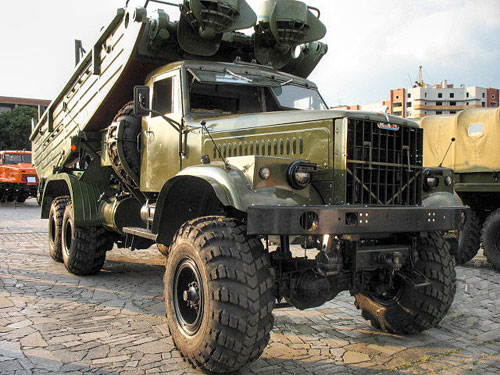
-
Schritt 2. Sicherheitshalber erstellen Sie eine Kopie der bearbeiteten Ebene. Rufen Sie AKVIS Sketch auf.
Passen Sie die Einstellungen an: reduzieren Sie den Wert des Parameters Intensität der Mitteltöne bis 4 und erhöhen Sie den Wert des Parameters Schraffierung der Mitteltöne bis 70. Andere Einstellungen müssen unverändert bleiben.
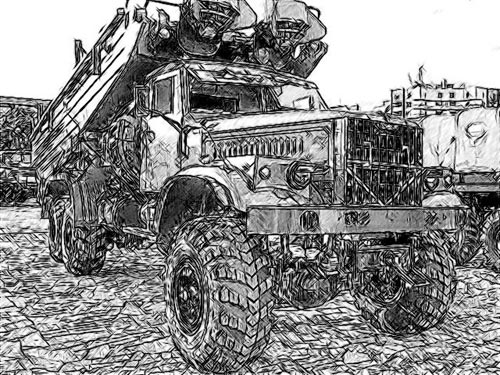
Der Platz in dem Bild ist gepflastert und er wurde von AKVIS Sketch detailliert bearbeitet. Überflüssige Striche ziehen die Aufmerksamkeit vom Hauptobjekt ab. Man kann das Pflaster vor der Anwendung von AKVIS Sketch weichzeichnen, es gibt aber noch eine andere Möglichkeit.
Nehmen Sie die Änderungen an, indem Sie auf
 klicken.
-
Schritt 3. Erstellen Sie eine neue Einstellungsebene Tonwertkorrektur mit einer Maske und hellen Sie den Boden auf.
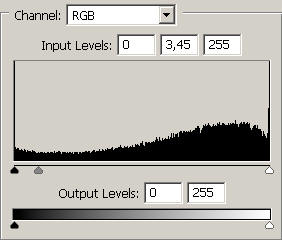
Die Anzahl der Striche wurde reduziert, die Schärfe des Striche bleibt aber erhalten.
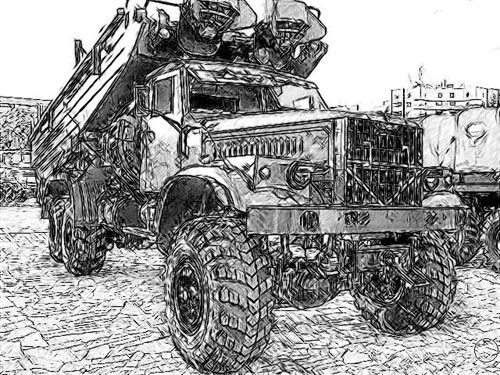
-
Schritt 4. Reduzieren Sie die Einstellungsebene und die Ebene mit der Zeichnung auf eine Ebene und wenden Sie darauf den Photoshop-Filter Grobes Pastell an. Dies wird gemacht, damit die Zeichnung nicht zu "glatt" wirkt und das Papier eine Textur bekommt.
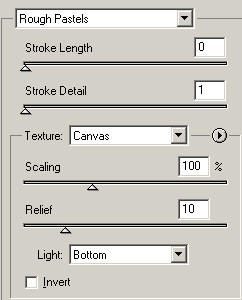
-
Schritt 5. Um der Zeichnung den letzten Schliff zu geben, fügen Sie ein bisschen mehr Tonwertkorrektur für besseren Kontrast hinzu.
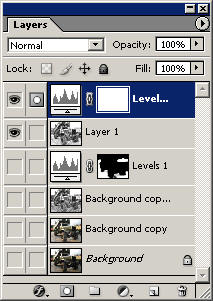
Die Ebenen-Palette sieht nun wie folgt aus:
Hier ist das Ergebnis:
Sketch v. 28.1 - 10-Tage-Testversion
