Graphic software for Windows Mac graphic software  
Tragen Sie Ihre E-Mail ein, um auf AKVIS-Newsletter zu abonnieren.
 
  
  Produkte     Download     Online Store     Tutorial     Support     Impressum
en  fr  de  es  pt  it  jp  ru    
 

Tutorial: AKVIS Sketch

Pastel drawing technique


Entschuldigung. Jetzt ist die Information nur auf Englisch vorhanden. Die deutsche Version wird bald veröffentlicht werden.

Pastel crayon is a kind of chalk. One usually draws with chalk or pastel on textured paper, but unlike chalk, pastel forms velvety strokes with soft porous edges and looks more intense in color.

In this example we will show you how to make a pastel simulation out of a digital photo.

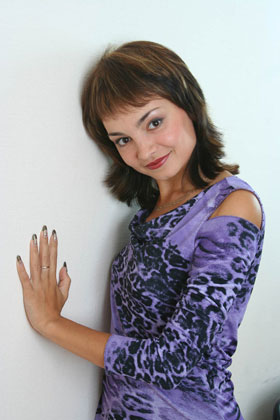
  • Step 1. Open the photo in Adobe Photoshop.
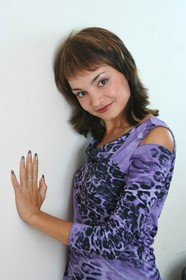
    A portrait of a girl
  • Step 2. Make a copy of the background layer. To do this in the Layers palette drag the backround layer to Add a New Layer button Add a new layer at the bottom of the palette.
    Layers palette: backround layer copy
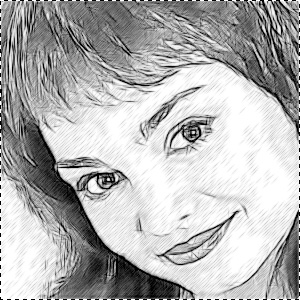
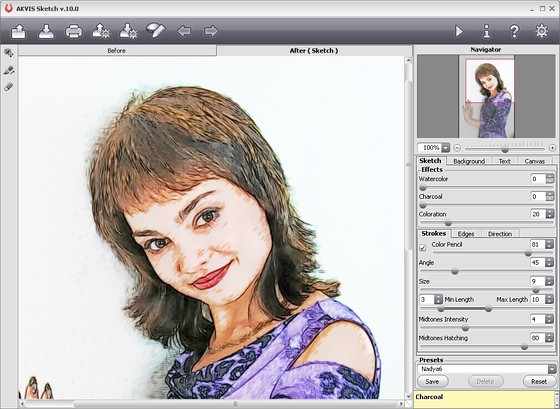
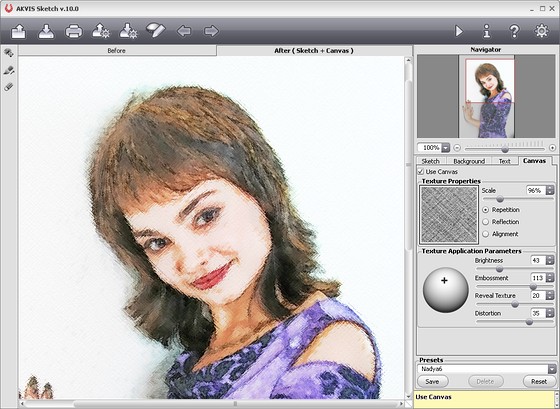
  • Step 3. Being in the background layer copy call AKVIS Sketch and set parameters of the plug-in. Press the button Convert into drawing, to convert the photo into a drawing with chosen settings.
    Resulted convertion with custom settings
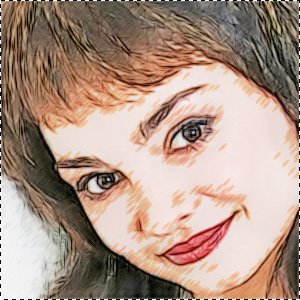
  • Step 4. Apply the result by pressing the button Apply the result. The plug-in window will be closed and back in Photoshop window we'll have an image with two layers: background layer - the original photo and background copy - a color pencil drawing.
    Color pencil drawing
  • Step 5. Lets change the pencil drawing layer blending mode: in the Layers palette choose Luminosity blending mode.
    Layers Palette

    In this mode the resulted color will retain Luminosity of the active layer pixels but hue and saturation will be taken from the underlayer. As a result the characteristic strokes of the drawing will retain and the colors will become more saturated.

    Below, in the left image you see the original photo, and in the right one - the drawing after changing the layer blending mode.

    Original photo of a girl Color drawing after changing of  layer blending mode
  • Step 6. In Adobe Photoshop there is a Rough Pastels filter. It can create an effect of drawing on textured paper that is characteristic of drawing in pastel.

    Call this filter and apply it with the following settings:

    Rough Pastels filter settings
  • Step 7. Lets decrease the filter effect. To do it choose in Edit menu Fade and in the dialogue box set Opacity to 50.

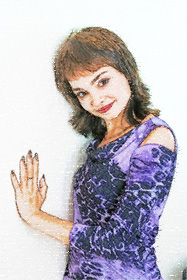
    Just a few simple steps and we have our pastel ready. In the small picture the paper texture is not well seen, that's why we recommend to click the image below to open a larger copy of it in a new window.
    A pastel out of a photo
    Click the image to open a larger copy of it in a new window

 
Vorgehensweise Vorgehensweise
   — AKVIS Sketch plug-in — AKVIS Sketch plug-in
   — AKVIS Sketch stand-alone — AKVIS Sketch stand-alone
   — Foto in Zeichnung umwandeln — Foto in Zeichnung umwandeln
   — Hintergrund-Register — Hintergrund-Register
   — Leinen-Register — Leinen-Register
Beispiele Beispiele
   — Zeichnung einer Blume — Zeichnung einer Blume
   — Farbzeichnung — Farbzeichnung
   — Porträt-Zeichnung — Porträt-Zeichnung
   — Aquarellbild — Aquarellbild
   — Gemälde erstellen — Gemälde erstellen
   — Fotos künstlerisch bearbeiten — Fotos künstlerisch bearbeiten
   — Wintertraum — Wintertraum
   — A woman in a Tub — A woman in a Tub
   — Aquarellbild eines Wolfes — Aquarellbild eines Wolfes
   — Stiller Hafen — Stiller Hafen
   — Ein süßes Paar — Ein süßes Paar
   — Vom Traum zur Realität — Vom Traum zur Realität
   — Künstler bei der Arbeit — Künstler bei der Arbeit


   Datenschutzhinweis | Sitemap | Suchwort eingeben | English  | Français  | Deutsch  | Español  | Português  | Italiano  | 日本語  | Pусский  | © 2004-2008, AKVIS Software Inc. Alle Rechte vorbehalten.