Graphic software for Windows Mac graphic software  
AKVIS ニュースの購読を申し込むには, 電子メールアドレスを入力してください。
 
  
  プログラム     ダウンロード     サイバーショップ     チュートリアル     サポート     会社情報
en  fr  de  es  pt  it  jp  ru    
 

チュートリアル: AKVIS Sketch

Pastel drawing technique


あいにく, このページは英語にだけ使用可能です。日本語のバージョンは遠からず出ります。

Pastel crayon is a kind of chalk. One usually draws with chalk or pastel on textured paper, but unlike chalk, pastel forms velvety strokes with soft porous edges and looks more intense in color.

In this example we will show you how to make a pastel simulation out of a digital photo.

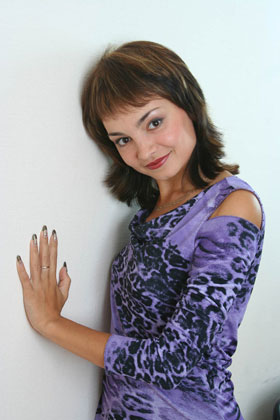
  • Step 1. Open the photo in Adobe Photoshop.
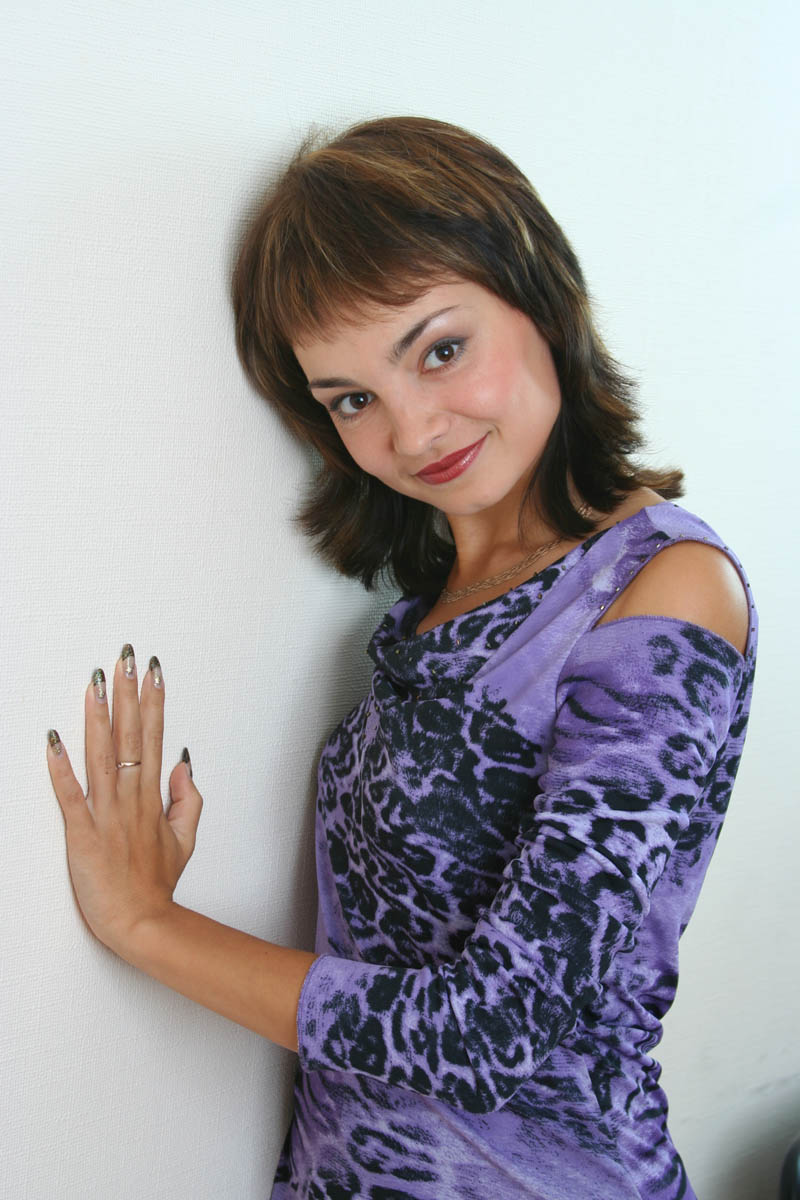
    A portrait of a girl
  • Step 2. Make a copy of the background layer. For this purpose drag the backround layer to Add a New Layer button Add a new layer at the bottom of the Layers palette.
    Layers palette: backround layer copy
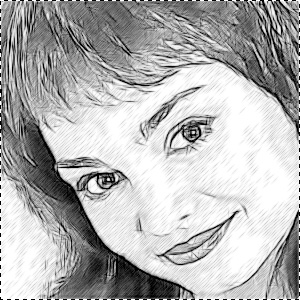
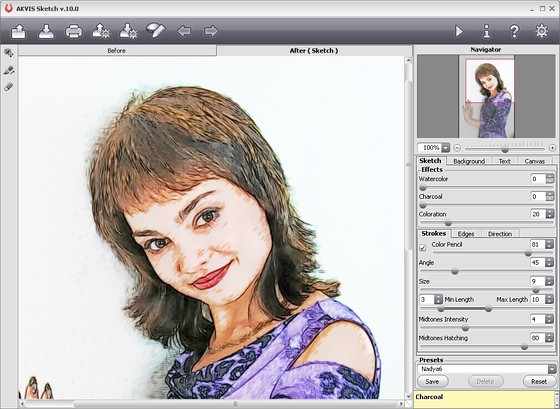
  • Step 3. Being on the copy of the background layer, call AKVIS Sketch and set parameters of the plug-in. Press the button Convert into drawing, to convert the photo into a drawing with the chosen settings.
    Resulted convertion with custom settings
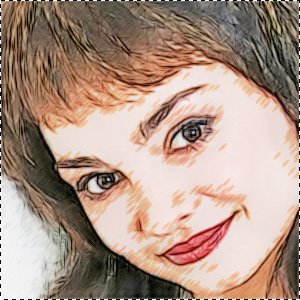
  • Step 4. Apply the result by pressing the button Apply the result. The plug-in window will be closed and back in the Photoshop workspace we'll have an image with two layers: the original photo and a color pencil drawing.
    Color pencil drawing
  • Step 5. Let's change the blending mode for the layer with the pencil drawing : select Luminosity blend mode in the Layers palette.
    Layers Palette

    In this mode the resulted color will retain luminosity of the active layer's pixels, but hue and saturation will be taken from the underlayer. As a result, the strokes that characterize a pencil drawing will be kept, while the colors will get more saturated.

    On the left image you can see the original photo, and on the right - the drawing after changing the layer blending mode.

    Original photo of a girl Color drawing after changing of  layer blending mode
  • Step 6. There is a Rough Pastels filter in Adobe Photoshop. It can create an effect of drawing on textured paper, which is typical for a pastel drawing.

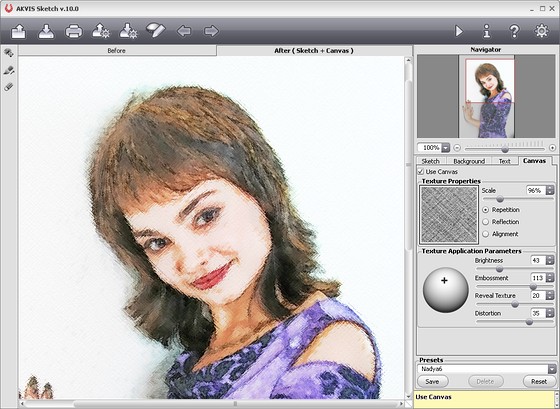
    Note: Starting with version 6 of AKVIS Sketch you can add a texture to the image using the Canvas tab of AKVIS Sketch. However the tutorial has been done with an earlier version, so it continues as follows:

    Call the filter Rough Pastels and apply it with the following settings:

    Rough Pastels filter settings
  • Step 7. Let's reduce the filter effect. For this purpose choose Fade in the Edit menu and in the emerging dialogue box set Opacity to 50.

    Just a few simple steps and we have our pastel ready. On a small picture the paper texture is hardly visible, that's why we recommend to click on the image below to open a larger copy in a new window.
    A pastel out of a photo
    Click on the image to open a larger copy in a new window

 
操作方法 操作方法
   — AKVIS Sketch plug-in — AKVIS Sketch plug-in
   — AKVIS Sketch stand-alone — AKVIS Sketch stand-alone
   — Sketch — Sketch
   — Background — Background
   — キャンバス — キャンバス
操作例 操作例
   — チューリップの鉛筆画 — チューリップの鉛筆画
   — カラー スケッチ — カラー スケッチ
   — 人物写真の鉛筆画 — 人物写真の鉛筆画
   — 水彩画 — 水彩画


   プライバシー | サイトマップ | Web サイトの検索 | English  | Français  | Deutsch  | Español  | Português  | Italiano  | 日本語  | Pусский  | © 2004-2008, AKVIS Software Inc. All rights reserved.