Tecnica di disegno a pastello
Il pastello è un tipo di gesso. Uno solitamente disegna col gesso o con il pastello su carta ruvida, ma a differenza del gesso, il pastello crea forme vellutate; la morbidezza dei contorni ed il colore fresco e brillante ne fanno uno dei materiali per dipingere con effetti più gradevoli.
Questo tutorial vi mostra come trasformare una fotografia digitale in un disegno a pastello. Si può ottenere questo risultato usando i nostri file, scaricare l'immagine originale ed il file del preset con pastel.zip.
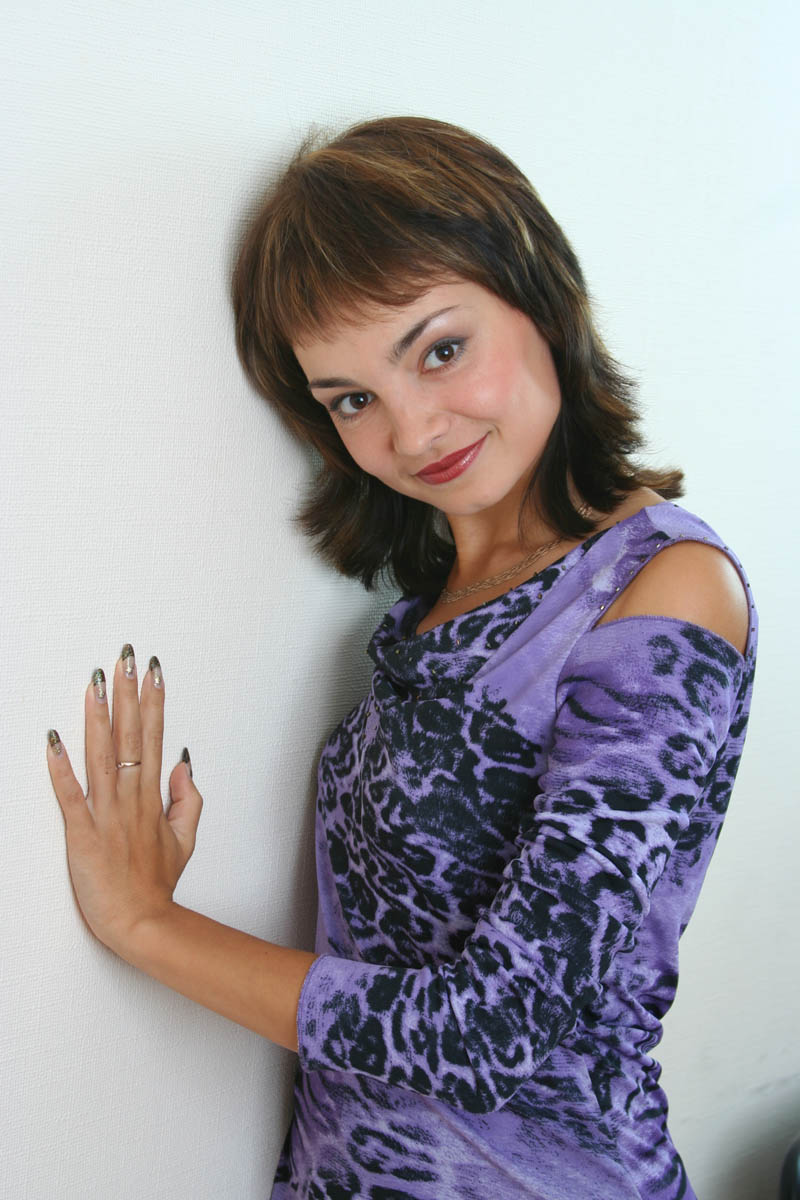

Fotografia originale e disegno a pastello
-
Passaggio 1. Eseguire AKVIS Sketch ed aprire la foto:
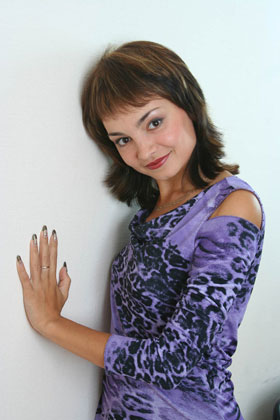
Ritratto di una ragazza -
Passaggio 2. Regolare le impostazioni di conversione "foto-in-disegno" usando la Finestra di anteprima.
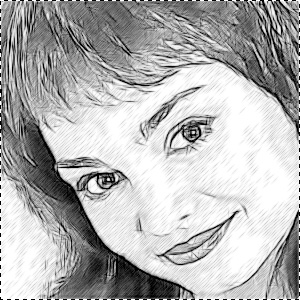
Impostazioni predefinite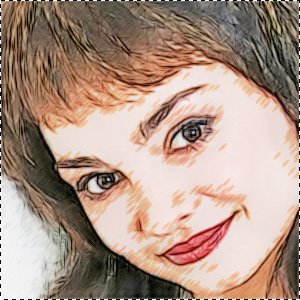
Impostazioni personalizzateImpostare i parametri, non al massimo, per ridurre l’ombreggiatura. Aggiungere colore al disegno cercando di rendere i tratti intensi e marcati.
Colora = 20;
Colori originali = 81;
Spessore = 9;
Intensità dei mezzitoni = 4;
Ombreggiatura dei mezzitoni = 80;
Consistenza bordi = 90.Cliccare su
 per convertire l’intera immagine.
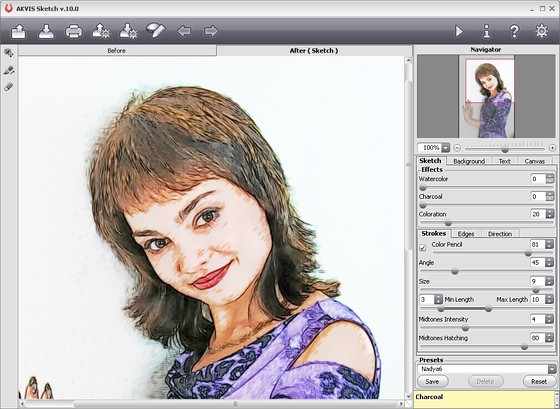
-
Passaggio 3. Per aggiungere l'effetto di pittura su carta ruvida usare una texture: passare alla scheda Tela, attivare la casella Usa Tela, selezionare una texture nella Libreria e regolare le impostazioni.
Cliccare su
per elaborare l'immagine. La texture ha cambiato totalmente l'immagine: i tratti sono sfocati ed ombreggiati, i bordi sono morbidi e delicati. Questo è il risultato desiderato!
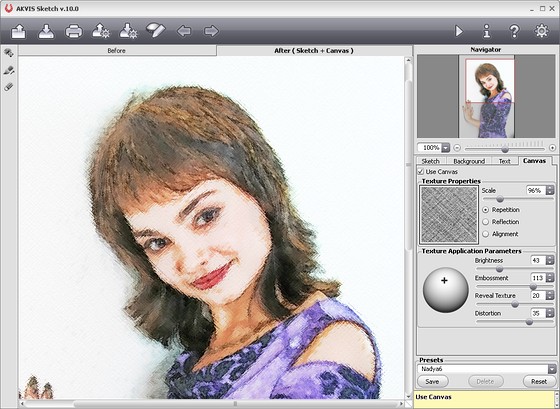
Tre semplici passaggi…ed il disegno a pastello è pronto!
Su una piccola immagine l'effetto è difficilmente visibile, questo è il motivo per cui vi consigliamo di cliccare sull’immagine qui sotto e aprire una copia più grande in una nuova finestra.
Disegno a pastello da una foto
(cliccare per visualizzare la versione ingrandita in una finestra separata)
Sketch v. 28.1 - 10-giorni di prova gratuita
