Artista al lavoro
L'autore di questo tutorial è Heike Nocher.
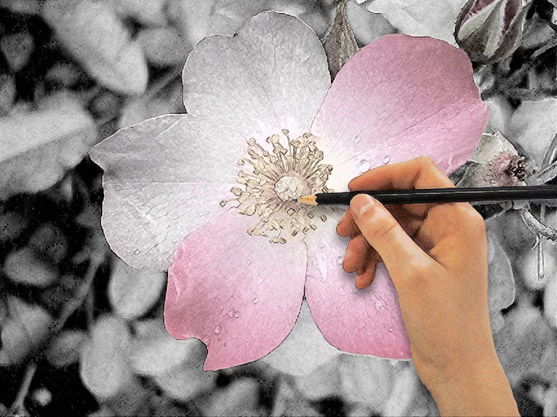
Tutte le opere d'arte generano in ognuno di noi ammirazione per il talento degli artisti. Tuttavia, di solito si vede solo il risultato finale, non il processo di creazione. In questo tutorial cercheremo di immaginare un artista al lavoro. L'autore Heike Nocher spiega, con una rappresentazione grafica, il procedimento di come si disegna un fiore. Utilizzando AKVIS Sketch sarà possibile ripetere i vari passaggi artistici della creazione.
L'autore ha utilizzato Adobe Photoshop.
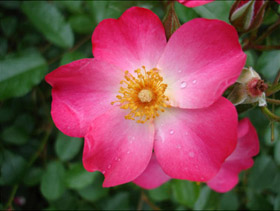
- Passaggio 1. Aprire la foto originale nell’editor grafico.
- Passaggio 2. Duplicare il livello e rinominarlo.
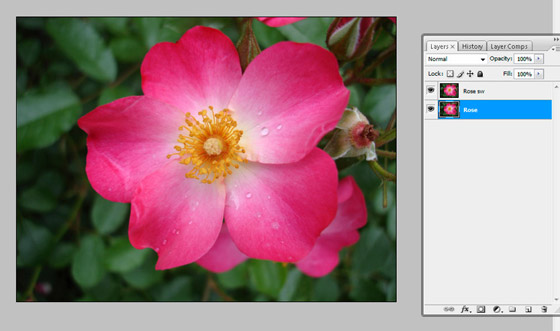
- Passaggio 3. Trasformare la foto in un disegno a matita in bianco e nero.
Aprire AKVIS Sketch dal menu di Photoshop: Filtro -> AKVIS -> Sketch.
Regolare i valori dei parametri nel Pannello impostazioni come segue:
Carboncino = 2, Angolo = 180, Spessore = 1, Lunghezza min = 3, Lunghezza max = 10,
Intensità dei mezzitoni = 5, Ombreggiatura dei mezzitoni = 100, Affila = 100.Fare clic su
 per avviare il processo di creazione.
Il risultato sarà visualizzato nella scheda Dopo.
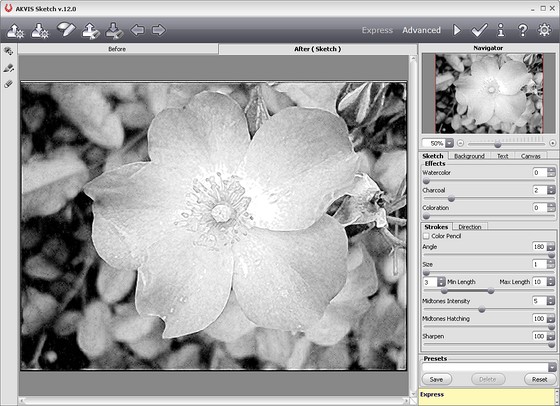
Cliccare su
 per applicare il risultato e chiudere il plugin.
- Passaggio 4. La prima parte del tutorial (conversione della foto in schizzo) è ultimata.
Ora bisogna aggiungere all'immagine un tocco di colore in modo tale che non appaia così monotona e scura.
Creare la maschera di livello premendo su Aggiunge una maschera di livello nella paletta Livelli in basso.
Scegliere lo strumento Pennello e modificare i valori dei parametri:
Diametro principale = 108, Metodo = Normale, Opacità = 33%, Flusso = 100%.
Premere il pulsante Imposta il colore di primo piano nella barra degli strumenti e scegliere una tonalità media di grigio dalla finestra di dialogo Selettore Colore. Dipingere accuratamente il fiore. Le aree sotto il pennello diventeranno semitrasparenti mostrando i colori originali. In questo modo è possibile ottenere una miscela tra l'immagine originale a colori ed il disegno in B&N.
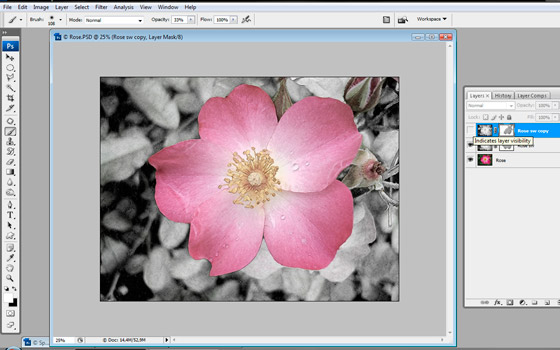
- Passaggio 5. Copiare il livello superiore e lavorare con la sua maschera (Livello -> Nuovo -> Crea livello copiato).
Scegliere ancora una volta lo strumento Pennello, cliccare sul pulsante Imposta il colore di primo piano e scegliere il bianco. Ora bisogna dipingere sul fiore per ottenere una transizione graduale dalle zone nere al bianco.
Qui abbiamo un doppio mascheramento dei livelli. La parte colorata del fiore diventa meno brillante e appare più simile ad un disegno a matita che ad una foto.
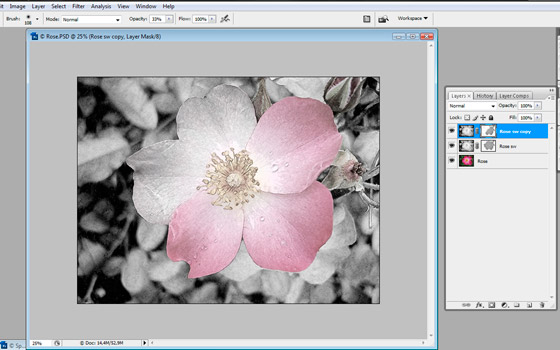
- Passaggio 6. Per rendere reale il disegno, bisogna aggiungere alla foto qualcosa dell’artista, precisamente la sua mano.
Aprire un’immagine con la mano. Copiare e incollare come nuovo livello.
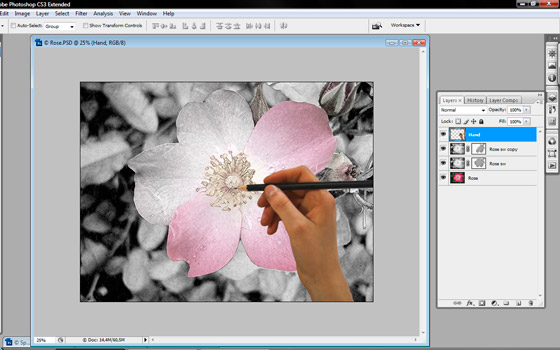
- Passaggio 7. Convertire la foto della mano in un disegno, in modo che corrisponda allo sfondo. Aprire nuovamente AKVIS Sketch.
Attivare la casella Matita colorata ed impostare i parametri con i seguenti valori:
Carboncino = 2, Colora = 70, Angolo = 120, Spessore = 2, Lunghezza min = 0, Lunghezza max = 7, Intensità dei mezzitoni = 6, Ombreggiatura dei mezzitoni = 100, Affila = 100.
Premere il pulsante
per avviare il processo di conversione.
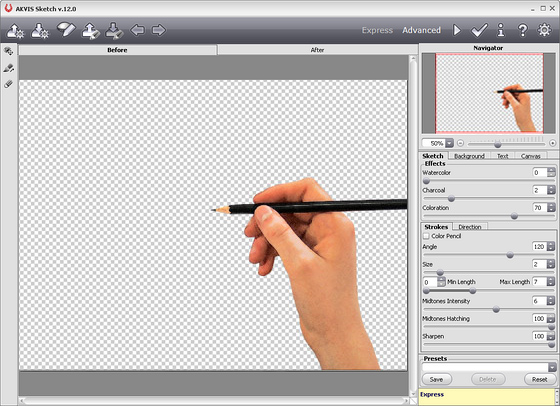
Cliccare su
per applicare il risultato e chiudere il plugin.
- Passaggio 8. Aggiungere un'ombra alla mano per rendere tutto più realistico.
Copiare l'immagine della mano e spostare uno strato di seguito, creeremo un’ombra a questa mano.
Scegliere Immagine -> Regolazioni -> Livelli dal menu principale. Modificare i valori dei parametri per rendere la mano e la matita nera.
Impostare i seguenti valori: Livelli in input = 215, Livelli d'ingresso dei mezzitoni = 1, Evidenziare il livello d'ingresso = 227.
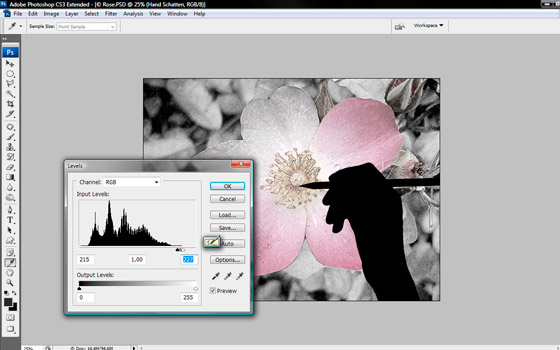
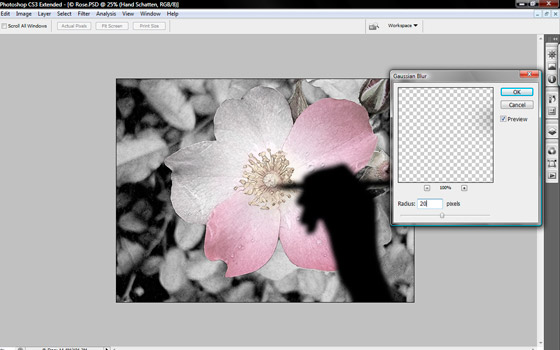
- Passaggio 9. Ammorbidire i bordi dell'ombra selezionando Filtro -> Sfocatura -> Sfocatura Gaussiana, modificando il valore Raggio = 20
- Passaggio 10. Ora usare lo strumento Sposta per posizionare l'ombra a sinistra e nella paletta Livelli cambiare il valore Opacità = 50%
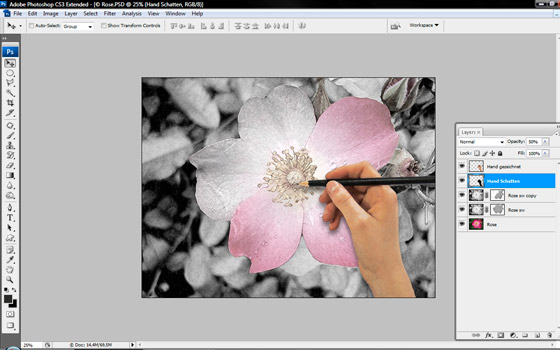
- Passaggio 11. Ecco il risultato finale: la mano dell'artista sta disegnando un fiore.
Sketch v. 28.1 - 10-giorni di prova gratuita
