Schizzo a matita di un cane
Questo breve tutorial di David Kelly spiega come AKVIS Sketch è stato utilizzato in combinazione con Paint Shop Pro 9 per creare un realistico disegno a colori da una fotografia.
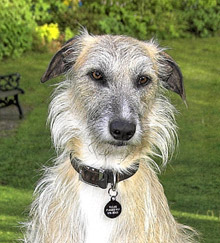
Immagine originale
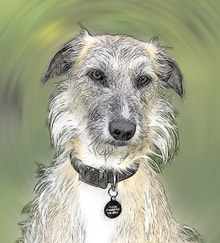
Risultato finale
L'autore scrive: "Anche se questo esempio è stato creato con il plugin AKVIS Sketch utilizzato in combinazione con Corel Paint Shop Pro 9, risultati simili possono essere ottenuti con altri software di grafica compatibili. Scaricate AKVIS Sketch con dieci giorni di prova gratuita e provate voi stessi. Non rimarrete delusi!"
NdR: La versione Standalone (autonoma) di AKVIS Sketch permette di ottenere il medesimo risultato senza utilizzare alcun editor grafico. Con la scheda Sfondo è possibile sfocare alcune parti dell'immagine e creare un mix di foto e disegno con una rapidità ed una facilità sorprendente. Attualmente questo lavoro può essere eseguito con entrambe le versioni: standalone e plugin.
David consiglia di seguire la procedura descritta:
-
Passaggio 1. Aprire la foto originale in PSP9.
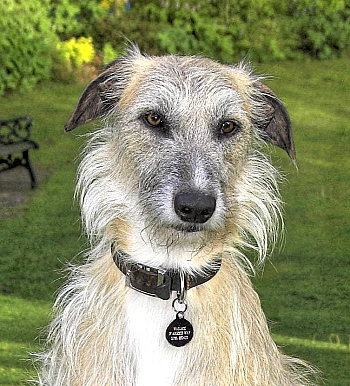
Fotografia originale - Passaggio 2. Usare lo strumento Selezione a mano libera e delineare il cane.
- Passaggio 3. Salvare la selezione su canale alfa; Selezioni > Carica/Salva selezione > Salva selezione su Canale Alfa > nome quindi Salva. Il salvataggio di una selezione è importante e permette di risparmiare tempo, senza doverla ridisegnare qualora fosse commesso un errore.
- Passaggio 4. Rinominare e salvare l'immagine come file di Paint Shop Pro.
-
Passaggio 5. Invertire la selezione, Ctrl+Maiusc+I. Questo passaggio ha trasferito la selezione del cane all’area dello sfondo, consentendo la modifica separatamente dall’immagine in primo piano, vale a dire il cane.
Applicare allo sfondo un effetto di sfocatura radiale.
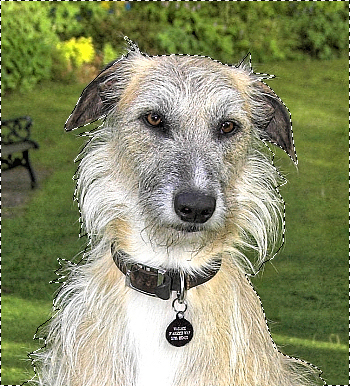
Sfondo selezionato -
Passaggio 6. Selezionare Regola > Sfocatura > Sfocatura radiale ed impostare i parametri in questo modo:
Tipo di sfocatura = Mulinello, Sfocatura -Intensità (%) = 21, selezionare Ellisse.
Al Centro: Scostamento orizzontale (%) = 0, Scostamento verticale (%) = 0, Proteggi centro (%) = 19.
Rinominare e salvare le impostazioni della sfocatura radiale come preset, cliccare OK per applicare l’effetto allo sfondo.
-
Passaggio 7. Rimuovere la selezione, Ctrl+D.
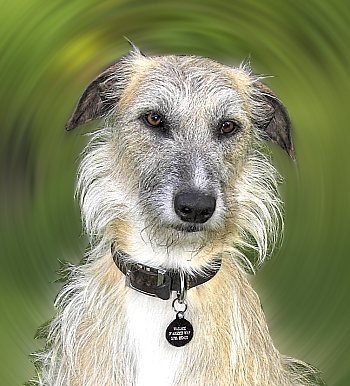
Selezione rimossa - Passaggio 8. Lanciare il plugin AKVIS Sketch da Effetti -> AKVIS -> Sketch.
-
Passaggio 9. Cliccare su
 , inizialmente verranno applicate le impostazioni predefinite.
-
Passaggio 10. Regolare i parametri Effetti e Tratti con i cursori.
Le impostazioni sono:
- Acquerello = 10,
- Carboncino = 2,
- Colora = 100,
- Angolo = 45,
- Dimensione = 6,
- Lunghezza min/max = 3/10,
- Intensità dei mezzitoni = 1,
- Ombreggiatura dei mezzitoni = 4,
- Affila = 14.NdR: In questo tutorial l'autore ha usato il vecchio algoritmo (nella nuova versione questo si può attivare andando su Preferenze del programma e selezionando la casella).
-
Passaggio 11. Una volta soddisfatti del risultato finale cliccare su
 per chiudere il plugin e ritornare al programma dove troveremo l'immagine elaborata.
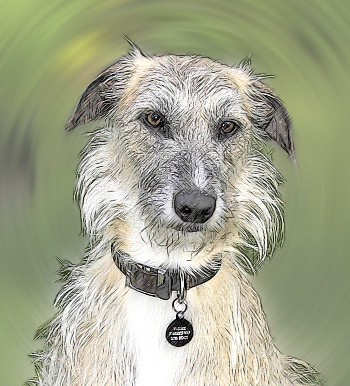
Risultato finale - Passaggio 12. Rinominare e salvare il disegno come file immagine nel formato preferito (TIFF-JPG-BMP-ecc….)
Sketch v. 28.1 - 10-giorni di prova gratuita
