Artista no trabalho
O autor deste exemplo é Heike Nocher. Ele usou o plugin AKVIS Sketch no Photoshop.
Trabalhos de arte invocam nossa admiração pelos artistas talentosos. Entretanto nós vemos apenas os resultados, não o processo de criação. Neste tutorial tentaremos pegar um vislumbre de um artista no trabalho. O autor deste tutorial Heike Nocher reproduz o processo de desenho de uma flor. Usando AKVIS Sketch você pode reproduzir os passos e criar sua própria peça de arte.
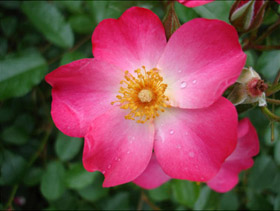
- Passo 1. Abra a foto original no seu editor de fotos.
-
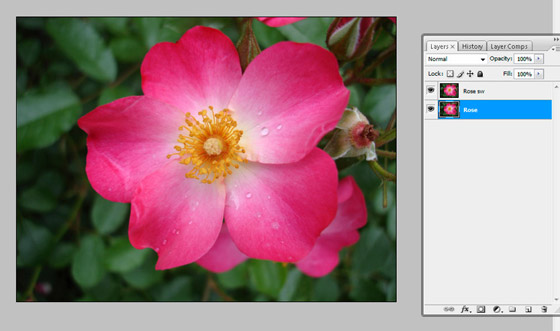
Passo 2. Duplique a camada e a renomeie.
-
Passo 3. Transforme a foto em um desenho a lápis preto e branco.
Chame AKVIS Sketch no menu principal do Photoshop: Filtro –> AKVIS –> Sketch. Ajuste os valores dos parâmetros no painel de configuração.
O autor usou os seguintes valores: Carvão = 2, Ângulo = 180, Espessura = 1, Comprimento mín/máx = 3/10, Intensidade dos cinzas = 5, Densidade dos cinzas = 100.
Clique no botão
 para iniciar o processamento.
O resultado será mostrado na aba Depois.
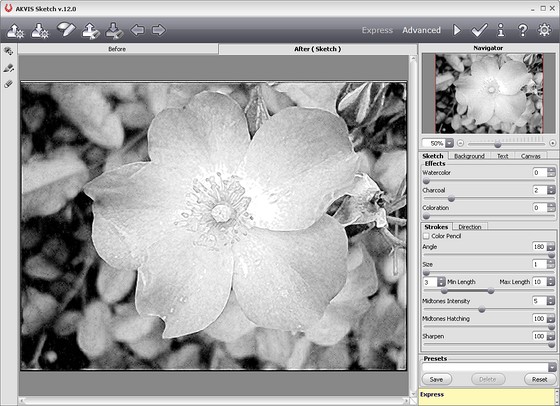
Clique no botão
 para aplicar o resultado e fechar a janela do plugin.
-
Passo 4. A primeira parte do tutorial está feita (conversão de foto para esboço). Agora vamos adicionar cor a imagem, para que ela não pareça maçante e escura.
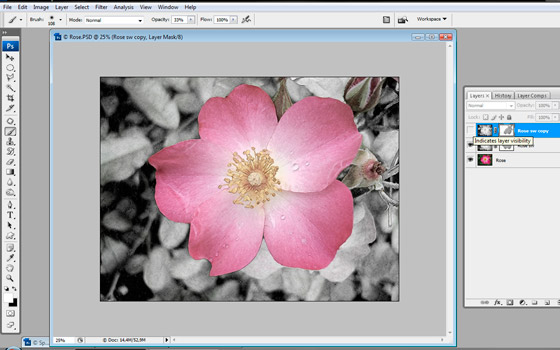
Faça a máscara da camada: para isso aperte o botão Adicionar máscara de vetor na janela Camadas.
Escolha a ferramenta Pincel na Caixa de ferramentas. Troque o valor dos parâmetros: Diâmetro mestre = 108, Modo - Normal, Opacidade = 33%, Fluxo = 100%.
Pressione o botão Cor do primeiro plano na caixa de ferramentas e escolha qualquer cinza na caixa de diálogo do Conta gotas. Pinte cuidadosamente sobre a flor. As áreas sob o pincel se tornam semitransparentes você vai ver as cores originais através dela. Desta forma você pode obter uma mistura da cor da imagem original e o esboço preto e branco.
-
Passo 5. Copie a camada superior e trabalhe com sua máscara.
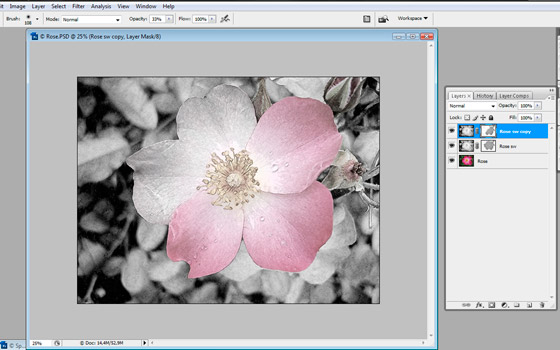
Escolha o Pincel novamente, clique no botão Cor do primeiro plano e escolha a cor branca. Agora vamos pintar sobre a flor para obter uma transição suave nas áreas de preto para branco.
Aqui temos um duplo mascaramento das camadas. A parte colorida da flor fica menos brilhante e parece mais um desenho a lápis que uma foto.
-
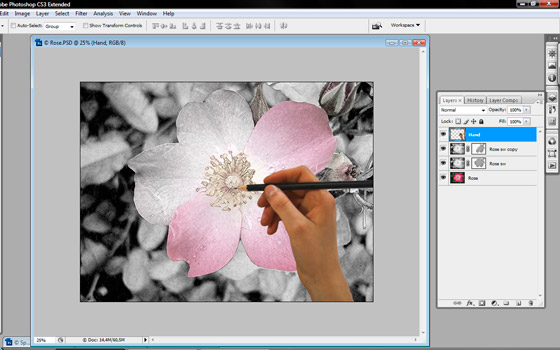
Passo 6. Para dar vida ao desenho, adicionamos o artista a imagem, ou, para ser mais preciso, a mão do artista.
Abra uma imagem de mão. Copie e cole como nova camada.
-
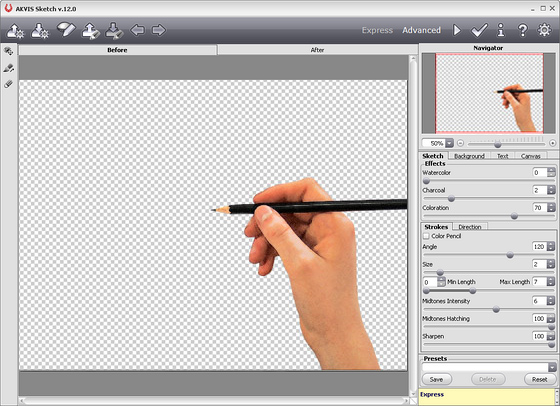
Passo 7. Converter a foto da mão em um desenho de modo a combinar com o fundo. Chame AKVIS Sketch novamente. Ative a caixa de seleção Traços de cor. Defina o valor dos parâmetros.
O autor usou as seguintes definições: Carvão = 2, Coloração = 70, Ângulo = 120, Espessura = 2, Comprimento mín/máx = 0/7, Intensidade dos cinzas = 6, Densidade dos cinzas = 100.
Pressione o botão
para iniciar o processo de conversão.
Clique no botão
para aplicar o resultado e fechar o plugin.
-
Passo 8. Para dar a mão um aspecto mais realista, adicionemos uma sombra do outro lado.
Escolha Imagem -> Ajustes -> Níveis no menu principal. Alterar os valores para tornar mão e lápis pretos. Valores usados pelo autor: Nível de entrada de sombra = 215, Nível de entrada de meio ton = 1, Nivel de destaque = 227.
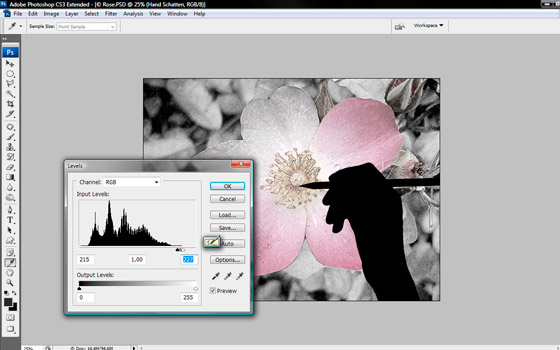
-
Passo 9. Suavizar bordas de sombra. Escolha o filtro Photoshop padrão: Filtro -> Desfoque -> Desfoque gaussiano. Mude o valor dos parâmetros. O autor definiu: Raio = 20
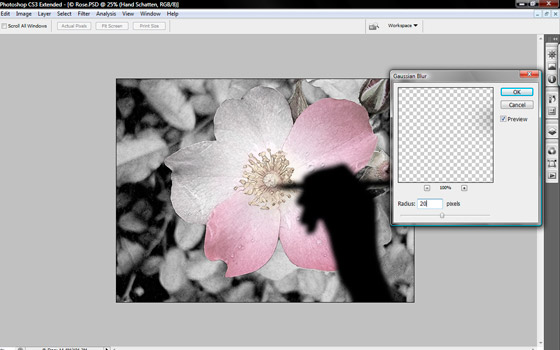
-
Passo 10. Agora use a ferramenta Mover para mover a sombra para a esquerda e alterar o valor da opacidade da camada na janela Camadas. O autor definiu o seguinte valor: Opacidade = 50%.
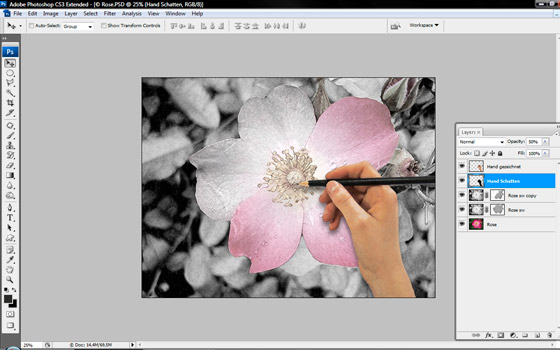
-
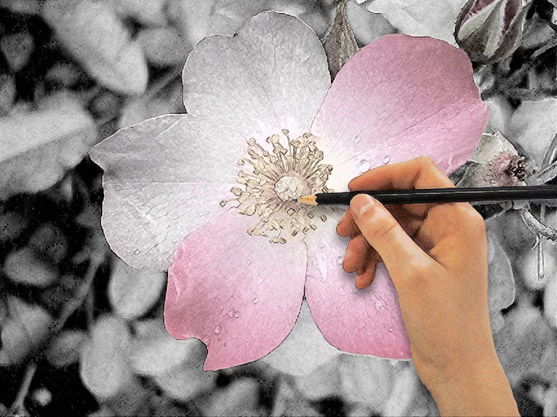
Passo 11. Aqui está o resultado final: a mão do artista desenhando uma flor.
Sketch v. 28.1 - Teste gratuito 10 dias
