Pencil Drawing. Changing a photo into a real work of art.


Entrar seu e-mail para subscrição em novidades.
 
 
  Produtos     Download     Online Store     Tutorial     Suporte     Quem Somos      Conta de usuário
en  fr  de  es  pt  it  jp  ru    
 

Tutorial: AKVIS Sketch

A woman in a tub: changing a photo into a real work of art


Neste momento algumas páginas estão disponíveis somente em Inglês e em Espanhol.
Você pode obter uma licença para qualquer programa AKVIS, se traduzir os arquivos do nosso acervo
para o Português (do espanhol ou do inglês) para saber mais escreva para o team@akvis.com

The author of this article Danny Raphael is the moderator of the Photo-based Art forum at www.RetouchPRO.com.


Danny is an expert in Photoshop and can make a photo into a real work of art.

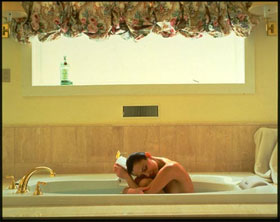
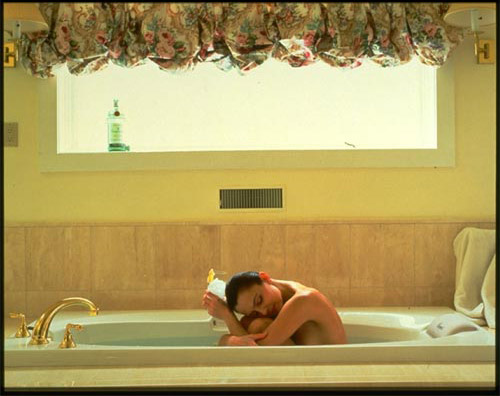
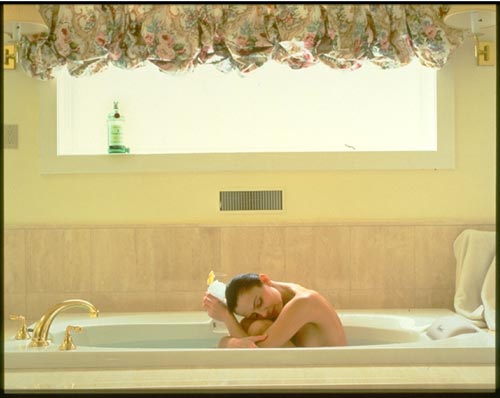
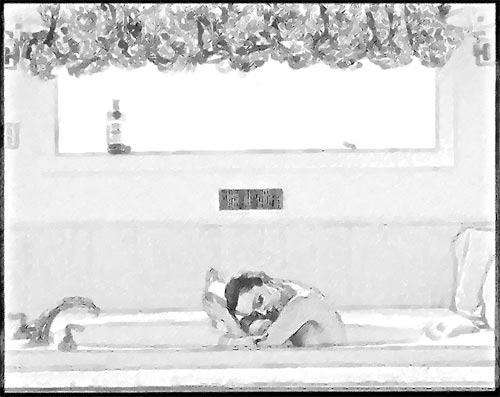
Original photo of a woman Picture of a woman in bath tub
  • Step 1. Open the original photo of a woman in Adobe Photoshop.
    A woman in a tub
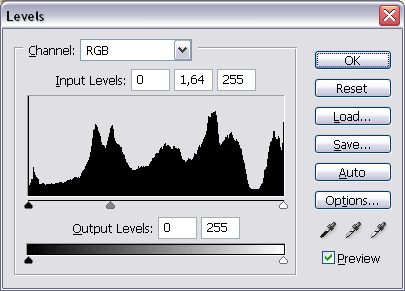
  • Step 2. Add a new Adjustment layer Levels and lighten the image by moving the grey slider from 1 to 1,64.
    Levels dialogue box
  • Step 3. While being in Levels Adjustment layer, in the Tools panel set black as the foreground color, choose the Brush tool with the soft head and transparency at about 70%. Stroke the bottle on the windowseal with the Brush. We perform the masking for the Adjustment layer to influence the whole image but the bottle (it becomes too light with Levels applied).
    The result of Levels aplication
  • Step 4. Still in Levels Adjustment layer, first choose Select - All, and then Copy Merged from the Edit menu.
  • Step 5. Insert the copied image by Edit - Paste. Name our layer Layer A.
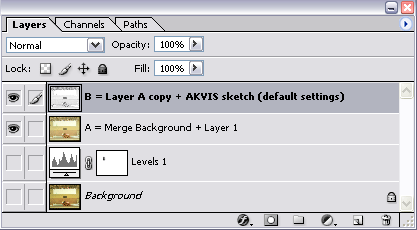
  • Step 6. Duplicate Layer A by dragging it to the Create a New Layer button at the bottom of Layers palette. Name the new layer Layer B.
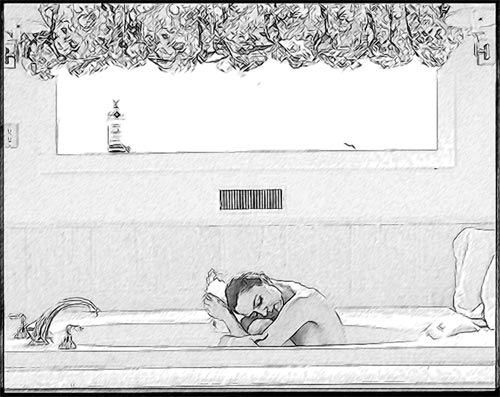
  • Step 7. In Layer B open AKVIS Sketch plugin and apply it with default settings.
    A pencil drawing - AKVIS Sketch, default settings

    The Layers palette containes 4 layers at this stage.

    Layers palette
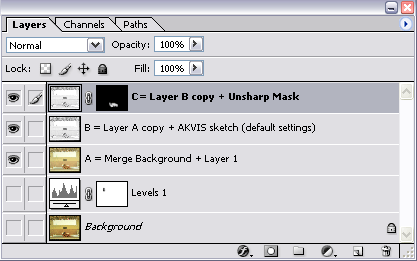
  • Step 8. Duplicate Layer B and name it Layer C. In Layer C apply Unsharp Mask filter. But all we want to be sharper is the woman, so lets add a vector mask to the layer (Add vector mask button at the bottom of Layers) palette, and mask with the brush everything beside the woman in the image.
    Layers palette
  • Step 9. Merge Layer B and Layer C into a single Layer D. In Layer D apply Fantastic Machines Paint Engine plugin in Watercolour3 mode.
  • Step 10. Contrary to Step 8 we want to apply the plugin to the whole image except the woman. To do that add a vector mask to Layer D to mask the woman.
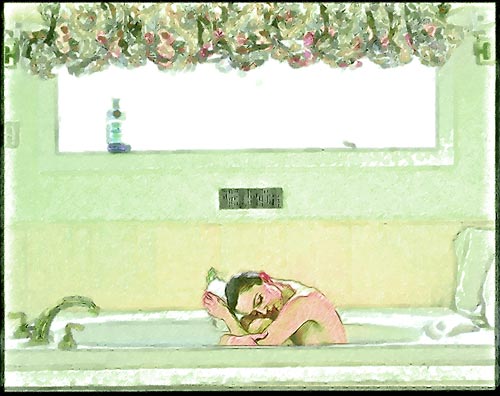
    Paint Engine application results
  • Step 11. To procede with our work we'll need a copy of Layer A. Place this layer at the top of the Layers palette. Change the layer's blend mode from Normal to Color.
    Results of blending in color mode
  • Step 12. Create a new Adjustment layer Hue/Saturation with Hue=-4, Saturation=0, Lightness=0.
    Hue/Saturation Adjustment layer
  • Step 13. Lets use the masking again (as in Step 3) for the green hue not to cover all of the image.
    After addition of Hue/Saturation Adjustment layer with the mask
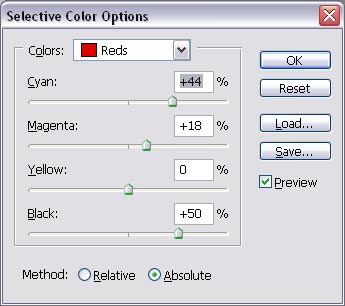
  • Step 14. In the final step add an Adjustment layer Selective Color with the following settings:
    Selective Color Dialogue box

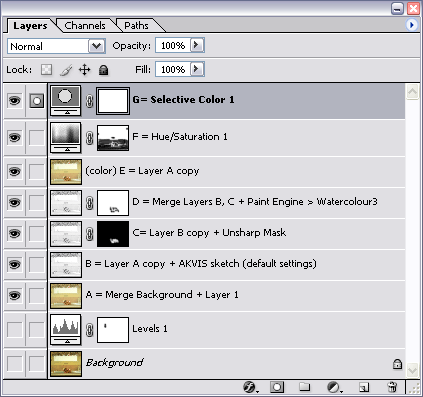
    The layers palette looks like this now:

    Layers palette

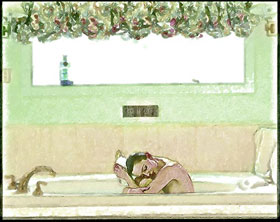
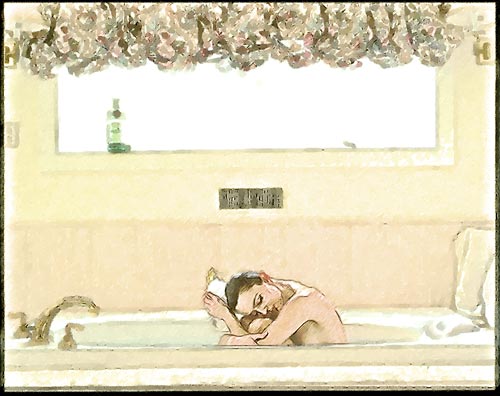
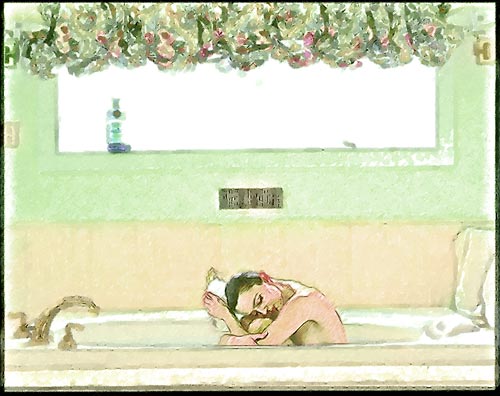
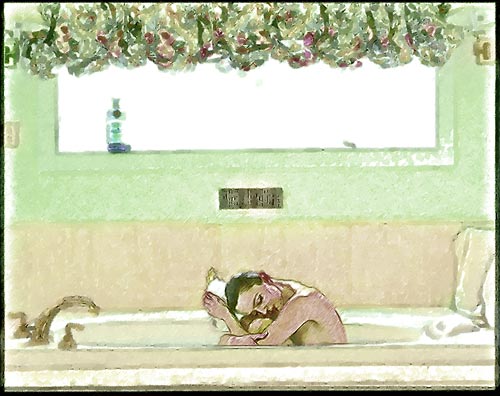
    The resulted image has nothing in common with the photo. It's a beautiful drawing made by a real artist.

    A woman in a tub - art drawing
 
Como funciona Como funciona
   — Área de trabalho — Área de trabalho
   — Utilizando o programa — Utilizando o programa
   — Estilo Clássico — Estilo Clássico
   — Estilo Artístico — Estilo Artístico
   — Efeitos de fundo — Efeitos de fundo
   — Adicionar texto — Adicionar texto
   — Desenho em tela — Desenho em tela
   — Ajustes predefinidos — Ajustes predefinidos
   — Opções — Opções
   — Processamento em lote — Processamento em lote
Exemplos Exemplos
   — Vamos desenhar uma tulipa — Vamos desenhar uma tulipa
   — Desenho colorido — Desenho colorido
   — Um vídeo em um desenho animado — Um vídeo em um desenho animado
   — Desenho com pasteis — Desenho com pasteis
   — AKVIS Sketch na arquitetura — AKVIS Sketch na arquitetura
   — Retrato a lápis grafite — Retrato a lápis grafite
   — Converter foto em pintura em aquarela — Converter foto em pintura em aquarela
   — Um inverno dos sonhos — Um inverno dos sonhos
   — Efeito: foto no desenho a lápis — Efeito: foto no desenho a lápis
   — Faça um desenho a partir de uma foto — Faça um desenho a partir de uma foto
   — Criando uma aquarela de um lobo — Criando uma aquarela de um lobo
   — Desehno a lápis — Desehno a lápis
   — Porto tranqüilo: uma aquarela — Porto tranqüilo: uma aquarela
   — Um casal encantador — Um casal encantador
   — Enquadradas em preto e branco Sketch — Enquadradas em preto e branco Sketch
   — Parada do momento!(Desenho e desfoque) — Parada do momento!(Desenho e desfoque)
   — Versailles: Viagem ao passado — Versailles: Viagem ao passado
   — Desenho no papel envelhecido — Desenho no papel envelhecido
   — Auto-expressão: desenho em um minuto — Auto-expressão: desenho em um minuto
   — Orquídea: Desenho em lápis de aquarela — Orquídea: Desenho em lápis de aquarela
   — Maçã Brilhante: o toque de um artista — Maçã Brilhante: o toque de um artista
   — Variaçôes em uma rosa — Variaçôes em uma rosa
   — Menina engraçadinha: o pastel — Menina engraçadinha: o pastel
   — Monte Saint Michel: desenho em aquarela — Monte Saint Michel: desenho em aquarela
   — Noite de gala — Noite de gala


No começo da página


   Política de privacidade | Mapa do Site | Pesquisar na site    
   Contacte-nos | Twitter | Facebook | YouTube Channel    
| English  |Français  |Deutsch  |Español  | Português  |Italiano  |日本語  |Pусский  | © 2004-2012 AKVIS. Todos os direitos reservados.