Trasformare una foto in uno schizzo e incorniciarla
L'autore di questo tutorial è Sanjeev Saha, Nuova Delhi, India.
Qui abbiamo una foto della sua famiglia in India. Egli ci mostra come creare un originale schizzo in bianco e nero utilizzando un programma di grafica ed i plugin AKVIS Sketch e AKVIS ArtSuite.
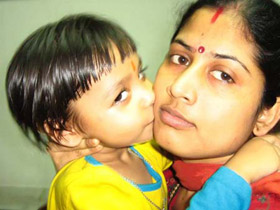
Immagine originale
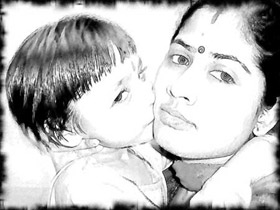
Risultato finale
L'autore ha utilizzato AliveColors, ma si può lavorare con qualsiasi editor di foto compatibile con AKVIS plugin.
Oppure, se non si è in possesso di un editor grafico, è possibile utilizzare Sketch e ArtSuite nella versione standalone.
-
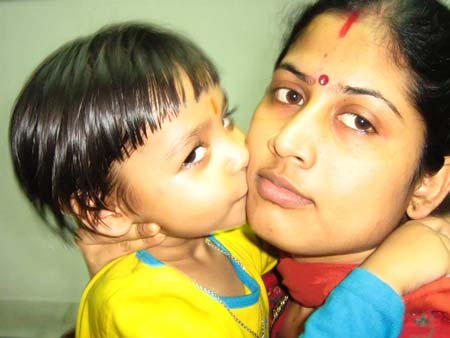
Passaggio 1. Per prima cosa, scegliere una foto e aprirla nel programma di grafica.
-
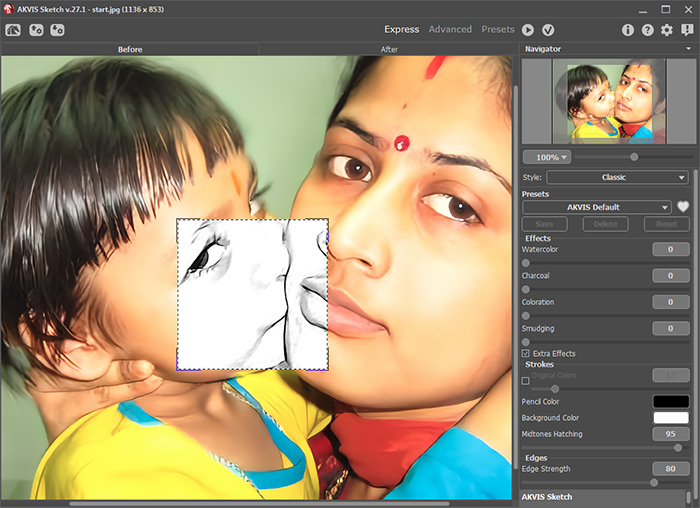
Passaggio 2. Aprire il plugin AKVIS Sketch selezionandolo dal menu Effetti -> AKVIS -> Sketch.
-
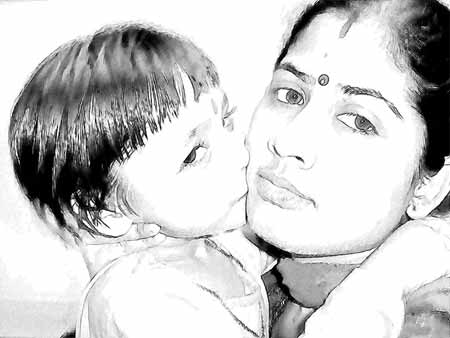
Passaggio 3. Per conseguire un effetto di schizzo più naturale si devono modificare i valori dei parametri come segue:
Acquerello = 1, Ombreggiatura dei mezzitoni = 87.
Premere su
 per elaborare la foto con AKVIS Sketch e poi su
  per applicare il risultato e chiudere il plugin.
Ecco l’incredibile disegno ottenuto:
-
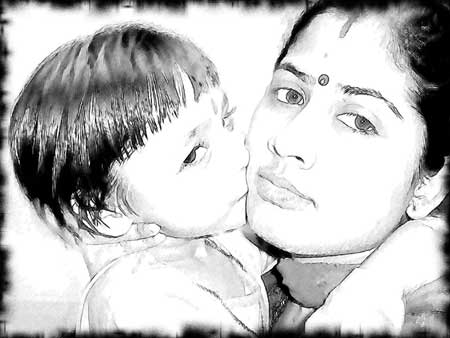
Passaggio 4. Usare ora il plugin AKVIS ArtSuite per dare il tocco finale all’immagine incorniciandola.
Aprire AKVIS ArtSuite dal menu principale selezionando Effetti -> AKVIS -> ArtSuite.
Dal menu a tendina scegliere Cornice Spray, il Colore cornice sarà Nero, Larghezza cornice = 21 px, Densità = 99 ed Effetti casuali a scelta, qui è stato impostato il valore a 4980.
Premere il pulsante
per vedere la foto nella finestra di anteprima, se tutto è soddisfacente premere su per applicare la cornice all'immagine e chiudere il plugin.
Ora la nostra foto ha veramente un aspetto artistico e raffinato.
Sketch v. 28.1 - 10-giorni di prova gratuita
