Chameleon Brush
The Chameleon Brush  copies a fragment of an image from one part to another with respect to the color range, tone, texture, illumination, and other characteristics of the background, to which the clone is applied. Unlike the Clone Stamp tool, this preserves the characteristics of the underlying image. Press H to quickly select this tool.
| Cloning While Maintaining Illumination of Background (Example by Gun Legler) | |
 |
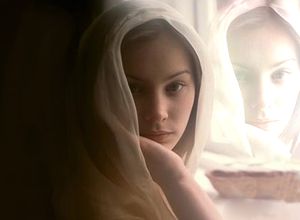 |
| Fragment on a Dark Background | Fragment on a Light Background |
| Cloning Glass Eggs (example by Gun Legler) | |
 |
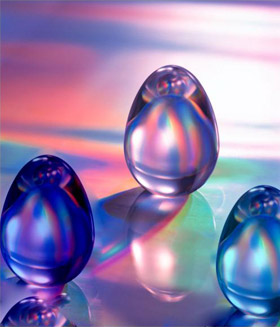 |
| The original image of the crystal egg | Two clones of the crystal egg |
To clone an object first choose Chameleon Brush from the left, and select an image source by holding down Alt (Option on Mac), and click the left mouse button over the area from which the cloned fragment will be selected.
Once the reference point is defined, move the cursor to another location. To place the cloned fragment click the left mouse button. When the left mouse button is released, a cross-shaped cursor will appear over the source area, to indicate from where the clone fragment is selected.
The tool's parameters will be shown in a floating box over an image (by right-clicking the mouse) and also in the Settings Panel.
To change a parameter, enter a numerical value in the parameter's field and press Enter (Return on Mac) or use the slider.
- Size (1-1000). Diameter of the source area, from which the fragment is cloned (in pixels).
- The check-box Aligned. This parameter sets the cloning method. When the check-box is activated one clone is created from an area: in this case each new line draws information from the relevant area around the source point. When the check-box is deactivated, each time the mouse button is clicked, a cross-shaped cursor will appear above the source area, and new lines will create a clone from only this area.
- Activating the Flip Horizontal check-box allows a clone to be mirrored along the standing axis, i.e. interchanging the left and right sides.
- Activating the Flip Vertical check-box mirrors a clone by turning the image upside down.
- Scaling (20-400%). The size of the clone relative to the original fragment.
-
The check-box Artistic Cloning temporary disables the consideration of the neighboring pixels when applying a clone fragment. In this mode you can change size of the brush, choose a new source from which to copy a clone, remove parts from a clone area, etc.
To remove a part of the clone, press the Ctrl-key on the keyboard (
 on Mac) and, keeping it pressed, draw over the area. This is useful when cloning from a large image or creating a clone from different parts of an image.
The clone will be processed after is pressed.