カメレオン ブラシ
カメレオンブラシ  は、イメージのある部分の色の範囲、トーン、テクスチャ、明るさや他の背景特性をそのまま別の部分に複製できます。スタンプツールとは異なり、背景のイメージを残したまま新たにイメージを複製します。Hキーを押すとすぐにカメレオンブラシ ツールへと切り換わります。
| 背景の明るさのままイメージを複製 (Gun Leglerによるサンプル作品) | |
 |
 |
| 暗い背景に複製 | 明るい背景に複製 |
| ガラスのタマゴを複製 (Gun Leglerによるサンプル作品) | |
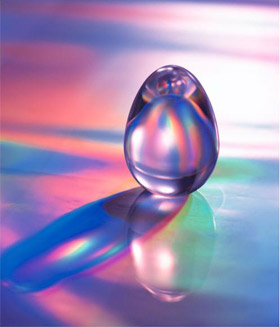 |
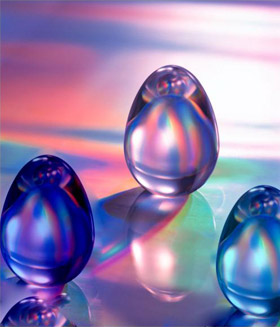 |
| ガラスのタマゴの元のイメージ | ガラスのタマゴを2個複製 |
複製を行う場合、まず左のツールバーからカメレオンブラシを選択し、複製のをソースとなる部分の指定をAlt(MacintoshではOption)キーを押しながらクリックして行います。
ソースを指定したなら、カーソルを複製する位置に移動させます。複製を配置するには、クリックします。マウスから指を離すと、ソース部分に十字のカーソルが表示されます。
ツールのパラメータは、イメージ上を右クリックして表示されるボックスと 設定パネル の両方で調整できます。
パラメータ値を変更する場合、パラメータ フィールドの数値を入力してEnter (Macintoshの場合はReturn)を押すか、スライダを左右に動かして調整します。
- 範囲 (1-1000): ソースとなる部分の範囲の直径をピクセルで指定します。
- [揃える]チェックボックス: 複製方法を指定します。チェックボックスがオンの場合、1クリックに対して1つの複製のみ作成されます。つまり、クリック毎にソース部分の周辺で適当な部分から情報を元に異なる部分の複製を作成します。チェックボックスがオフの場合、クリックされるたびに、ソース部分に十字のカーソルが表示され、ソース部分のみの複製が適用されます。
- [左右に反転] チェックボックスをオンにすると、クローンが対称軸を中心に反転します(例えば、左右を入れ替えることができます)。
- [上下に反転] チェックボックスをオンにすると、クローンの上下を逆さにします。
- スケール (設定可能値は20-400%): 元のフラグメントに対するクローンのサイズを指定します。
-
[アーティスティック クローン]をオンにした場合、複製を適用する際、一時的に隣合うピクセルが考慮されなくなります。このモードでは、ブラシサイズの変更、新たなソースの選択、複製の一部削除、などを行うことができます。
複製した部分を取り除く場合は、 Ctrlキー(Macintoshでは⌘キー)を押したまま、マウスでドラッグします。大きなイメージを複製する場合やイメージ内の数箇所かから行う場合に便利といえます。
複製は、 を押した後に生成されます。
