Montage Mode
AKVIS Chameleon works in five modes: Montage, Chameleon, Blend, Emersion, and Double Exposure.
In the Montage mode, the program combines images to create a seamless photo montage. It transfers selected objects to a new background and makes the irrelevant parts of the pasted fragment fade away. The object does not change its color range or opacity. This mode is good to use for creating photo collages with people (for pasting into a new background).
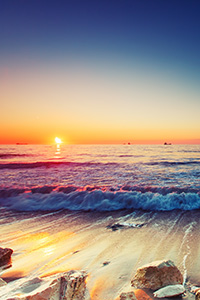
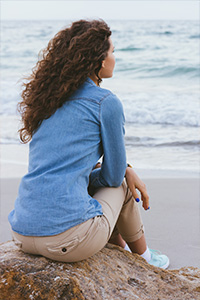

Follow the instructions to create a collage using the Montage mode of AKVIS Chameleon:
-
Step 1. Click on
 to open an image for the background, then click on
  to open an image with a fragment for a collage.
Attention: If you work with the plug-in, proceed as follows.
-
Step 2. Use the Transform tool
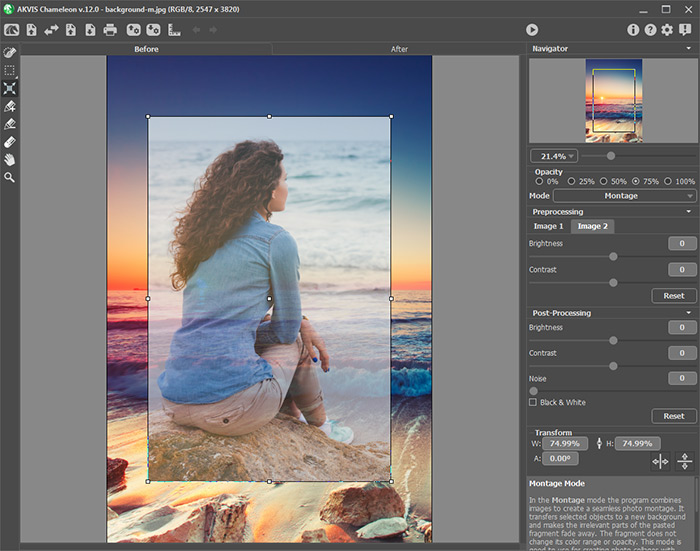
 to change the size, angle and position of the object above the background image.
Use the Opacity parameter to place the fragment more precisely.
-
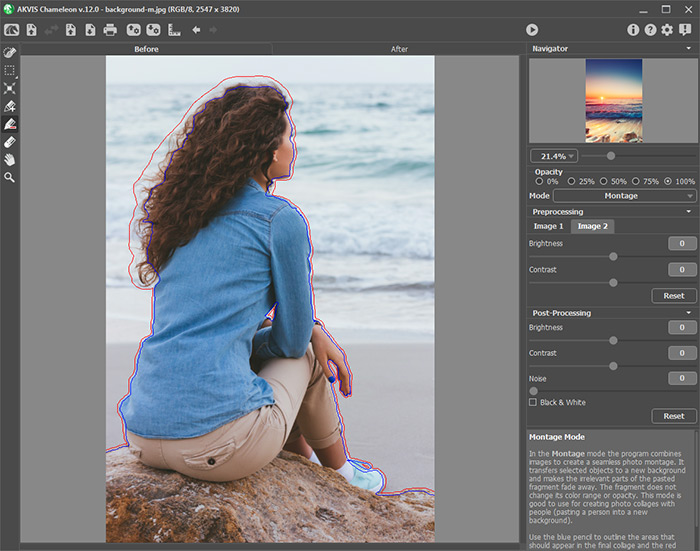
Step 3. Use the selection tools to select a fragment for a collage and mark unwanted areas.
-
Step 4. Press
 to start processing the collage. The result will be shown in the After tab.
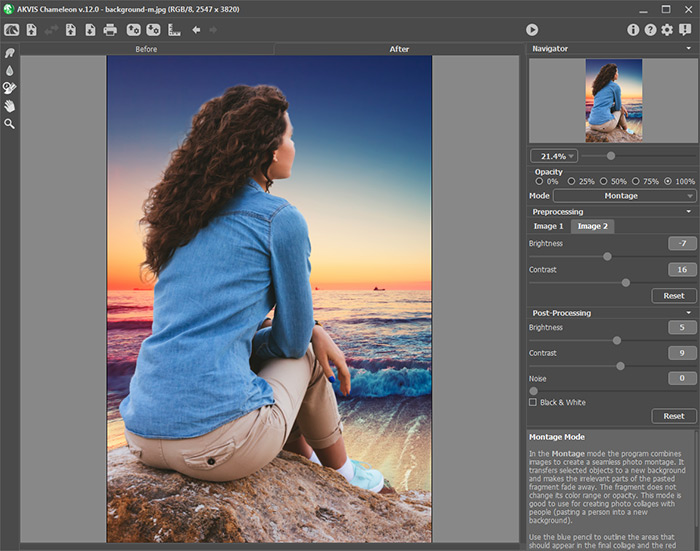
If you want to change anything, click on the Before tab and select the fragment more precisely, then press
to start processing again.
You can also use the post-processing tools (Smudge
 , Blur
  , and History Brush
  ) to edit the result.
Chameleon v. 12.2 - Free 10-day Trial
