Blazing Photo of a Girl
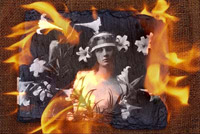
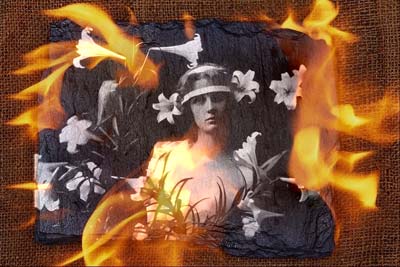
When creating a photo collage with AKVIS Chameleon you can use Chameleon mode which not only smoothes the borders of the inserted object and adjusts its color range, but also makes the object semi-transparent, so that the texture and the relief of the main image is seen through it.
The following example demonstrates Chameleon mode in action.
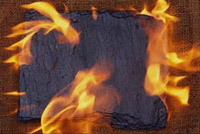
To make a collage we use two images: a burning photo frame and a black and white photograph. We will make a collage of these two photos creating a blazing photo effect.
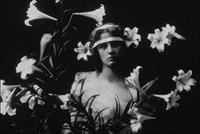
First open the photo of the girl, select the part of the image, and call AKVIS -> Chameleon - Grab Fragment from the Filter menu.
Next open the photo of the burning photo frame, make a copy of the layer, and call AKVIS -> Chameleon - Make Collage from the Filter.
The AKVIS Chameleon plug-in window will appear. The burning photo frame and the fragment (girl) will be in the Before tab.
Select Blend mode from the drop-down menu in the Settings Panel.
Reposition and resize the fragment with the Transform tool  , so that she is centered over the frame.
Press the button  to make the collage. The result will appear in the After tab.
To apply the collage to the photo, press the button  .
.
Now you have a two-layered image with the result on the upper layer. Remove the unwanted areas from the layer using the Eraser tool. Reduce the Opacity of the layer. You can play with blending options if you want.
Merge the layers.
Chameleon v. 12.2 - Free 10-day Trial
