Magical Deer
With AKVIS Neon you can convert any photo into a bright eye-catching image. This tutorial demonstrates how to strengthen or weaken the glow effect.
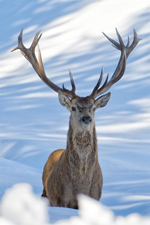
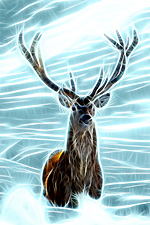
- Step 1. Choose an image to apply the effect. We use this picture of a deer:
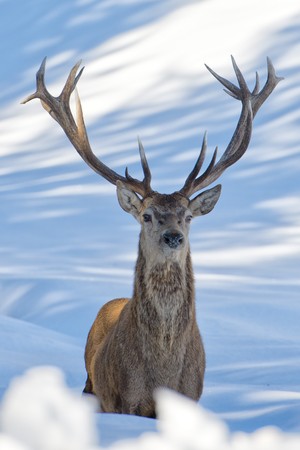
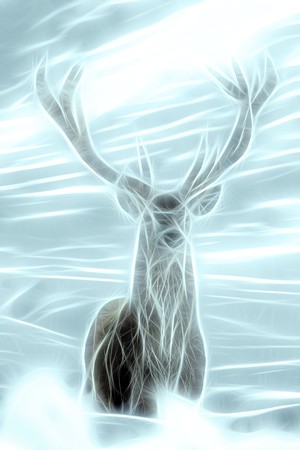
Original Image - Step 2. Adjust the effect parameters. To create a golden glowing background we use the Colorize option in the Adjustment tab. Note that this option is only available for the Home Deluxe and Business licenses.
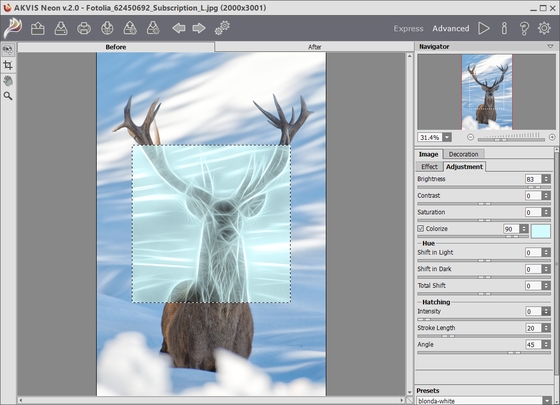
AKVIS Neon - Step 3. Start processing by pressing
 . The result will look like that:
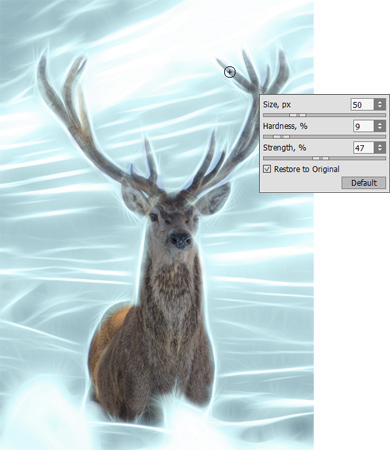
Blue Glow - Step 4. Apply the History Brush
 to weaken the effect on some areas of the image.
Using History Brush - Step 5. Save the result with
 .
.
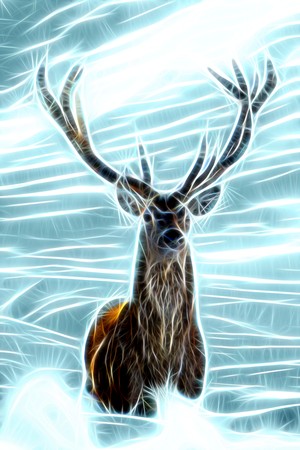
Magical Deer
Neon v. 6.2 - Free 10-day Trial
