Como funciona
AKVIS Sketch converte fotos em desenhos a lápis. O software está disponível como plugin (modulo externo) e como aplicação autonoma (standalone).
Para transformar uma foto em um desenho a lápis siga as instruções:
- Passo 1. Abra uma imagem.
- Se você estiver trabalhando com a versão standalone:
A caixa de dialogo Selecione arquivo para abrir aparecerá se você der um clique duplo na área de trabalho vazia do programa ou se você clicar no botão
 no Painel de controle.
Você também pode arrastar a imagem desejada para a área de trabalho do programa.A versão standalone do AKVIS Sketch suporta os formatos de arquivos JPEG, WEBP, PNG, BMP, TIFF e RAW.
- Se estiver trabalhando com o plugin:
Abra uma figura em seu editor de imagem usando o comando Arquivo -> Abrir ou use a combinação de teclas Ctrl+O no Windows, ⌘+O no Mac.
Execute o plugin AKVIS Sketch:
No AliveColors: Efeitos -> AKVIS -> Sketch;
no Adobe Photoshop: Filtro -> AKVIS -> Sketch;
no Corel PaintShop Pro: Efeitos -> Plugins -> AKVIS -> Sketch;
no Corel Photo-Paint: Efeitos -> AKVIS -> Sketch.O espaço de trabalho será organizado de acordo com o modo de interface escolhido no Painel de controle: Rápido, Avançado ou Predefinições.
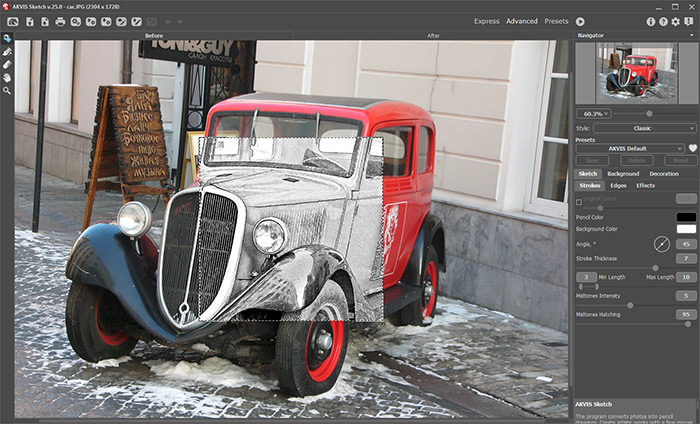
Área de trabalho do AKVIS Sketch (modo Avançado) - Passo 2. Selecione o estilo: Clássico, Artístico, Maestro ou Multiestilo; e ajuste os parâmetros.
- O estilo Clássico permite criar desenhos coloridos e preto e branco com linhas de contorno bem definidas. Um recurso característico desse estilo é sua precisão: a imagem parece ter sido criada primeiramente com linhas de contorno e com a adição de hachuras. Apesar de esse modo ser versátil e adequado para muitas finalidades, ele é mais adequado para ilustrações técnicas, imagens de arquitetura e outras imagens nas quais você deseja um bom nível de detalhe.
- O estilo Artístico foi projetado para criar desenhos expressivos que se pareçam com o trabalho à mão de um artista real. Nesse estilo, é fácil criar um esboço rápido e um desenho a lápis cuidadosamente traçado e sombreado. A principal vantagem desse estilo é a capacidade de experimentar hachuras e variar o número de sombras e matizes para obter uma transição natural de tons. Esse estilo requer uma boa fotografia. Os melhores resultados podem ser obtidos se a fotografia original foi tirada com a luz certa e tiver um bom contraste.
- O estilo Maestro style (está disponível apenas para as licenças Deluxe/Business) foi criado para realizar tarefas artísticas. Cria obras de arte vívidas e expressivas, com traços magistrais, contornos claros e naturais, sem detalhes excessivos, menos fotográficos e mais parecidos com desenhos. Este estilo combina harmoniosamente técnica e arte.
- Multiestilo é um estilo de desenho complexo que permite fazer os efeitos de pastéis, canetas hidrográficas, lápis de óleo, giz de cera e muito mais. Está disponível apenas para as licenças Deluxe/Business.
- Passo 3. Depois que o programa está aberto, uma parte da imagem será automaticamente convertida para um desenho a lápis. O resultado será mostrado na janela Antes na janela visão antecipada.
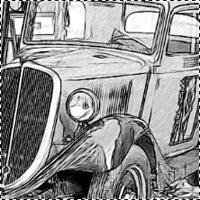
Visão antecipada - Passo 4. Pressione o botão
 para converter a imagem original em um desenho como foi definido nas configurações.
Nota: O processo pode ser observado em tempo real! Para interromper o processo, clique no botão Parar do lado direito da barra de progressão.
Configurações predefinidos - Passo 5. Opcionalmente, nos estilos Clássico e Maestro e no Multiestilo, você pode usar a ferramenta especial,que permite alterar a direção dos traços de lápis aplicados. A ferramenta Direção dos traços
 fornece controle total sobre como o sombreamento é desenhada em uma imagem. Usando esta técnica, você pode obter um desenho verdadeiramente realista com padrões e texturas indo na direção correta.
Atenção: Esta ferramenta está disponível apenas para as licenças avançadas (Home Deluxe e Business).
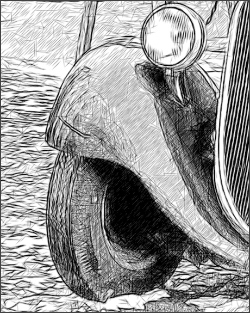
Pinceladas automáticas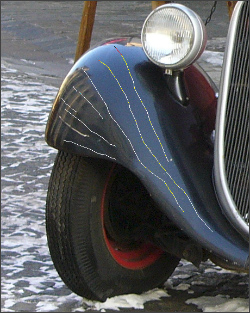
Linhas guias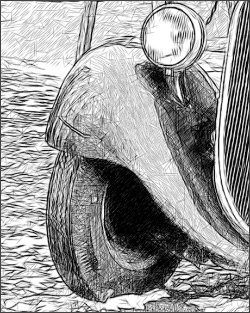
Pinceladas reorientadas - Passo 6. Se necessário, ajuste as configurações no campos: Fundo e Decoration (Tela, Moldura e Texto).
Pressione o botão novamente.
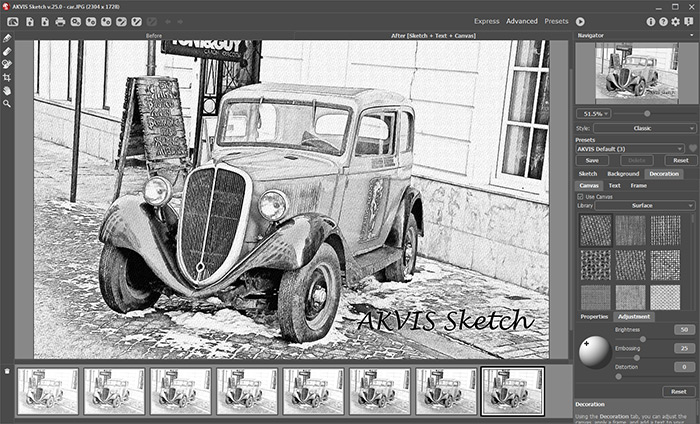
Desenho a lápis sobre tela com assinatura - Passo 7. É possível salvar os ajustes que você gostar como ajuste predefinido e usá-los no futuro. Um ajuste predefinido é compartilhado com as abas: Desenho e Decoração.
Clique no ícone de um coração
 /
/ perto ao campo do nome da predefinição para adicioná-la ao Favoritos ou para removê-la deste grupo de predefinições.
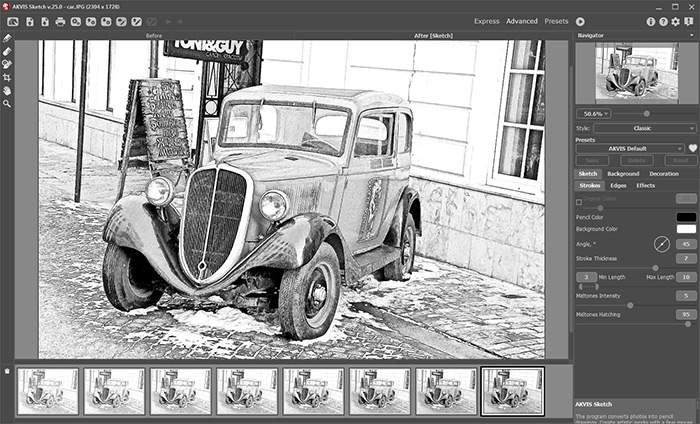
- Passo 8. O recurso Timeline permite obter variações de seu desenho sem ajustar as configurações. Se você gostar uma das imagens semi-processadas mais do que o resultado final, clique na captura com o botão esquerdo do mouse. A imagem será exibida na aba Depois.
Se você quiser voltar para o resultado final, clique na última imagem na lista Timeline.
Atenção: Este recurso está disponível apenas para as licenças Home Deluxe e Business.

Capturas da TimelineVocê pode definir o número de capturas na caixa de diálogo Opções.
- Passo 9. Também você pode fazer retoques finais e corrigir o resultado usando as ferramentas de pós-processamento
 ,
,  ,
,  na aba Depois.
Atenção: Essas ferramentas estão disponíveis apenas para as licenças Home Deluxe e Business.
Dica: Utilizá-los na etapa final. Se executa o processamento de novo
, as mudanças realizadas com as ferramentas perderão-se.
- Passo 10. Na versão standalone você pode usar a ferramenta Recortar
 para cortar partes indesejadas. Se você usar o plugin, você pode fazer isso em seu editor de imagem.
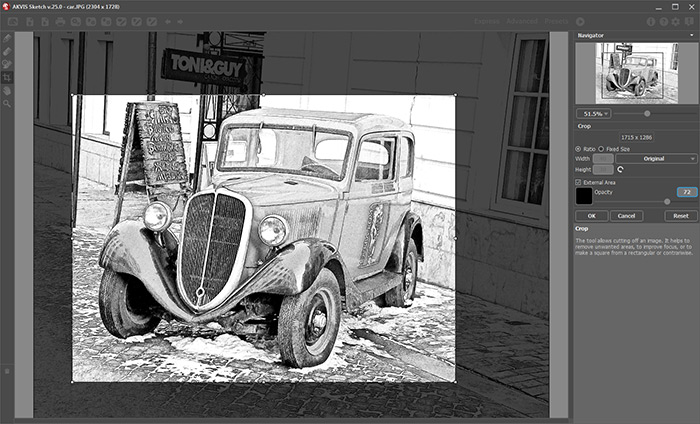
Recortar imagem - Passo 11. Na versão autônoma você também pode imprimir seu desenho a lápis com
 .
.
- Passo 12. Salve a imagem processada.
- Se você estiver trabalhando com o a edição standalone:
Clique no botão Salvar imagem
 para abrir a caixa de dialogo Salvar como. Insira um nome para o arquivo, escolha o formato (TIFF, BMP, WEBP, JPEG ou PNG) e indique a pasta de destino.
- Se você trabalha com o plugin:
Clique no botão
 para aplicar o resultado e fechar a janela do plugin. O plugin do AKVIS Sketch será fechado e a imagem aparecerá na área de trabalho do editor de imagem.
Abra a caixa de dialogo Salvar como usando o comando Arquivo -> Salvar como. Insira um nome para o arquivo, escolha o formato indicado e indique a pasta de destino.
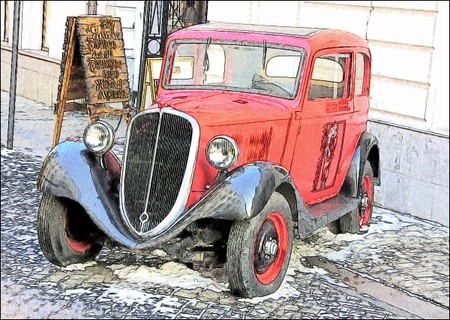
Desenho a lápis
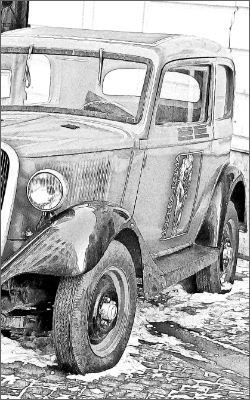
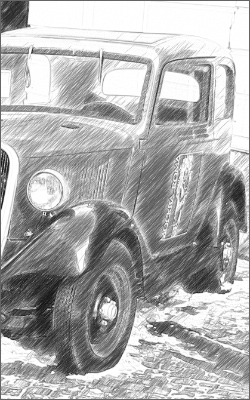
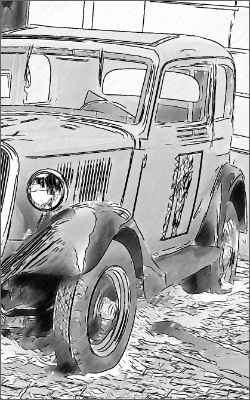
Sketch v. 28.1 - Teste gratuito 10 dias
