Graphic software for Windows Mac graphic software
Please enter your email to be kept posted on updates and discounts:
 
  
  Products     Download     Online Store     Tutorial     Support     Company
en  fr  de  es  pt  it  jp  ru    
 

Tutorial: AKVIS Chameleon

Eyes wide closed


The example was made in the old version of the Chameleon plug-in.
Now the technique of using AKVIS Chameleon is different, but the result will be the same.

Consult the article "Chameleon mode" to get the same result with the new version. In the older versions (before v.5.0) this mode was called Standard and applied automatically right after you launch the plugin from the menu Filter.

The idea of the tutorial belongs to Richard Shellabear.

Richard Shellabear is a professional photographer, but he also processes and enhances shots when it is needed.

For example, when a group photo came out well but one of the guys has his eyes closed.

a group photo

It is true that as any other professional photographer Richard Shellabear takes several shots of the same scene, and one can say that there is no need in correcting this photo. But what if exactly this photo is the best according to other criteria? Why not trying to save it? We will just copy the eyes from another photo of the series. Even if the eyes look in a different direction, it won't be an obstacle to us.

Photo with open eyes

Select the eyes with any selection tool. In Adobe Photoshop the easiest way is to use the Lasso tool or the Quick Mask mode.
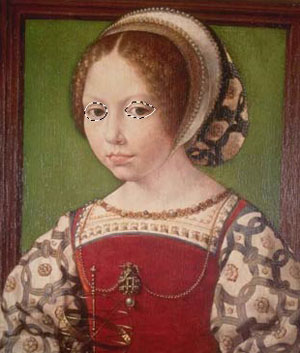
Select the eyes

When the eyes are selected, copy the selection by calling the command Edit - Copy and paste it into the photo with the closed eyes (the command Edit - Paste).

The eyes on the pasted fragment look in a different direction. We correct it by calling the command Edit -> Transform -> Flip Horizontal. The fragment will be reflected horizontally.

Now, we change the size of the eyes. To choose the right size for the eyes, we set the value of the parameter Opacity to 50%. Then we call the command Transform - Scale from the menu Edit. Having adjusted the size of the eyes restore the Opacity to 100%.

change the size of the pasted object

Make the eyes more expressive by calling the command Levels: activate the layer with the eyes, call the dialog box Levels (Image - Adjustment - Levels) and move the slider of the black point to 40.

the dialog box Levelsthe eyes after the command Levels

Now comes the last step - we call the plugin AKVIS Chameleon by selecting the command AKVIS - Chameleon from the Filter menu. Well, that's all, the photo is ready for printing or publishing.

After the plugin Chameleon
The corrected photo: the eyes are open
 
Workspace Workspace
How It Works How It Works
Montage Mode Montage Mode
   — Photo Hunting — Photo Hunting
   — Snow Windserfing — Snow Windserfing
   — Serenade for a Gull — Serenade for a Gull
   — Happy Easter! — Happy Easter!
Chameleon Mode Chameleon Mode
   — To Sail Beyond the Sunset — To Sail Beyond the Sunset
   — Changing Appearance — Changing Appearance
   — Try on a Tattoo — Try on a Tattoo
   — Monkey and a Mask — Monkey and a Mask
   — Coffee postage stamp — Coffee postage stamp
   — Lemonade Label — Lemonade Label
   — Chameleon in the Fire — Chameleon in the Fire
   — The Flying Dutch — The Flying Dutch
   — Flowers and a Cat — Flowers and a Cat
   — Elephant in the Savanna — Elephant in the Savanna
   — Archeological Reconstruction — Archeological Reconstruction
   — The Swan Lake — The Swan Lake
   — An Earth View — An Earth View
   — Collage with a Girl — Collage with a Girl
   — Help the Dove — Help the Dove
   — A Girl in the Sunset — A Girl in the Sunset
   — A Greeting Card — A Greeting Card
   — Moonlight Sonata — Moonlight Sonata
   — Enliven the Scenery — Enliven the Scenery
   — Photo Collage in Corel Photo-Paint — Photo Collage in Corel Photo-Paint
Blend Mode Blend Mode
   — Wood Painting — Wood Painting
   — Creating a Greeting Postcard — Creating a Greeting Postcard
   — Valentine Card — Valentine Card
   — Autumn Collage — Autumn Collage
   — Butterfly on the Wall — Butterfly on the Wall
   — Dove in the Fire — Dove in the Fire
   — Fantastic Collage — Fantastic Collage
   — Blazing Photo of a Girl — Blazing Photo of a Girl
   — A Wedding Photo Collage — A Wedding Photo Collage
   — Fairy Tale Illustration — Fairy Tale Illustration
   — Ripe Cherries — Ripe Cherries
   — Sky Swapping — Sky Swapping
   — Creative Design in Paint Shop Pro — Creative Design in Paint Shop Pro
   — Time Goes by Like Water — Time Goes by Like Water
   — Wallpaper with a Leopard — Wallpaper with a Leopard
Emersion Mode Emersion Mode
   — For Graffiti Fans — For Graffiti Fans


   Privacy Policy | Site Map | Search | English  |Français  |Deutsch  |Español  |Português  |Italiano  |日本語  |Pусский  | © 2004-2009, AKVIS Software Inc. All rights reserved.