Graphic software for Windows Mac graphic software
Please enter your email to be kept posted on updates and discounts:
 
  
  Products     Download     Online Store     Tutorial     Support     Company
en  fr  de  es  pt  it  jp  ru    
 

Tutorial: AKVIS Chameleon

"Blend" Mode


Follow the instructions to create a collage using the Blend Mode of AKVIS Chameleon.

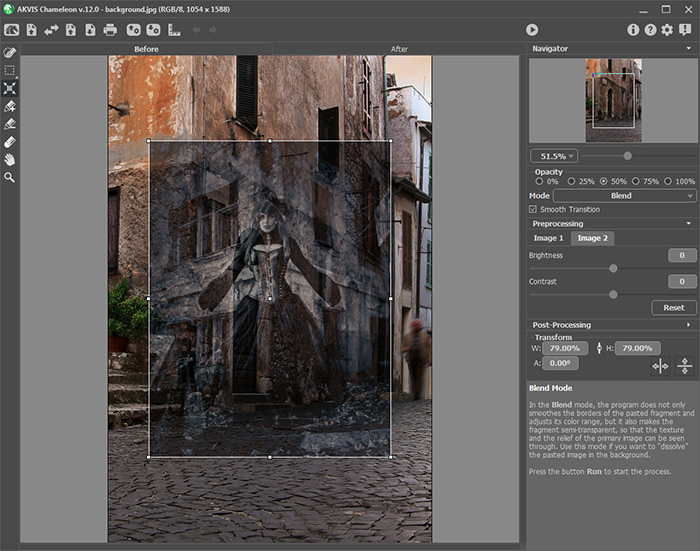
In the Blend Mode, the program does not only smoothen the borders of the inserted object and adjusts its color range, but it also makes the object semi-transparent, so that the texture and the relief of the primary image can be seen through. Use this mode if you want to “dissolve” the inserted image in the background.
A flower - a background A butterfly for a collage Result
Source imagesResult

  • Step 1. Open an image with the object that you want to transfer to a new background.

  • A butterfly for a collage
  • Step 2. Select the object with any selection tool.

  • Make selection
  • Step 3. Call AKVIS -> Chameleon – Grab Fragment from the Filter menu of the photo editor.

    Adobe Photoshop - Filter –> AKVIS –> Chameleon – Grab Fragment; Paint Shop Pro - Effects –> Plugins -> AKVIS –> Chameleon – Grab Fragment; Corel PHOTO-PAINT - Effects –> AKVIS –> Chameleon – Grab Fragment.

    If everything is done correctly you’ll see a message that selected object is saved into the clipboard.

  • Step 4. Open an image that will be used as a background for the future collage
    A flower - a background

    and call the command AKVIS –> Сhameleon – Make Collage from the menu Filters.

    Adobe Photoshop - Filter –> AKVIS –> Chameleon – Make Collage; Paint Shop Pro - Effects –> Plugins -> AKVIS –> Chameleon – Make Collage; Corel PHOTO-PAINT - Effects –> AKVIS –> Chameleon – Make Collage.

    The AKVIS Chameleon window will open. The window will contain the background image and the pasted object.

    The Chameleon window with two images for a collage

    Note: If you begin with Step 4, the window will show the last used fragment.

  • Step 5. Select the Blend mode from the drop-down menu in the Settings panel.

  • Step 6. Set the value of the Opacity parameter. This parameter is auxiliary and does not affect the final result. Use it when you need to position the fragment on the image at a high accuracy. With 100% the pasted object is non-transparent. The lower the value of the parameter, the more transparent is the fragment.

    In this case we do not need to change this parameter, as we do not have a precise position for the butterfly.

  • Step 7. Use the Transform tool from the Toolbox to change the size, the position, and the rotation angle of the pasted fragment on the background image. If you press the button (T) a dotted frame will appear and the Settings panel will show the transformation parameters.
    Transform the object for a collage

    To change the size of the object, bring the cursor to the dotted frame. The cursor will turn into a two-sided arrow . Keeping the left mouse button pressed, increase or reduce the size of the fragment. You can also scale the image by changing the parameters W (width) and H (height).

    There is a proportion sign between the parameters W and H. If this option is enabled the image will be scaled proportionally, if it is disabled you can set your own parameters.

    To rotate an object, bring the cursor to one of the angle markers to get a rounded two-arrows pointer , move the pointer keeping the left mouse button pressed. You can rotate an object by setting the parameter A (angle) to a value between 0 to 360 in the Settings panel.

    To move an object bring the cursor inside the object, the cursor will turn into a cross . Move the object keeping the left mouse pressed.

  • Step 8. Click on to start the process of the collage creation. The result will be shown in the After tab. You can switch between the tabs using the button Tab.
    Collage creation in Blend Mode
  • Step 9. You can save the fragment used for the collage: press the button ( Ctrl+S (Command+S on Macintosh) hot-key) on the Control Panel, in the Save fragment and strokes dialog box enter a name for the file and indicate a folder to which you want to save the file.

    The fragment will be saved with the .chameleonFragment extension. The file will contain information about the fragment's location and the settings.

    Open the saved fragment with the button (Ctrl+O (Command+O on Macintosh) hot-key) and choose the fragment in the Load fragment and strokes dialog box.

  • Step 10. Click on to apply the result and close the plugin's window.
    The photo collage: a butterfly-chameleon on a flower


Workspace Workspace
How It Works How It Works
Montage Mode Montage Mode
   — Photo Hunting — Photo Hunting
   — Snow Windserfing — Snow Windserfing
   — Serenade for a Gull — Serenade for a Gull
   — Happy Easter! — Happy Easter!
Chameleon Mode Chameleon Mode
   — To Sail Beyond the Sunset — To Sail Beyond the Sunset
   — Changing Appearance — Changing Appearance
   — Try on a Tattoo — Try on a Tattoo
   — Monkey and a Mask — Monkey and a Mask
   — Coffee postage stamp — Coffee postage stamp
   — Lemonade Label — Lemonade Label
   — Chameleon in the Fire — Chameleon in the Fire
   — The Flying Dutch — The Flying Dutch
   — Flowers and a Cat — Flowers and a Cat
   — Elephant in the Savanna — Elephant in the Savanna
   — Archeological Reconstruction — Archeological Reconstruction
   — The Swan Lake — The Swan Lake
   — An Earth View — An Earth View
   — Collage with a Girl — Collage with a Girl
   — Help the Dove — Help the Dove
   — A Girl in the Sunset — A Girl in the Sunset
   — A Greeting Card — A Greeting Card
   — Moonlight Sonata — Moonlight Sonata
   — Enliven the Scenery — Enliven the Scenery
   — Photo Collage in Corel Photo-Paint — Photo Collage in Corel Photo-Paint
Blend Mode Blend Mode
   — Wood Painting — Wood Painting
   — Creating a Greeting Postcard — Creating a Greeting Postcard
   — Valentine Card — Valentine Card
   — Autumn Collage — Autumn Collage
   — Butterfly on the Wall — Butterfly on the Wall
   — Dove in the Fire — Dove in the Fire
   — Fantastic Collage — Fantastic Collage
   — Blazing Photo of a Girl — Blazing Photo of a Girl
   — A Wedding Photo Collage — A Wedding Photo Collage
   — Fairy Tale Illustration — Fairy Tale Illustration
   — Ripe Cherries — Ripe Cherries
   — Sky Swapping — Sky Swapping
   — Creative Design in Paint Shop Pro — Creative Design in Paint Shop Pro
   — Time Goes by Like Water — Time Goes by Like Water
   — Wallpaper with a Leopard — Wallpaper with a Leopard
   — Newfoundlands From The Sea — Newfoundlands From The Sea
Emersion Mode Emersion Mode
   — For Graffiti Fans — For Graffiti Fans


   Privacy Policy | Site Map | Search    
   Contact Us | Twitter | Facebook   
| English  |Français  |Deutsch  |Español  |Português  |Italiano  |日本語  |Pусский  | © 2004-2010 AKVIS.com. All rights reserved.