Artistic Crop
The Artistic Crop effect accentuates a certain part of an image by blurring the rest of it. The focus of attention is shifted to this part and the photograph is seen in a new light.
Working with the Artistic Crop involves two processes:
- Frame creation.
- Adjusting the image in the frame.
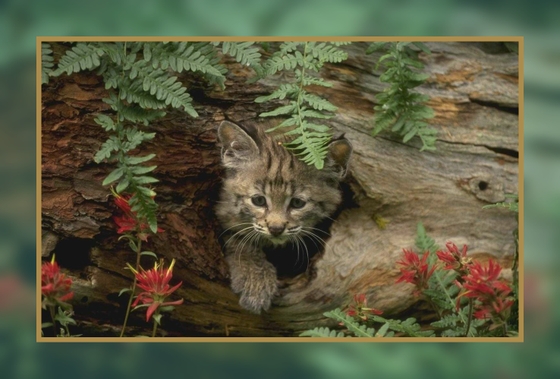
Frame. The frame is created from a part of the original image. Adjust the parameters for the frame:
-
Width (0-100%). This parameter sets the width of the frame. At 0% there is no frame at all, at 100% the frame takes up most of the image.
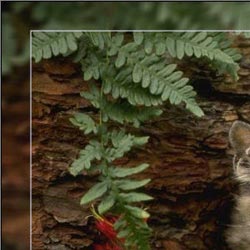
Width = 15%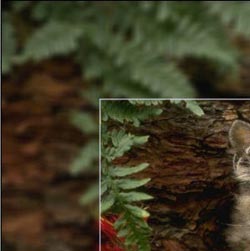
Width = 50% -
Blur (0-60). Set the intensity of image blurring. The higher the value, the more blurred the frame is. At 0 the frame is not blurred at all.
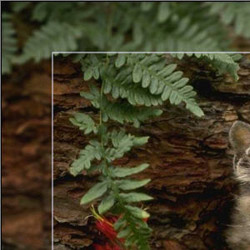
Blur = 5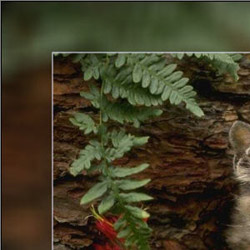
Blur = 30 -
Overlay Color. Select the color that will overlay the frame. Click the color plate and select a color from the Select Color dialog.
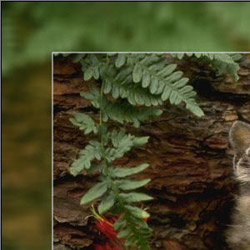
Green color selected -
Opacity (0-100%). This parameter sets the opacity of the overlay color. Opacity = 100% corresponds to the maximum filling of the frame with the overlay color. At 0% all colors are the same as on the original image.
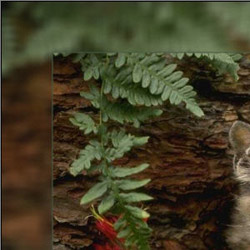
Opacity = 10%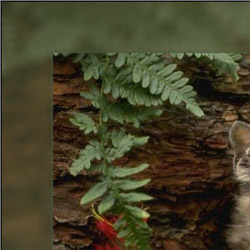
Opacity = 90%
Border Line. It is the separation line between the frame and the image. Adjust parameters for the Border Line:
-
Width (0-100). This parameter sets the width of the separation line in pixels. At 0 there is no border line.
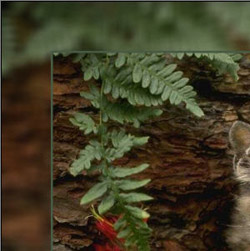
Width = 5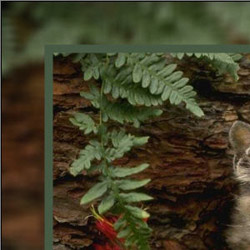
Width = 20 - Color. Click the color plate to select a color for the Border Line in the Select Color dialog.
Adjusting the image in the frame. The image can be scaled and shifted relative to the frame.
The parameter Scale Image to Frame defines the way the image is scaled to the frame, if scaled at all.
-
No Scaling. The image is not scaled to the frame. In this way you can accentuate a certain part of the image.
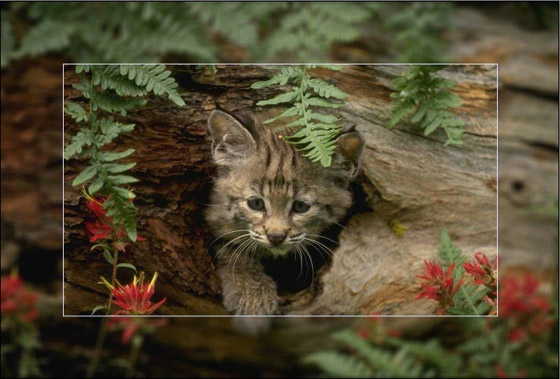
Option "No Scaling" enabled -
Keep Image Ratio. The image is scaled keeping the proportion of the original image.
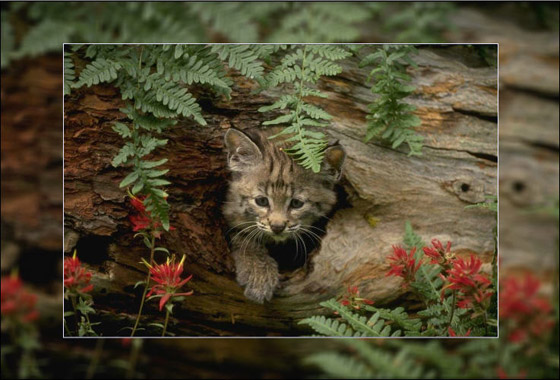
Option "Keep Image Ratio" enabled -
Keep Border Ratio. The image is scaled in such a way that the summarized width of the horizontal sides is equal to the summarized width of the vertical sides. In this case a small part of the image (either in height or in width) is cut out.
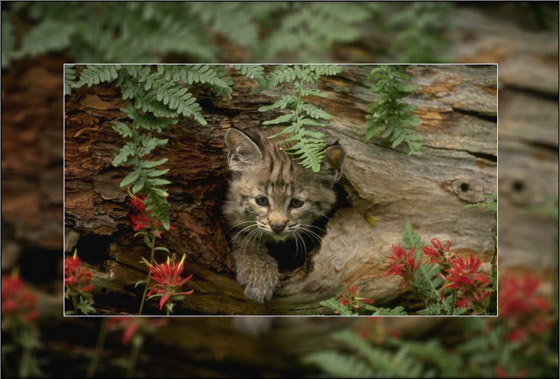
Option "Keep Border Ratio" enabled
Image Shift. This parameter sets the position of the image in the frame. The image can be shifted horizontally and vertically:
- Horizontal. At values under 0, the image shifts to the left; at values over 0, the images shifts to the right.
- Vertical. At values under 0, the image shifts downwards; at values over 0, the image shifts upwards.
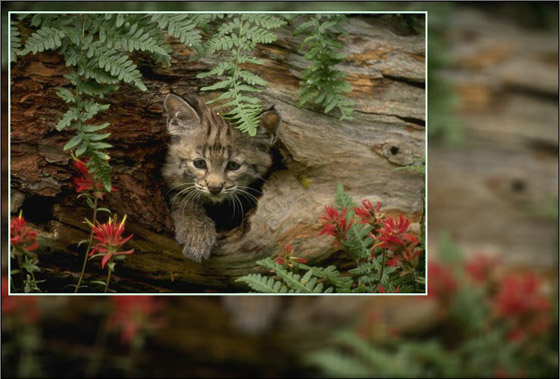
Image Shift
The values of the parameter vary between -100% and 100%. By default the parameters are set to 0, that is the image is in the center of the frame.
It is also possible to shift the image on the frame using the mouse cursor:
Press the Ctrl on the keyboard and you will see a dotted frame. Put the cursor inside the dotted frame, press the left button of the mouse and, keeping it pressed, drag the frame. The parameters of the Image Shift will be recalculated accordingly and the image will be automatically processed.
ArtSuite v. 21.1 - Free 10-day Trial
