Recorte artístico
El trabajo con el efecto Recorte artístico se puede dividir en dos pasos:
- Crear un marco.
- Ajustar la imagen al marco.
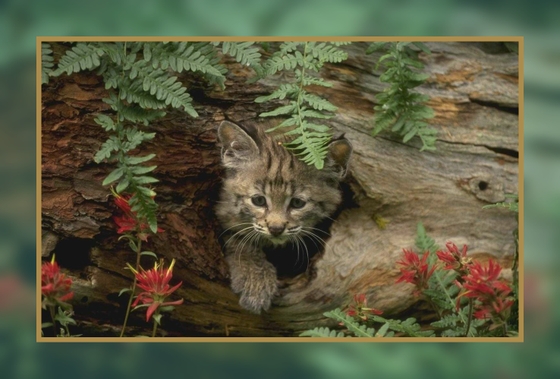
Marco. El marco se crea a partir de una parte de la imagen original. Ajuste los parámetros del marco:
- Ancho (0-100%). Este parámetro fija el ancho del marco. En 0% no hay marco, con 100% el marco ocupa la mayor parte de la imagen.
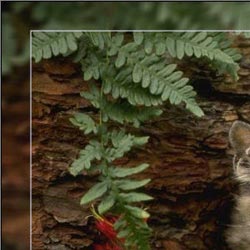
Ancho = 15%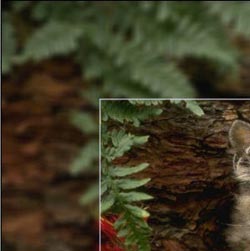
Ancho = 50% - Desenfoque (0-60). Ajuste la intensidad del desenfoque. Cuanto más alto es el valor, más borrosa es el marco. A 0 el marco no es borrosa.
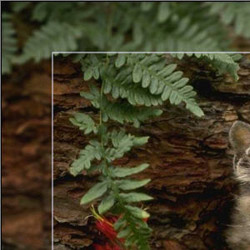
Desenfoque = 5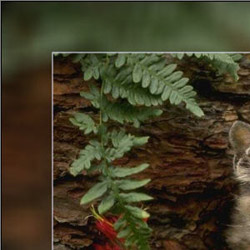
Desenfoque = 30 - Matiz. El color del marco semitransparente. Seleccione un color haciendo doble clic en el rectángulo de color y eligiendo un color del Diálogo estándar de selección de color.
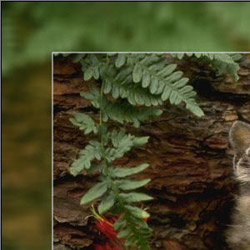
Matiz verde - Opacidad (0-100%). El parámetro fija la opacidad del color del marco (Matiz). Al 100% la opacidad es máxima y el color es claro. Al 0% todos los colores son los mismos que en la imagen original.
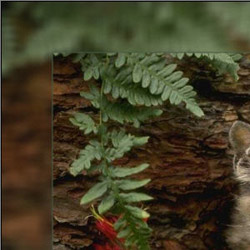
Opacidad = 10%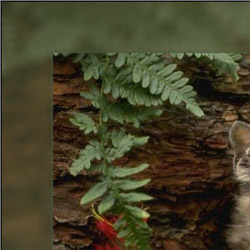
Opacidad = 90%
Borde. Esto es la línea de separación entre el marco y la imagen. Ajuste los parámetros del borde:
- Ancho (0-100). El parámetro fija el ancho de la línea de separación en píxeles. En el 0 no hay ninguna borde.
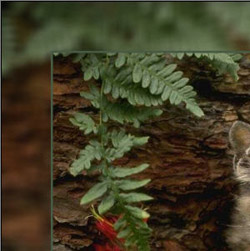
Ancho = 5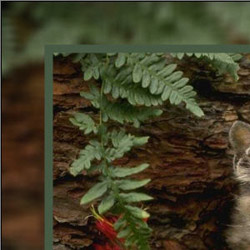
Ancho = 20 - Color. El color del borde. Seleccione un color haciendo doble clic en el rectángulo de color y eligiendo un color.
Ajustar la imagen al marco. Puede cambiar la escala y la posición de la imagen en el marco.
El parámetro Ajustar la imagen al marco fija la manera en que la imagen se ajusta al marco.
- Sin ajuste. La imagen no se ajusta al marco. De esta manera puede acentuar una parte de la imagen.
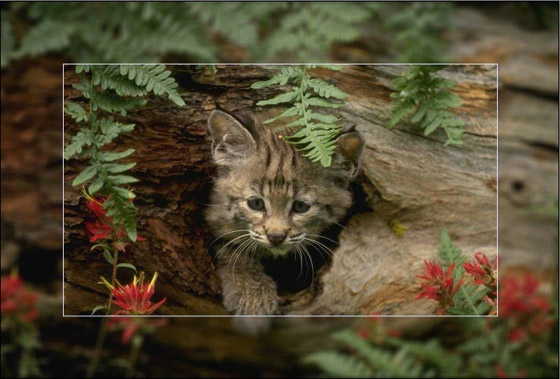
La casilla "Sin ajuste" - Guardar las proporciones. La imagen se ajusta al marco manteniendo las proporciones de la imagen original.
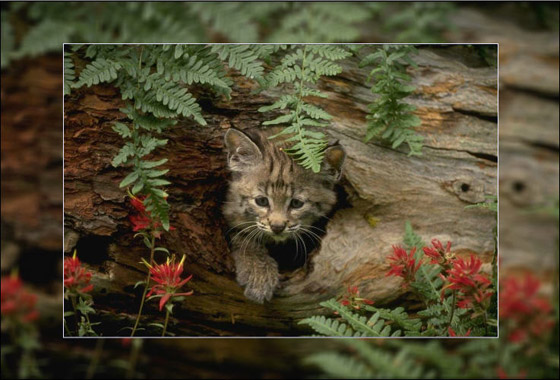
La casilla "Guardar las proporciones" -
Guardar ancho del marco. La imagen se ajusta al marco de tal manera que el ancho agregado de los lados horizontales sea igual al alto agregado de los lados verticales. En este caso una pequeña parte de la imagen (ya sea de alto o de ancho) es recortada.
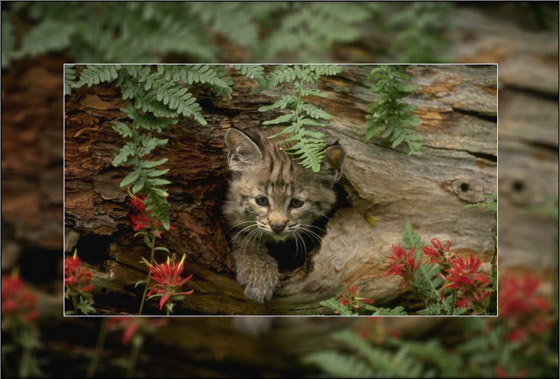
La casilla "Guardar ancho del marco"
Desplazar imagen en marco. El parámetro fija la posición de la imagen en el marco. La imagen puede ser desplazado horizontalmente y verticalmente:
- Horizontalmente. En valores por debajo de 0, la imagen se desplaza a la izquierda, en valores superiores a 0, la imagen se desplaza a la derecha.
-
Verticalmente. En valores por debajo de 0, la imagen se desplaza hacia abajo, en valores superiores a 0, la imagen se desplaza hacia arriba.
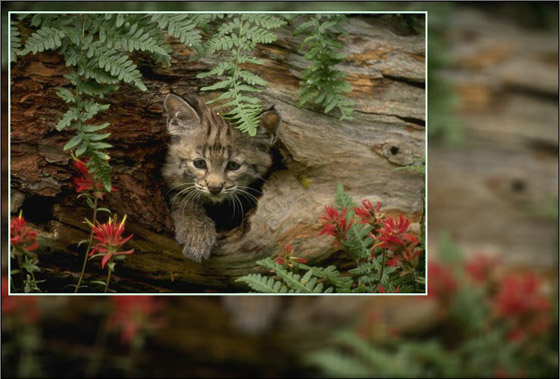
Desplazar imagen en marco
Los valores del parámetro varían entre -100% y 100%. Por defecto, los parámetros están ajustados a 0 y la imagen está en el centro del marco.
Además, es posible desplazar la imagen en el marco utilizando el cursor del ratón:
Pulse la tecla Ctrl en el teclado y aparecerá un cuadro punteado. Ponga el cursor dentro del cuadro punteado, pulse el botón izquierdo del ratón y, manteniéndolo pulsado, arrastre el cuadro. Los parámetros de Desplazar imagen en marco se calcularán en consecuencia.
ArtSuite v. 20.0 - Prueba gratuita de 10 días

