Changeable Fruit
This tutorial demonstrates a simple method for changing the colors in an image using the Color Shift Effect in AKVIS ArtSuite.
Juicy, bright, sun-drenched, aromatic fruits are not just a delicacy gracing the table. Have you thought of all the colors that are named after fruits? Lemon, raspberry, orange, eggplant, peach - all these colors evoke the image of the fruits and vegetables from which they are named. What if we could create a magical fruit that combined the best qualities of our favorite fruits? Let's defy nature and use the magic of AKVIS ArtSuite to create our own unique delicacy.
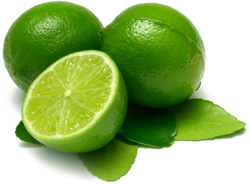
- Step 1. Open an image in the program and choose Color Shift from the list of effects.
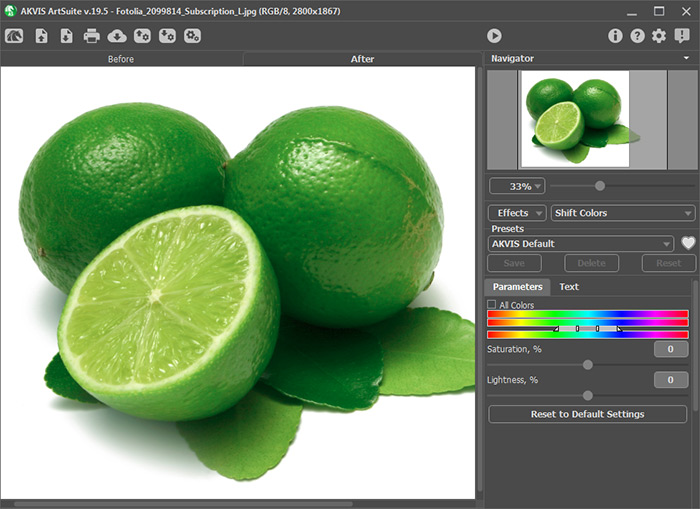
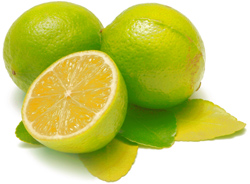
Original Image in AKVIS ArtSuite - Step 2. Let's convert a lime to a lemon, which is just as sour but has a different color.
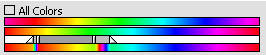
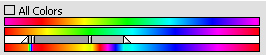
Manage the effect with three color gradient lines.
First, use the limiters to select the color range - green and yellow. Colors outside the limiters remain unchanged.
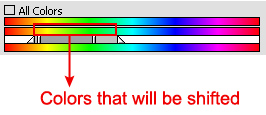
Changing ColorNext move the upper gradient to the right, placing the yellow hues over the limiters.
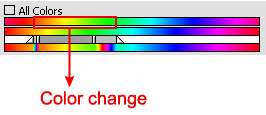
Range of Replacement ColorsThe line at the bottom shows the future color of the fruit. The green color of the limes has been reduced, while yellow and orange tones have increased.
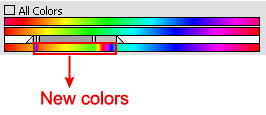
New ColorsTo get brighter colors, increase Saturation and Lightness.
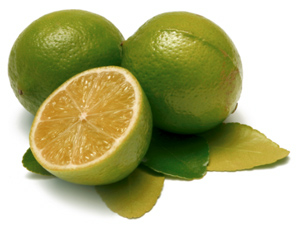
Result of Color Shift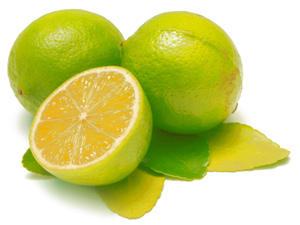
Saturation = 19%, Lightness = 31% - Step 3. The next step is to add the features of an orange to our fruit.
As in step 2, move the top gradient line to the right, so that the fruit becomes even less green and more red.
After changing colors and correcting brightness, we get the resulting fruit:
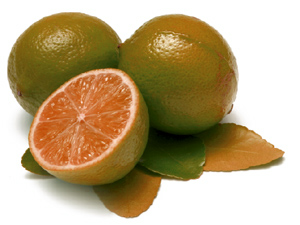
Result of Color Shift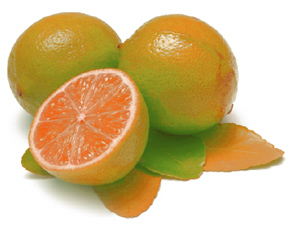
Saturation = 8%, Lightness = 30% - Step 4. In the final stage, the lime will take on the qualities of a grapefruit. In this case, almost all the green will be replaced by red:
Here is the result:
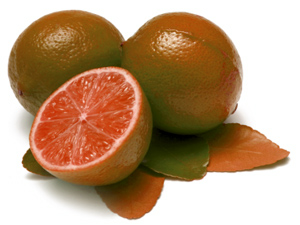
Result of Color Shift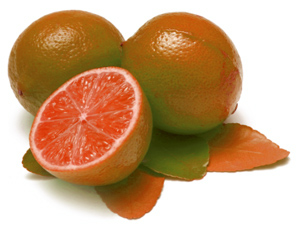
Saturation = 13%, Lightness = 13%
ArtSuite v. 21.1 - Free 10-day Trial
