Pattern Frame
The Pattern Frame is formed by regular patterns generated all along the perimeter of the image. As a pattern you can take a sample from the built-in Texture Library (flowers, butterflies, hearts, cakes, etc) or load your own images on a transparent background.

The Settings Panel lets choosing a texture to generate a frame and adjust the parameters for the selected frame.
Texture. Select a group from the list and a texture (pattern) from the Texture Library.
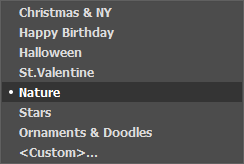
The program comes with a rich collection of textures. Textures for the Pattern Frame are found under Pattern and are grouped in several sets.
The selected (current) texture is displayed in a square button which also lets opening the Library.
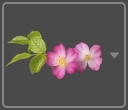
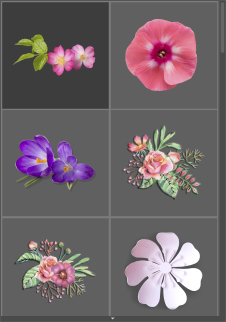
Click the square, you will see all textures in the selected group (for example, Nature). Now you can select a pattern by clicking on it.
Hint: It is possible to apply your own textures. It can be any image in these formats: JPEG, BMP, TIFF, or PNG.
For pattern frames we recommend to use PNG images with an object on a transparent area.
To load your own texture into AKVIS ArtSuite, select <Custom>… in the list.
Adjust the following parameters for this digital picture frame:
Frame Width (0-100%). This parameter sets the width of the frame. At 0% there is no frame, at 100% the width of the frame makes a quarter of the minimum image size (as to its width or height). For example, for an image 600 x 800 pixels the 100% width of the frame is calculated as follows: 1/4 from the minimum size (600 px) is 150 pixels.

Frame Width = 30%
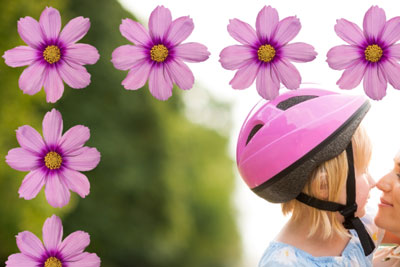
Frame Width = 80%
Texture Brightness (0-200%). This parameter allows changing the brightness of the original texture. The brightness of the original texture equals 100%. To darken the frame, set the value of the parameter less than 100%; to brighten the frame, set a value higher than 100%.
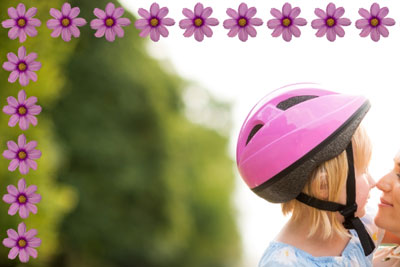
Texture Brightness = 50%

Texture Brightness = 200%
Flip Texture Vertically  . When the button is enabled, the texture is oriented to the horizontal line, that is top-down.

Flip Texture Vertically
Button Disabled

Flip Texture Vertically
Button Enabled
Flip Texture Horizontally  . When the button is enabled, the texture is oriented to the vertical line, that is right-to-left.
Flip Texture Horizontally
Button Disabled
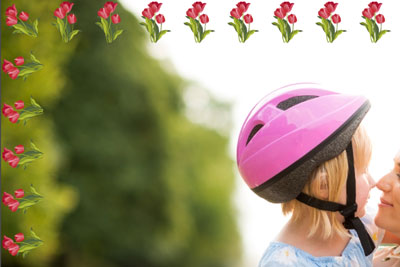
Flip Texture Horizontally
Button Enabled
There are several variants of texture lay-out in corners and on the sides of the frame.
- Without rotation (the Tumble Texture button
 is disabled).
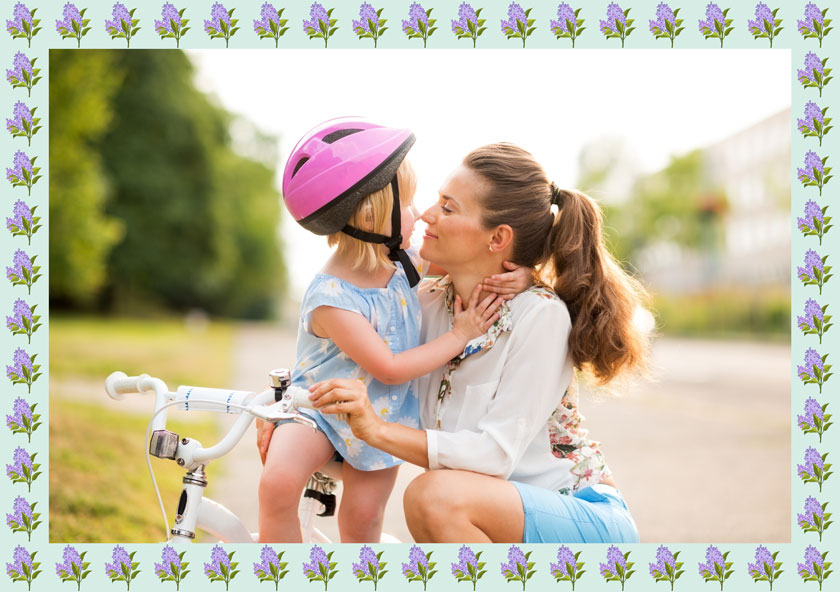
- Texture rotates in the corners and on the sides (the buttons Tumble Texture
 and Tumble Texture in Corners
  are enabled).
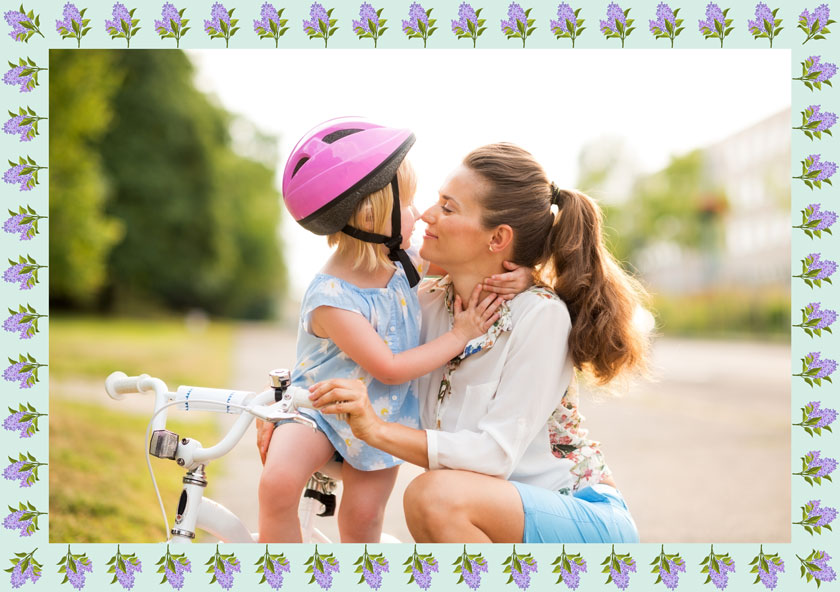
- Texture rotates on the sides but not in the corners (the Tumble Texture button is enabled while the Tumble Texture in Corners button
 is disabled).

Scale Image to Frame. When the check-box is enabled, the image is scaled to fit the frame. When the check-box is disabled, the frame overlays the image on it borders.
Frame Color. Adjust the color of the frame under the pattern (it can be set only if the Scale Image to Frame check-box is enabled). Double-click the color plate and select a color from the standard dialog.

Check-box Scale Image to Frame
is disabled
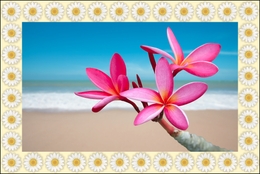
Check-box Scale Image to Frame
is enabled
and yellow is set as the background color
Transparent. When the check-box is enabled, the pattern is drawn on a trasparent background. It can be useful on an image with several layers to use the lower layer(s) as the background color for the pattern.
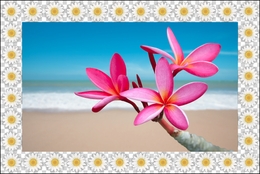
Check-box Transparent enabled
Random Patterns. When the check-box is enabled, the pattern frame is generated using randomly selected objects.

Frame Created Using Four Random Patterns
Count (2-20). The number of patterns taken from the Texture Library to create a frame.

Count = 2
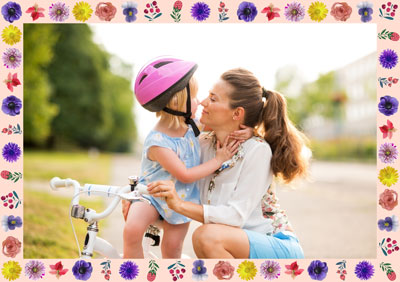
Count = 10
Random Seed (0-9999). This is the starting number for the random number generator. Every number corresponds a particular set and distribution of patterns.
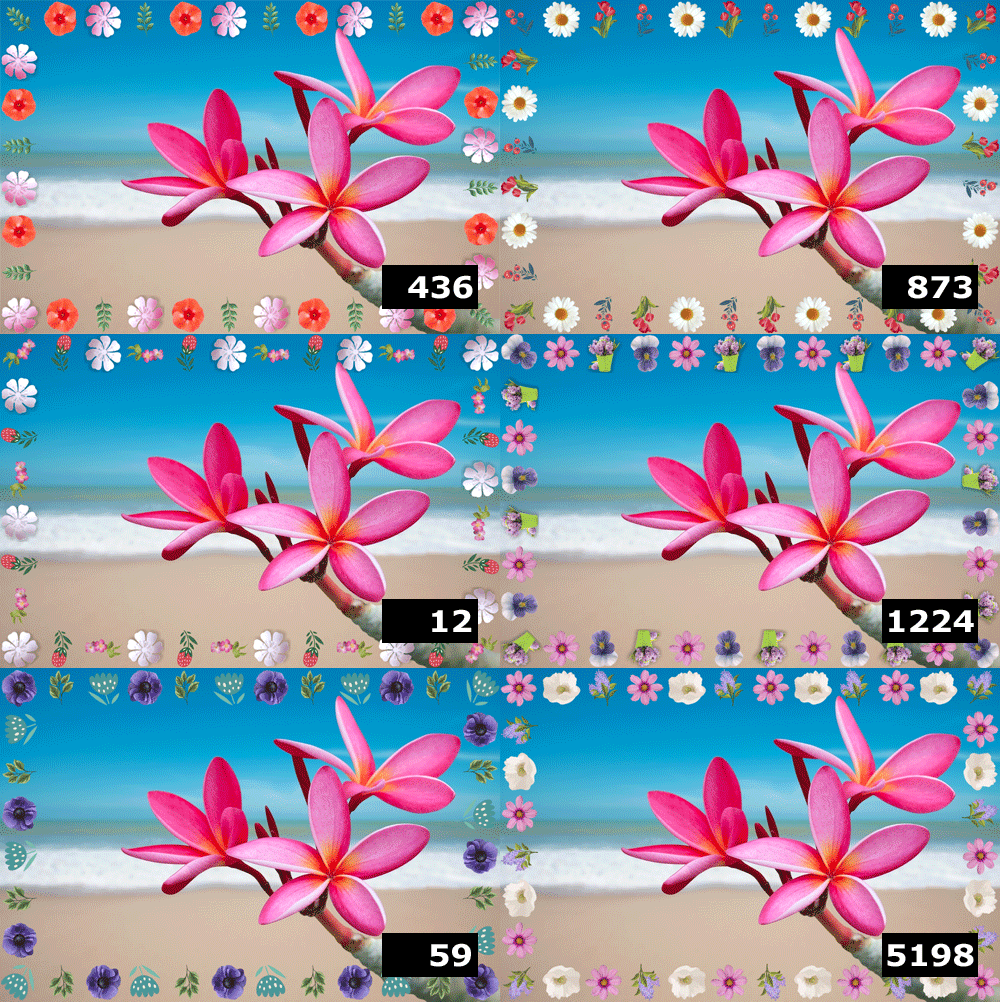
Random Patterns Frame
ArtSuite v. 21.1 - Free 10-day Trial
