Create A Retro Style Portrait With AKVIS Software


Please enter your email to be kept posted on updates and discounts:
 
 
  Products     Download     Online Store     Tutorial     Support     Company      Customer Room
en  fr  de  es  pt  it  jp  ru    
 

Tutorial: AKVIS ArtSuite

Retro Style Portrait


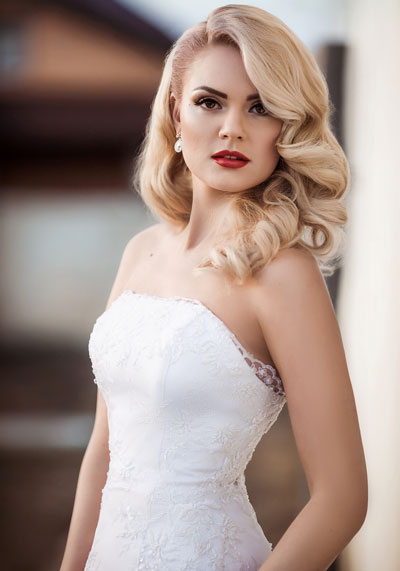
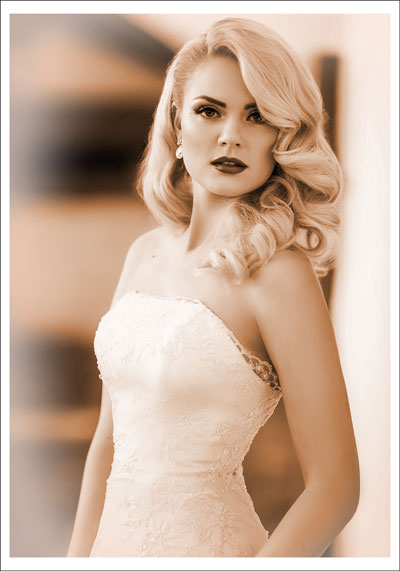
In this tutorial a professional studio photo is transformed into a beautiful retro style portrait.

This tutorial was done with Adobe Photoshop along with the AKVIS ArtSuite and AKVIS HDRFactory plugins.

    Original Image Result
    Original Image Result
  • Step 1. Open the image in the graphics editor.
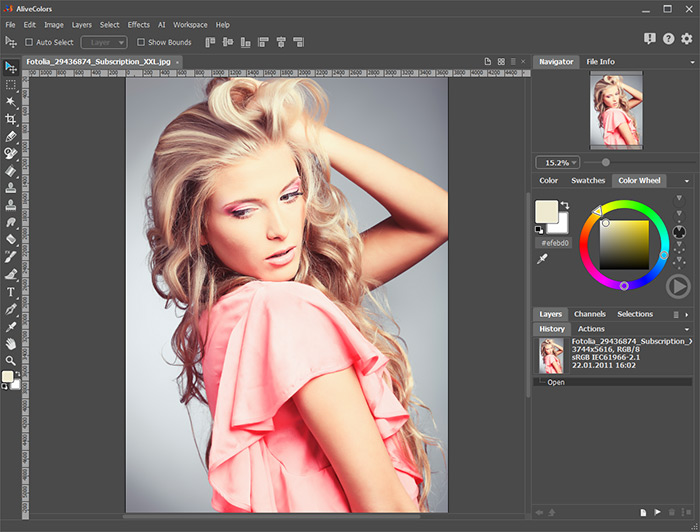
    Graphic Editor's Workspace
    Photoshop's Workspace
  • Step 2. Call the AKVIS ArtSuite plugin (via Filter -> AKVIS -> ArtSuite). In the Settings Panel choose Effects from the left drop-down list, then go to the adjacent drop-down list and select Black and White.

    Autorun is activated by default, so upon selecting the effect the photo will automatically be converted to a black and white image.
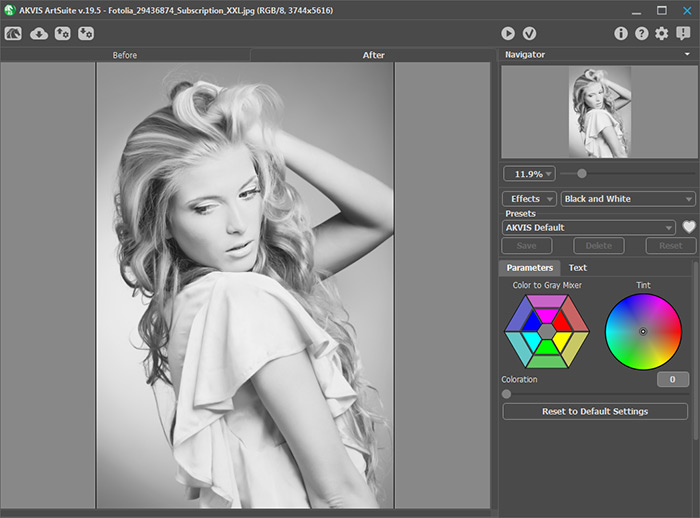
    AKVIS ArtSuite Plugin's Workspace: Black and White Effect
    AKVIS ArtSuite Plugin's Workspace: Black and White Effect
  • Step 3. Adjust the effect's settings. Moving the brightness controls in each sector of the color hexagon will lighten or darken gray tones which correspond to the original colors of the image.

    Slightly adjust Coloration to touch up the image a little and get the faded colors effect.

    To imitate a sepia effect shift the center point of the Tint wheel as shown below.
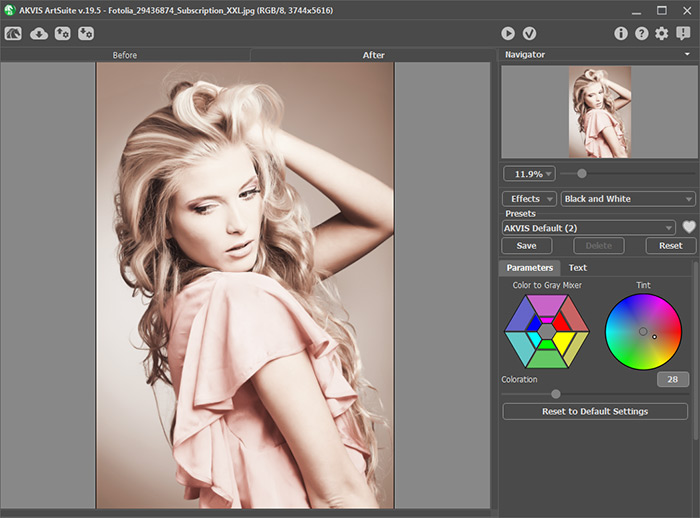
    Adjusting Parameters of Black and White Effect
    Adjusting Parameters of Black and White Effect

    Click on to apply the result and close the plugin.

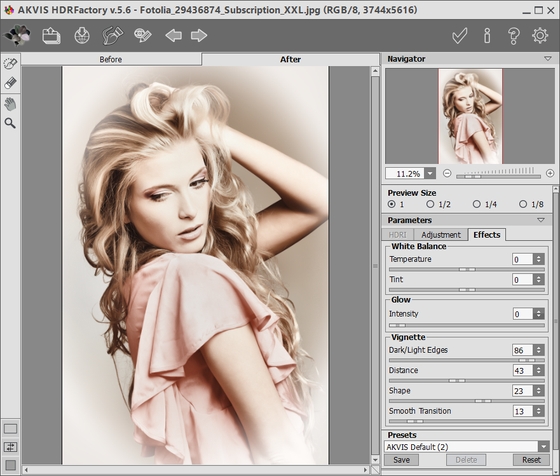
  • Step 4. Now it's time to add a vignette. Call the AKVIS HDRFactory plugin (via Filter -> AKVIS -> HDRFactory). Set all parameters under the Adjustment tab to zero. Adjust the parameters under the Effects tab as shown below.

    AKVIS HDRFactory Plugin's Workspace: Vignette Frame
    AKVIS HDRFactory Plugin's Workspace: Vignette Frame

    Click on to apply the result. The plugin's window will close.

  • Step 5. Increase the canvas size in Adobe Photoshop (via Image -> Canvas Size) to add a simple white frame. The portrait is ready.
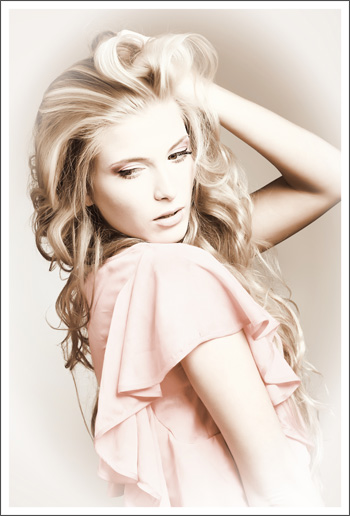
  • Retro Photo
    Retro Style Portrait
 
How It Works How It Works
   — Workspace — Workspace
   — How To Use The Program — How To Use The Program
   — Preferences — Preferences
Effects Effects
   — Black & White — Black & White
   — Shift Colors — Shift Colors
   — Channel Mixer — Channel Mixer
   — Texture — Texture
   — Glamour — Glamour
   — Two Keys — Two Keys
Frames Frames
   — Classic — Classic
   — Pattern — Pattern
   — Strokes — Strokes
   — Scratches — Scratches
   — Page Curl — Page Curl
   — Squares — Squares
   — Ragged — Ragged
   — Spray — Spray
   — Artistic Frame — Artistic Frame
   — Artistic Crop — Artistic Crop
   — Frost — Frost
   — Hand Painted Frame — Hand Painted Frame
Examples Examples
   — Berlin Cathedral Postcard — Berlin Cathedral Postcard
   — Change Seasons — Change Seasons
   — Create Your Own Art Gallery — Create Your Own Art Gallery
   — Make a Calendar  — Make a Calendar
   — Prowling Tiger — Prowling Tiger
   — Frog Prince House — Frog Prince House
   — Summer Dreams (Advanced Tutorial) — Summer Dreams (Advanced Tutorial)
   — Relaxing at the River — Relaxing at the River
   — Happy New Year! Year of the Tiger! — Happy New Year! Year of the Tiger!
   — Handmade Wedding Invitation — Handmade Wedding Invitation
   — Making Your Own Frames — Making Your Own Frames
   — Retro Style Portrait — Retro Style Portrait
   — Changeable Fruit - Shift Colors — Changeable Fruit - Shift Colors
   — Valentine's Day: Capturing a Memory — Valentine's Day: Capturing a Memory


back to top


   Privacy Policy | Site Map | Search at AKVIS    
   Contact Us | Twitter | Facebook | YouTube Channel    
| English  |Français  |Deutsch  |Español  |Português  |Italiano  |日本語  |Pусский  | © 2004-2012 AKVIS. All rights reserved.