Black and White
The Black & White effect in AKVIS ArtSuite converts a color photo to a black and white image and adds a color tint to it (for example, a sepia tone).
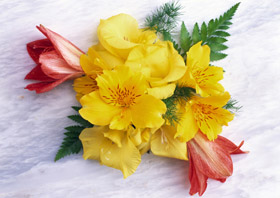
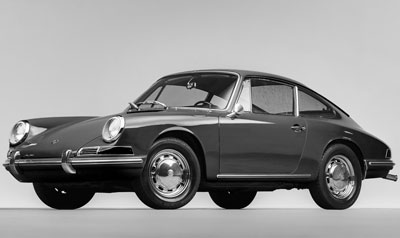
Color Photo
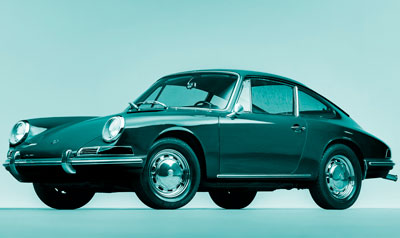
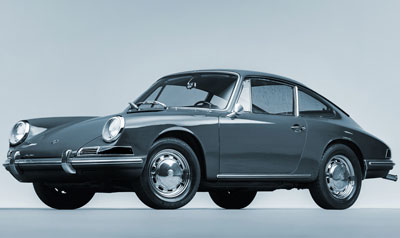
B&W Effect + Toning
B&W conversion:
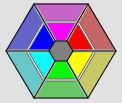
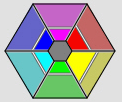
Color to Gray Mixer. The hexagon consists of 6 sections, each having one color and a control. Use the control to darken or lighten the gray tones that correspond to the original image colors and are close to the section color. The closer the control to the center, the darker the tone, and vice versa, the farther from the center, the lighter the tone.
To restore the default settings, click the gray hexagon in the center.
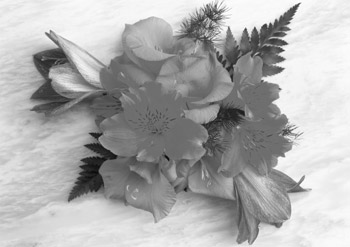
Toning:
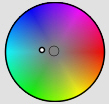
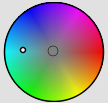
Tint. Choose a color on the gradient circle to add a color tint to the image. By default, the control is in the center of the gradient circle and the image has gray tones. You can set a tint by clicking the gradient circle; the control will move to the defined point. The control also regulates the tint saturation - the farther from the center, the more saturated the color shade is.
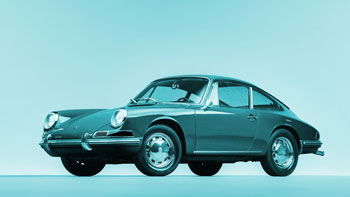
Coloration (0-100). This parameter mixes the resulting grayscale image with the original one. The values of the parameter vary between 0 and 100. By default the value is set to 0, which means that there is no mixing. As you increase the value, the original image becomes more visible through the grayscale image, adding original colors to it.
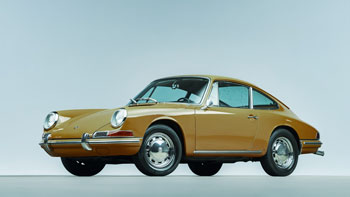
Coloration = 25
ArtSuite v. 21.1 - Free 10-day Trial
