Making Your Own Frames in AKVIS ArtSuite


Please enter your email to be kept posted on updates and discounts:
 
 
  Products     Download     Online Store     Tutorial     Support     Company      Customer Room
en  fr  de  es  pt  it  jp  ru    
 

Tutorial: AKVIS ArtSuite

Making Your Own Frames


The author of this tutorial is Irina Vesnina.

With AKVIS ArtSuite you can create your own frames, choosing a classic frame or pattern.
Original Image Sample for a Frame Result


Classic Frame

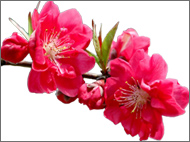
  • Step 1. Prepare the image you want to use as a frame. A picture of any size, in the JPEG, BMP, TIFF or PNG format can be used as a texture. For example, this:

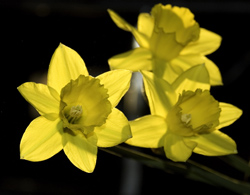
    Sample 1 Sample 2
    Texture Samples
  • Step 2. AKVIS ArtSuite (standalone). Open an image, from which you want to make a frame, by double clicking in the blank are or pressing in the Control Panel.
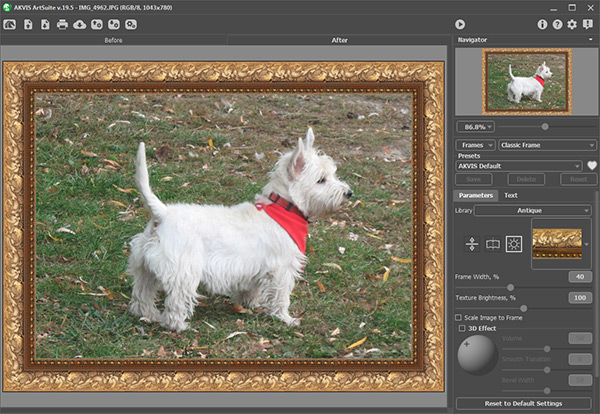
  • Step 3. Select the Classic Frame type in the Settings Panel.

    Original Image in AKVIS ArtSuite
    Original Image in AKVIS ArtSuite

    The Library contains a rich collection of textures and patterns grouped in sets.

    To load your own texture into ArtSuite, select <Custom>… in the list.

    This will open the dialog to load your own texture.

  • Step 4. Use the settings to resize, mirror the texture, adjust brightness, or flip the frame vertically to change the frame's appearance.

    Here is the result:

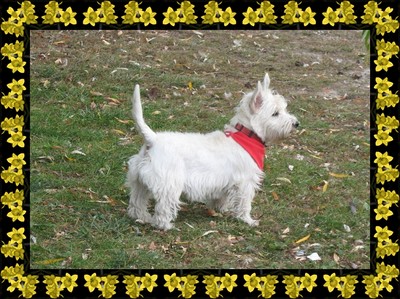
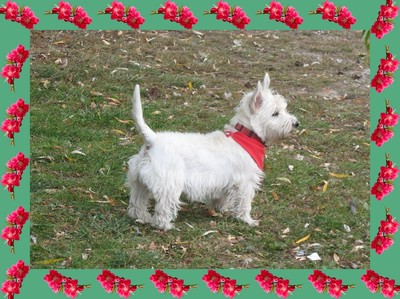
    Image Sample 1 Image Sample 2
    Frame Variants

Pattern Frame

  • Step 1. Prepare the image which you will use for the frame. For best results, use a square image in the PNG format with a transparent background. If you have no such images, you can choose any other, such as:

    Sample 3 Sample 4
    Texture Samples
  • Step 2. Start AKVIS ArtSuite (standalone). Open the image which you want to use in the frame by double clicking in the blank area or pressing in the Control Panel.
  • Step 3. Choose the Pattern frame type from the Settings Panel.
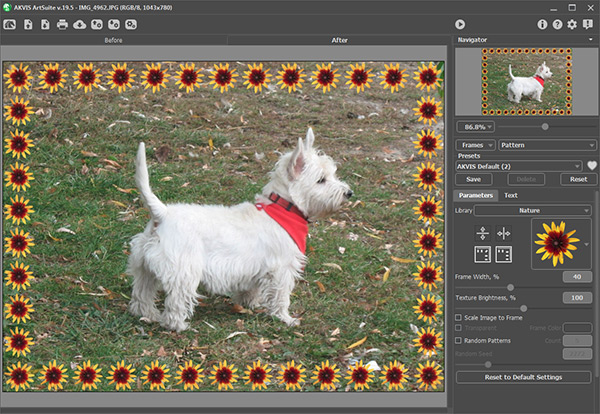
    Original Image in AKVIS ArtSuite
    Original Image in AKVIS ArtSuite

    To load your own texture into ArtSuite, select <Custom>… in the list of the Library.

    This will open the dialog to load your own texture.

  • Step 4. Adjust the settings to rotate the texture, add a frame color, or adjust brightness to change the appearance of the frame.

    Here is the result:
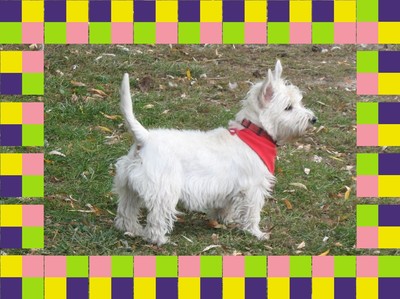
    Image Sample 3 Image Sample 4
    Frame Variants
 
How It Works How It Works
   — Workspace — Workspace
   — How To Use The Program — How To Use The Program
   — Preferences — Preferences
Effects Effects
   — Black & White — Black & White
   — Shift Colors — Shift Colors
   — Channel Mixer — Channel Mixer
   — Texture — Texture
   — Glamour — Glamour
   — Two Keys — Two Keys
Frames Frames
   — Classic — Classic
   — Pattern — Pattern
   — Strokes — Strokes
   — Scratches — Scratches
   — Page Curl — Page Curl
   — Squares — Squares
   — Ragged — Ragged
   — Spray — Spray
   — Artistic Frame — Artistic Frame
   — Artistic Crop — Artistic Crop
   — Frost — Frost
   — Hand Painted Frame — Hand Painted Frame
Examples Examples
   — Berlin Cathedral Postcard — Berlin Cathedral Postcard
   — Change Seasons — Change Seasons
   — Create Your Own Art Gallery — Create Your Own Art Gallery
   — Make a Calendar  — Make a Calendar
   — Prowling Tiger — Prowling Tiger
   — Frog Prince House — Frog Prince House
   — Summer Dreams (Advanced Tutorial) — Summer Dreams (Advanced Tutorial)
   — Relaxing at the River — Relaxing at the River
   — Happy New Year! Year of the Tiger! — Happy New Year! Year of the Tiger!
   — Handmade Wedding Invitation — Handmade Wedding Invitation
   — Making Your Own Frames — Making Your Own Frames
   — Retro Style Portrait — Retro Style Portrait
   — Changeable Fruit - Shift Colors — Changeable Fruit - Shift Colors
   — Valentine's Day: Capturing a Memory — Valentine's Day: Capturing a Memory


back to top


   Privacy Policy | Site Map | Search at AKVIS    
   Contact Us | Twitter | Facebook | YouTube Channel    
| English  |Français  |Deutsch  |Español  |Português  |Italiano  |日本語  |Pусский  | © 2004-2012 AKVIS. All rights reserved.