Shift Colors
The Shift Colors effect shifts colors on an image with consequent saturation and lightness adjustment.
Below is an example of the effect application. The blue color was replaced by red, other colors stayed the same.
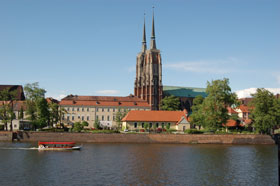
Original Image
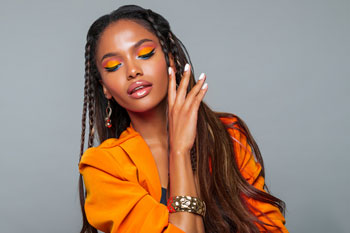
Color Shift for Blue
The effect has the following controls that are represented by gradient lines:
- The middle gradient line defines the effect application area.
The effect application area (the color/colors that will be shifted) is defined by a gradient line with 4 sliders under it: two outer and two inner sliders.
The colors between the inner sliders will be affected to the full extent. The colors between the inner and the outer sliders will change less (the farther from the inner slider, the weaker is the effect influence). The colors outside the outer sliders will stay the same.
 Default Settings
Move the sliders to change the effect application area. For this purpose, bring the cursor to one of the sliders, click and drag it into the required position on the line.

 Moving The Inner Slider
 Moving The Outer Slider
To move all 4 sliders at once, bring the cursor in the middle of the inner sliders, click, and keeping the left mouse button pressed, move the sliders to the required position.

 Moving All Sliders at Once
 - The upper gradient line regulates the color shift. Bring the cursor to the gradient line, click, and, keeping the left mouse button pressed, move the slider to the left/right, in such a way, that the required colors are above the effect application area.

 Moving The Upper Gradient Line
 - The lower gradient line shows the result of the color shift.

Compare the middle and the lower gradient lines to see which color and how it will be changed.
All Colors. When the check-box is enabled, all image colors are affected by the change. In this case only two gradient lines are displayed: the lower one shows the original color range, while the upper gradient line adjusts the color shift.

Apply to All Colors
The Saturation (-50..50) parameter changes the intensity of the image colors. The values of the parameter vary between -50 (grayscale) to 50 (bright colors). By default the parameter is set to 0.
The Lightness (-50..50) parameter changes the overall lightness of the image, making it darker or lighter.
ArtSuite v. 21.1 - Free 10-day Trial
