Mudança de cor
O efeito de Mudança de cor muda cores em uma imagem com o consequente ajuste de saturação e luminosidade.
Abaixo está um exemplo de aplicação de efeitos. A cor azul foi substituída pela cor vermelha, as outras cores permaneceram as mesmas.
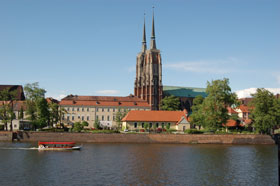
Imagem original

A mudança de cor para a cor azul
O efeito tem os seguintes controles que são representados por um gradiente de linhas:
- A linha do meio do gradiente define a área de aplicação de efeitos.
A área de aplicação do efeito (a(s) cor(es) que serão mudadas) é definida por um gradiente de linhas com 4 controles deslizantes: dois exterior e dois interiores.
As cores entre os controles deslizantes interiores serão afetadas por completo. As cores entre os controles interiores e os controles exteriores irão mudar menos (quanto mais longe do controle deslizante interior, mais fraca é a influência de efeito). As cores de fora dos controles deslizantes exteriores permaneceram as mesmas.

Mova os controles deslizantes para alterar a área de aplicação de efeitos. Para ativar esta aplicação, coloque o cursor em cima de um dos controles deslizantes, clique com o botão esquerdo do mouse sobre ele e arraste-o para a posição requerida na linha.

 Movendo o controle deslizante de interior
 Movendo o controle deslizante de exterior
Para mover todos os 4 controles deslizantes de uma vez, posicionar o cursor no meio dos controles deslizantes interiores, clique com o botão esquerdo do mouse sobre ele e, mantendo o botão esquerdo do mouse pressionado, mova os controles deslizantes para a posição requerida.

 Movendo todos os controles deslizantes de uma vez
 - A linha superior do gradiente regula a mudança de cor. Posicionar o cursor na a linha de gradiente, clique com o botão esquerdo do mouse sobre ele e, mantendo o botão esquerdo do mouse pressionado, mova o controle deslizante para a esquerda/direita, de modo tal, que as cores necessárias fiquem acima da área de aplicação de efeitos.

 Movend a linha superior do gradiente
 - A linha inferior do gradiente mostra o resultado da mudanca de cores.

Comparando o linha do meio com a linha inferior do gradiente podemos ver quais as cores afetadas e como elas serão mudadas.
Todas as cores. Quando a caixa de seleção está habilitada, todas as cores da imagem são afetadas pela mudança. Neste caso são exibidas apenas duas linhas de gradientes: a inferior mostra o intervalo de cores original, enquanto a linha de gradiente superior ajusta a mudança de cor.

Applying the effect to all colors on an image
O parâmetro de Saturação (-50..50) altera a intensidade das cores de imagem. Os valores do parâmetro variam entre -50 (escala de cinza) para 50 (cores brilhantes). Por padrão, o parâmetro é definido como 0.
O parâmetro de Luminosidade (-50..50) muda a luminosidade geral da imagem, tornando-o escuro ou claro.
ArtSuite v. 21.1 - Teste gratuito 10 dias
