Página dobrada
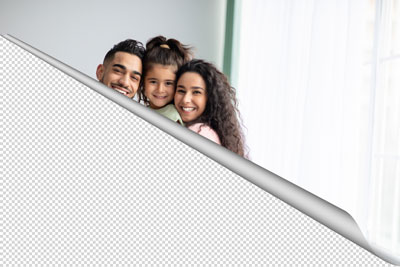
O efeito de Página dobrada cria uma ondulação de página em uma imagem. A cor da ondulação, sua forma e o nível de torsão são ajustados no Painel de ajuste.

O Painel de ajustes oferece os seguintes parâmetros para o efeito de Página dobrada:
- Cor de fundo. Na caixa de cor, a Cor de fundo permite definir a cor da área sob a ondulação. Duplo-clique sobre a caixa de cor para escolher uma cor na caixa Selecionar cor.

A cor verde foi selecionada - Transparente. Quando a caixa de seleção Transparente é ativada, a área sob a ondulação torna-se transparente. Este recurso pode ser usado em uma imagem com várias camadas; desta forma, por exemplo, outra foto pode ser visível na ondulação de página.

Caixa de seleção "Transparente" habilitada - Cor da ondulação. A caixa decor permite definir a cor da parte inferior da ondulação. Clique duas vezes sobre a caixa de cor da ondulação para escolher uma cor entre as cores na caixa Selecionar cor.

O amarelo foi selecionado para a parte inferior
de ondulação da página - Torsão (0-100%). Este parâmetro define o nível de torção da ondulação. Quanto maior o valor, mais torcidas será a ondulação.

Torsão = 60%
Torsão = 90% - Obliqüidade (0-100%). Este parâmetro define a forma da ondulação. Em valores de 1 a 49 o canto da imagem ondula para formar um cone (o vértice estará em uma das extremidade); em 50 o canto ondula para formar um cilindro; e em valores de 51 a 100 ele forma um cone novamente, mas o vértice estará na extremidade oposta.

Obliqüidade = 10
Obliqüidade = 50
Obliqüidade = 90 - Uma linha com marcadores em ambas as extremidades define os cantos a serem ondulados, a posição da linha de ondulação e a direção da ondulação . Use os marcadores para definir a posição da linha. Para mover um marcador, clique o cursor sobre ele, pressione o botão esquerdo do mouse e arraste o marcador para uma nova posição. É impossível ondular mais da metade da imagem.






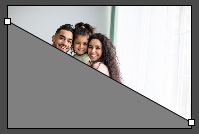
- Gradiente (0-100%). Este parâmetro adiciona volume a ondulação, ajustando o contraste de tons médios.
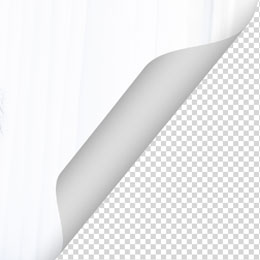
Gradiente = 20%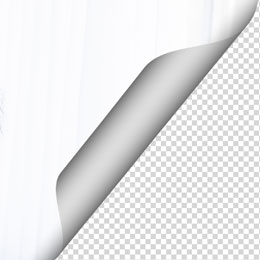
Gradiente = 50%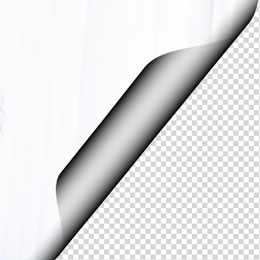
Gradiente = 100%
ArtSuite v. 20.0 - Teste gratuito 10 dias

