Catedral de Berlim
O autor deste tutorial é Valentina Aynagos.
Berlim é uma das metrópoles mais excitantes da Europa. Eu nunca estou entediada de andar nas ruas desta cidade, onde as modernas construções arquitetônicas e de alta tecnologia são vizinhas de impressionantes catedrais do século XIX e os palácios que representa a glória da Prússia.
Eu tirei essa foto da Catedral de Berlim, em novembro um dia sombrio. Achei a composição boa o suficiente para fazer um cartão postal de fora para compartilhar com meus amigos lá em casa. Esta catedral foi construída em 1894, então eu perguntei como ele podia olhar em cartões-postais no final do século XIX. Então, eu também criei uma versão "retro" do meu cartão postal.
Eu usei o AliveColors e as versões do plugin AKVIS Sketch e AKVIS ArtSuite.
-
Passo 1. Abra a foto no seu programa de edição de foto.
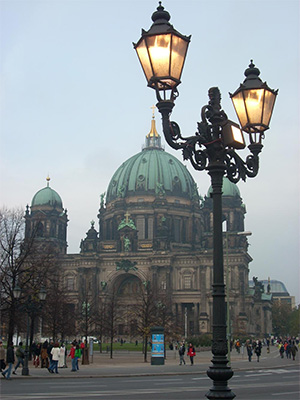
Photo of the Berlin Cathedral - Passo 2. Minha câmera digital é bastante simples e as fotos nem sempre saem bem. Assim eu ajustei-o com o comando Image -> Adjustment -> Curves. Se você tiver uma boa foto você não precisa fazer esse passo.
- Passo 3. Então eu chamei o plugin AKVIS Sketch: Efeitos -> AKVIS -> Sketch.
-
Passo 4. Eu ajustei os parâmetros como segue:
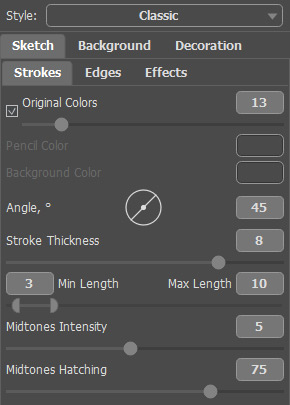
Settingse clicar no botão
 para processar toda a imagem, em seguida, clicar no botão
  para aplicar o resultado e fechar o plugin.
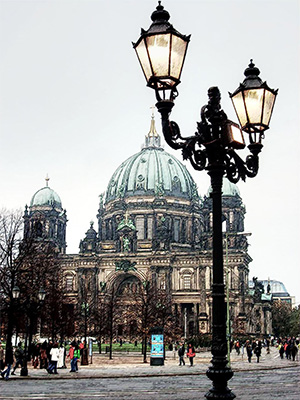
O desenho a lápis resultou da foto -
Passo 5. Eu aumentei o tamanho da tela de 0,6 centímetros com o comando Image -> Canvas Size para adicionar uma simples moldura para a imagem, de modo que parece um cartão postal.
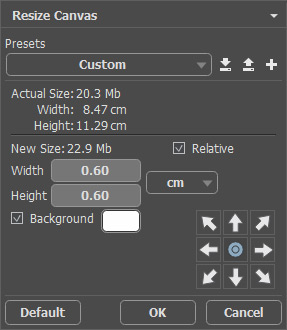
A caixa de diálogo Tamanho da telaAqui está o resultado:
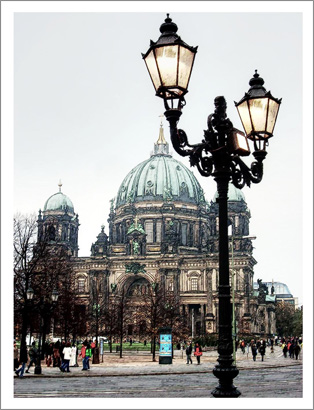
Adicionar uma simples moldura para a imagem -
Passo 6. Eu queria criar uma versão retro do meu cartão-postal, digamos, de Berlim, em 1908, por exemplo. Para este efeito, eu usei AKVIS ArtSuite: Efeitos -> AKVIS -> ArtSuite.
Eu selecionei Efeitos no menu drop-down e o efeito Preto e branco. Então me mudei para o ponto sobre o círculo para a direita para adicionar um tom vermelho com a foto de imitar a técnica de sépia. Eu também mudei um pouco o controle de cor vermelha sobre a Misturador de cor cinza para clarear os tons.
Dica: Use o modo de execução automática do programa (este modo está ativo por padrão) para observar as mudanças de uma vez. Ele vai lhe poupar tempo ao escolher para fora do tom. Caso contrário, você terá que pressionar cada vez
.
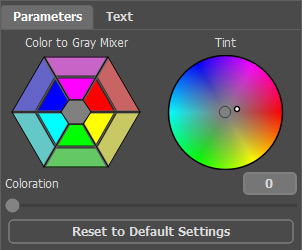
Imitação da técnica de sépia -
Passo 7. Pressione o botão ara aplicar o resultado e fechar o plugin.
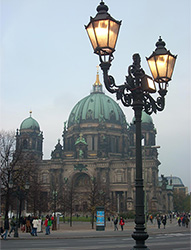
Imagem original
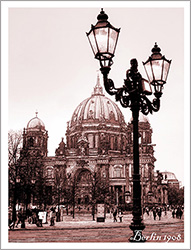
Resultado
Eu também adicionei uma inscrição "Berlin 1908". Bem, a foto foi tirada cerca de 100 anos mais tarde, mas espero,que os berlinenses me perdoe por essa liberdade.
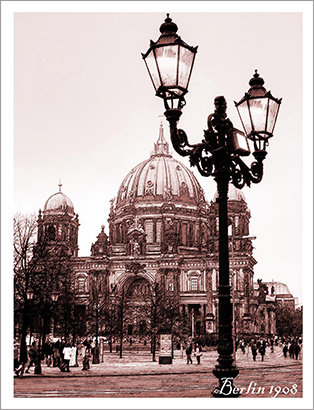
Uma cartão postal retro
ArtSuite v. 21.1 - Teste gratuito 10 dias
