Molduras pintadas à mão
Molduras pintadas à mão oferecen imagens com uma ou mais áreas de forma diferentes. Um fragmento de foto pode ser colocado nessas áreas transparentes para fazer uma foto emoldurada.
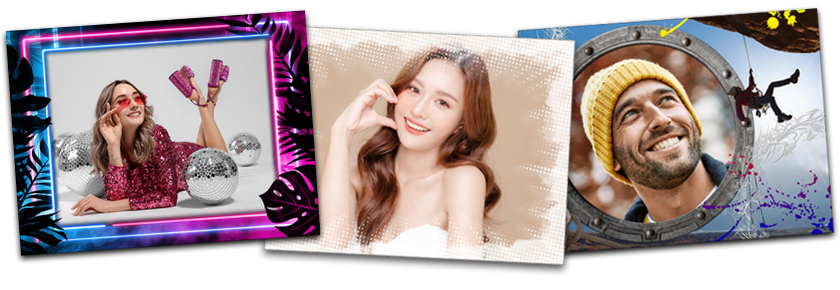
Estas molduras foram feitos por por artistas profissionais. Eles foram pintadas à mão especialmente para AKVIS ArtSuite.
Além disso, eles podem ser usados em AKVIS Frames (software grátis).
Atenção! Molduras pintadas à mão estão disponíveis somente na versão autônoma do ArtSuite.
Um pacote livre de molduras pintadas à mão estão incluídas no programa, mas se isso não for suficiente, você pode comprar pacotes de molduras com temas diferentes (pacotes de quadros para casamento, quadros com temas de viagem, etc.). Cada pacote de molduras é um arquivo zip. Não abra o arquivo você mesmo. Copie para uma pasta. Isso só funcionará em ArtSuite/Frames.
Além disso, você pode criar e usar suas próprias molduras.
O uso de Molduras pintadas à mão é um pouco diferente que o uso de outros molduras e efeitos no programa. Além de escolher uma moldura, você pode trabalhar com várias imagens. Na Biblioteca e os pacotes de molduras adicionais são molduras em que você pode inserir duas imagens, sem a necessidade de recortar ou outra edição que consome muito tempo.
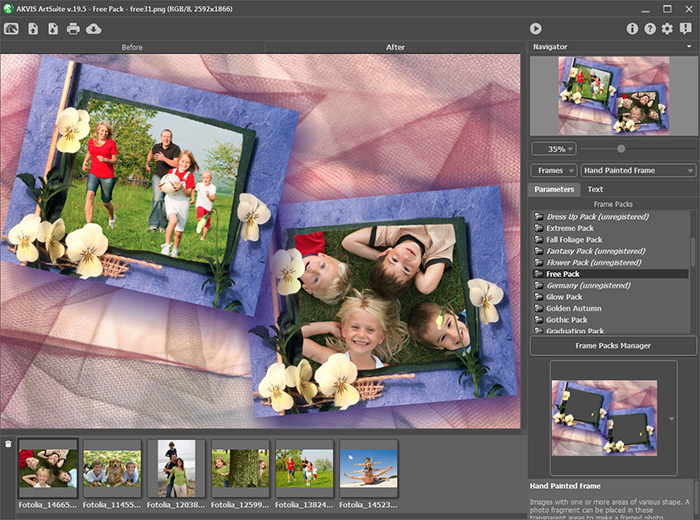
Siga estes passos para adicionar uma foto a uma moldura pintada à mão:
- Passo 1. Abra a fonte da imagem: pressione o botão
 no Painel de controle e escolha uma ou mais imagens.
As miniaturas das imagens enviadas são exibidas na Janela de imagem. A imagem escolhida também é mostrada na Janela de imagem em Molduras pintadas à mão.
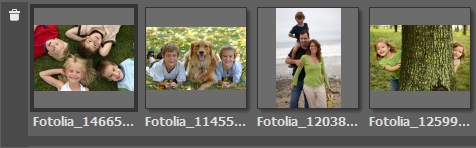
A imagem ativa (a que você está usando atualmente) é descrita com uma linha de cinza. Para escolher outra imagem simplesmente à esquerda, clique nele.
Se muitas imagens são abertas, elas podem ser removidas: escolha as imagens desnecessárias e pressione o botão
 Excluir ou Delete.
- Passo 2. Selecione um pacote de molduras na lista.
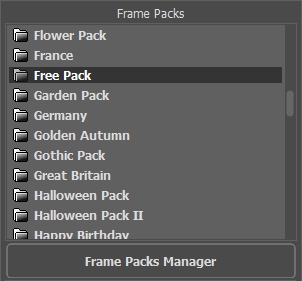
Na lista você pode ver todos os pacotes de marcos.
Quando você seleciona um pacote, uma moldura do pacote torna-se visível na caixa de amostra.
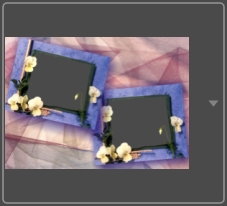
Para abrir a Biblioteca com todas as molduras do pacote selecionado clique na caixa de amostra.
Clique no quadro desejado na Biblioteca com o botão esquerdo do mouse para selecioná-lo.
Dica: Você também pode usar suas próprias molduras. Eles devem primeiro ser preparado e salvado em qualquer pasta em seu computador. A armação pode ser feita a partir de qualquer imagem. Pode ter uma ou mais áreas transparentes de qualquer forma. Ele deve ser salvo no formato PNG.
Para carregar a sua própria moldura de AKVIS ArtSuite, selecione <Textura do usuário>… na lista e escolha uma moldura (uma imagem PNG com uma área transparente).
- Passo 3. O programa irá automaticamente escolher a primeira imagem da fonte na janela de imagens para colocar na moldura.
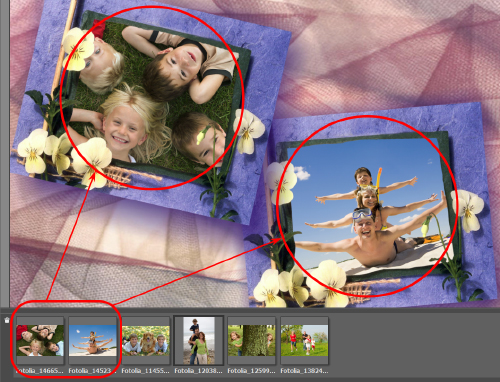
Se a moldura tem mais de uma área para fotos e a ordem padrão das imagens (que é escolhido automaticamente) no quadro não é tão desejado (a imagem não está na área correta), você pode alterá-lo manualmente:
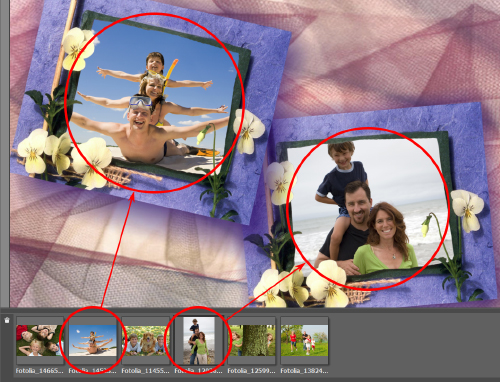
Escolha uma imagem na janela de fonte de imagens e, em seguida, enquanto pressionando e segurando o botão esquerdo do mouse, arraste a imagem desejada para o quadro.
Você também pode colocar uma imagem em uma área. Basta dar um duplo clique com o botão esquerdo do mouse.
Nota: Transferência de fotos para uma moldura clicando duas vezes é mais útil quando o quadro tem apenas uma área. Se houver mais de uma área, o programa vai escolher uma foto com base na sua proporção em relação à área. Por exemplo, fotos horizontais (que têm maior largura que a altura), serão colocadas em superfícies horizontais, etc.
- Passo 4. Para alterar o tamanho, a posição e o ângulo de rotação da imagem em relação a cada quadro:
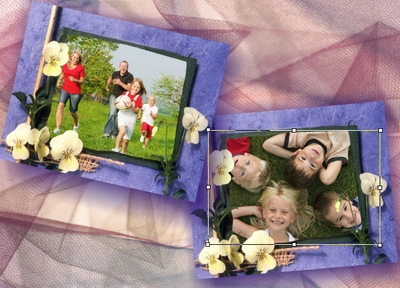
Para reposicionar uma imagem no frame, coloque o cursor dentro da área selecionada e dê um clique com o botão esquerdo (a forma do cursor vai mudar para as setas perpendicular bilateral
 ) em seguida, mantendo o botão esquerdo do mouse pressionado, arraste o cursor.
Para redimensionar uma imagem no quadro, coloque o cursor para a borda da caixa de seleção (o cursor mudará a forma para uma seta bilateral
 ), e depois pressionar e segurar o botão esquerdo do mouse, arrastar o cursor para aumentar ou diminuir o tamanho da imagem.
Para girar uma imagem, posicione o cursor perto de um marcador de canto da caixa de seleção (o cursor vai mudar para a forma elíptica de setas duplas
 ), pressione o botão esquerdo do mouse e, mantendo-o detido, mover o cursor.
Para modelos transparentes de um buraco a opção Cortar bordas está disponível. Clique em
 ao lado da amostra do modelo e, em seguida, execute o processamento de imagem usando
  para tornar a moldura mais densa e opaca.
- Passo 5. Quando todos os ajustes para as imagens são feitas, pressione o botão para iniciar o processamento.
- Passo 6. Para salvar o resultado final aperte o botão
 e na janela de diálogo Salvar como digite um nome para o arquivo, selecione o tipo de arquivo (TIFF, BMP, JPEG ou PNG) e escolha uma pasta na qual deseja salvar o arquivo.
Atenção! Quando se trabalha com um quadro, as fotos originais são convertidas para o formato deste quadro. Portanto, se o formato da moldura é RGB / 8, as fotos serão convertidas para esse formato também. Tenha isso em mente ao criar seus próprios quadros.
Nota: Pacotes adicionais temáticos de molduras (paga) deve ser registrado!
ArtSuite v. 21.1 - Teste gratuito 10 dias
