Sonhos de verão (tutorial avançado)
Você tem uma bela foto que gostaria de pôr em uma moldura para admirá-la a qualquer momento? Se você tem uma foto no computador, mas não encontra a moldura adequada em casa, você pode emoldurá-la em seu computador usando o AKVIS ArtSuite! O programa está disponível nas versões autônoma e plug-in.
Aqui está nossa foto e a imagem de um interior:
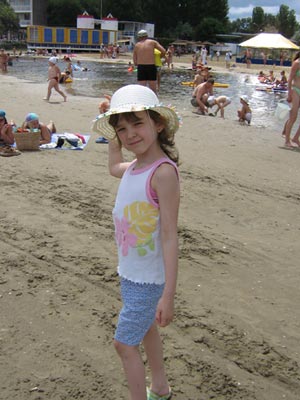
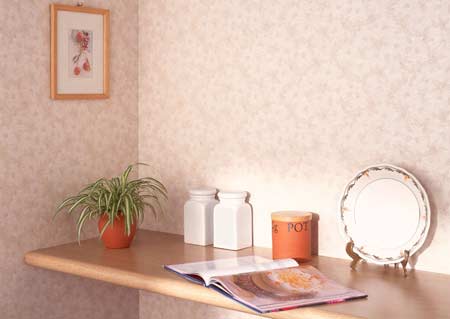
Imagens originais
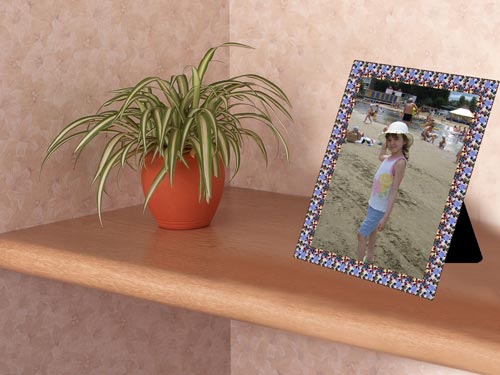
Resultado
Nós vamos trabalhar com a versão plug-in do AKVIS ArtSuite no AliveColors.
- Passo 1. Abra a foto que queremos emoldurar no AliveColors.
- Passo 2. Chame o plug-in a partir do menu principal do editor clicando em Efeitos -> AKVIS -> ArtSuite.
- Passo 3. Nós escolhemos o tipo Moldura clássica para esse tutorial.
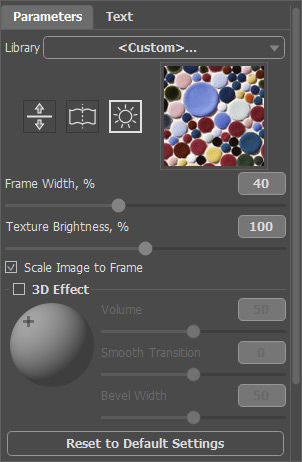
- Passo 4. Ative a caixa de seleção Escalar para moldura. Mantenha outros parâmetros como estão.
- Passo 5. O resultado irá aparecer na aba Depois. Se você gostar, pressione o botão
 para aplicar o resultado e fechar a janela do plug-in.
Aqui nós temos a foto na moldura:
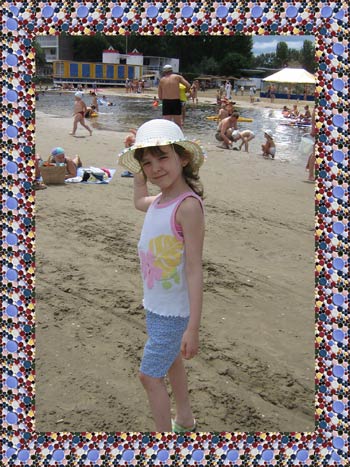
- Passo 6. Agora selecione a imagem toda. No menu principal escolha Selecionar -> Selecionar Tudo. Copie a imagem com Editar -> Copiar.
- Passo 7. Crie um novo arquivo em Arquivo -> Novo da Clipboard. Ajuste o tamanho da imagem como preferir, porém maior que a foto com moldura.
- Passo 8. Clique Editar -> Transformação livre para ajustar a posição da foto. Você pode alterar os parâmetros da transformação. Clique no parâmetro para mudar seu valor.
Você irá ter o mesmo resultado:
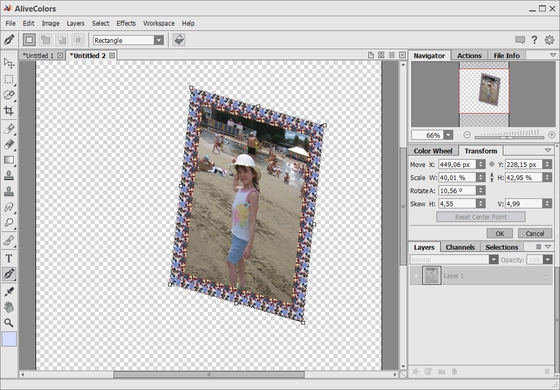
- Passo 9. Vamos fazer um suporte para nossa moldura. Nós criamos uma nova camada Camadas -> Nova -> Camada Raster.
- Passo 10. Escolha a ferramenta Lápis de cor
 . Agora nos escolhemos uma cor para nosso suporte.
- Passo 11. Vamos desenhar um triângulo. Desenhe linhas horizontais ou verticais, mantendo Shift + botão esquerdo pressionado. Se precisar de uma linha desenhada em um ângulo, pressione Shift + botão esquerdo no começo e no fim de sua linha. Aqui o resultado:
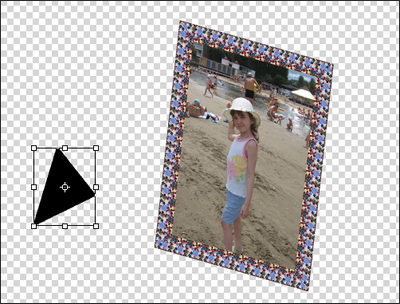
- Passo 12. Agora altere a ordem das camadas. Arraste a segunda camada (com a moldura) para o topo na paleta de Camadas.
- Passo 13. Mova o suporte para a moldura. Escolha a terceira camada (com o suporte) na paleta de Camadas e clique o botão Mover
 na Barra de ferramentas. Na imagem com moldura clique com o botão esquerdo e mova o suporte para o lugar apropriado.
- Passo 14. No menu principal de seu editor de foto escolha Camadas -> Combinar tudo.
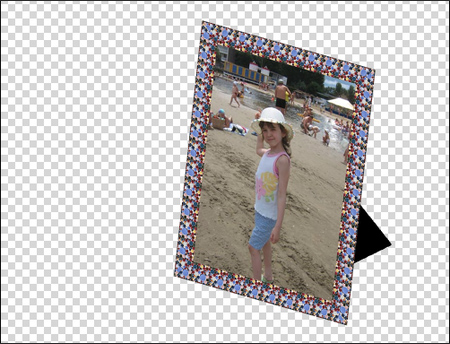
Nossa moldura está pronta.
- Passo 15. Abra uma imagem do ambiente interior no editor de foto. Nós iremos usar somente uma parte da imagem.
- Passo 16. Escolha a ferramenta Letreiro retangular tool
 .
.
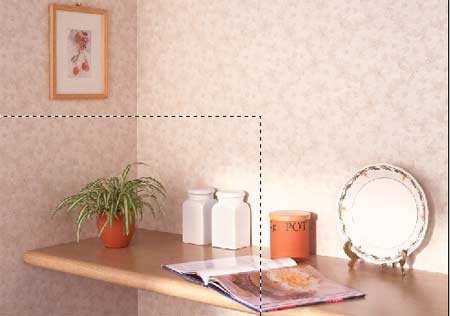
- Passo 17. Copie a imagem selecionada Editar -> Copiar.
- Passo 18. Abra a imagem com a moldura.
- Passo 19. Cole a imagem selecionada Editar -> Colar.
- Passo 20. A imagem com a camada do ambiente interior sobrepõe a imagem com a moldura. Mude a ordem das camadas na paleta de Camadas para que a moldura fique visível.
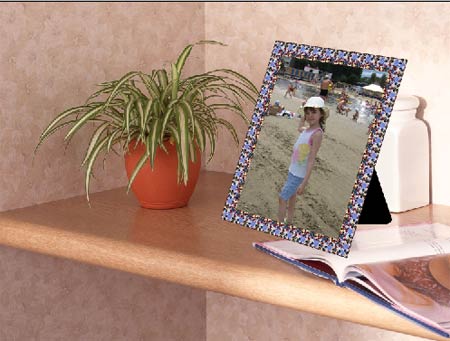
Alguns objetos são irrelevantes, então vamos removê-los.
- Passo 21. Desative a visibilidade da segunda camada com um duplo clique no ícone olho na paleta de Camadas. Agora podemos trabalhas na imagem do ambiente interior.
- Passo 22. Escolha a ferramenta Clone
 . Desative a caixa de seleção Alinhado. Queremos remover as duas garrafas, então nós vamos ajustar o tamanho do carimbo e apontar a área de clonagem no papel de parede.
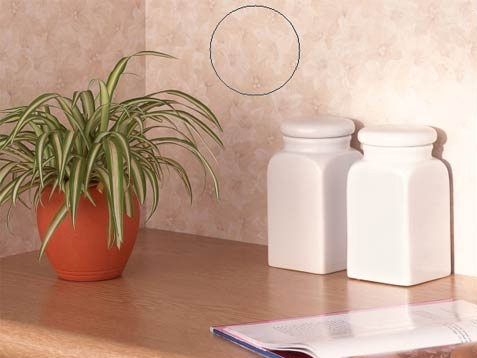
- Passo 23. Mantenha pressionada a tecla Alt, e clique com o botão esquerdo na área que você quer clonar. Aplique os traços para remover as garrafas.
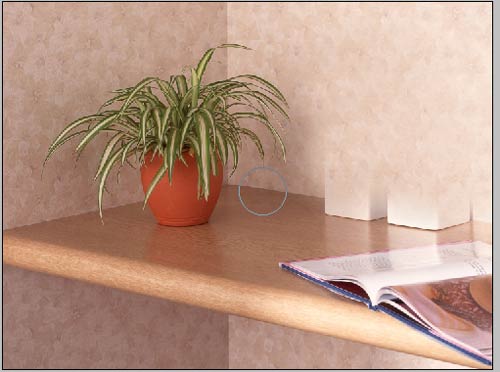
- Passo 24. Faça o mesmo com a revista.
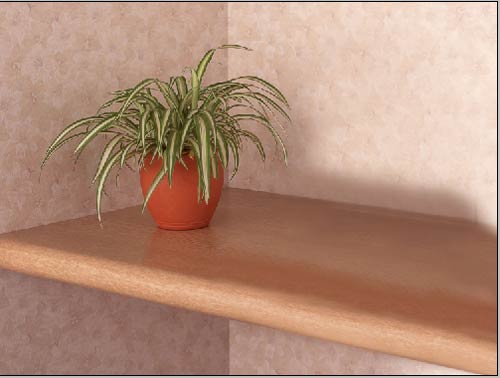
Agora nossa estante está vazia e nós podemos colocar a foto com moldura sobre ela.
- Passo 25. Na paleta de Camadas ative a visibilidade da segunda camada (imagem com a moldura).
- Passo 26. Escolha a ferramenta Mover para posicionar a moldura.
- Passo 27. Agora vamos combinar todas as camadas Camadas -> Combinar tudo.
Aqui temos a foto com a moldura sobre a estante.
Dica: Para um efeito mais realista, você pode adicionar uma sombra sobre a estante.
ArtSuite v. 21.1 - Teste gratuito 10 dias
