Sogni d’estate (Tutorial avanzato)
Avete una splendida fotografia che mettereste volentieri in una cornice per ammirarla in qualsiasi momento? Se in casa non trovate una cornice adeguata è possibile crearla con il vostro computer utilizzando AKVIS ArtSuite! Il programma è disponibile in versione standalone e plugin.
Ecco la nostra foto e l'immagine di un interno:
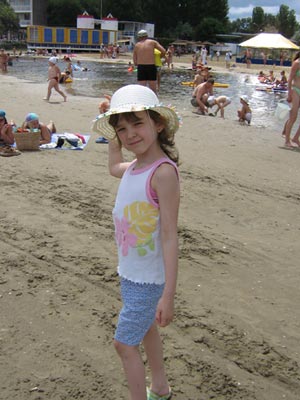
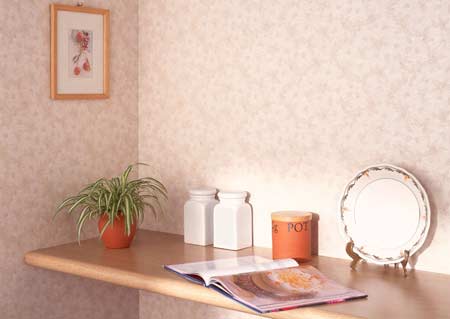
Immagini originali
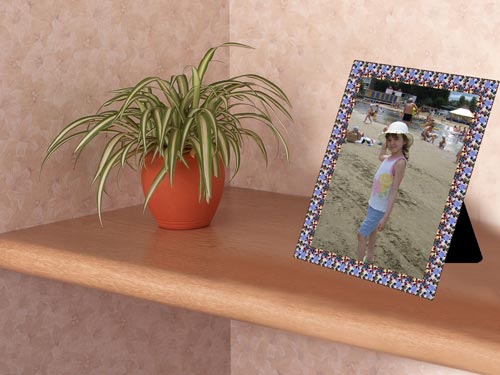
Risultato finale
Qui verrà usata la versione plugin di AKVIS ArtSuite in AliveColors.
- Passaggio 1. Aprire la foto che si desidera incorniciare in AliveColors.
- Passaggio 2. Lanciare il plugin selezionando dal menu Effetti -> AKVIS -> ArtSuite.
- Passaggio 3. É preferibile una cornice classica.
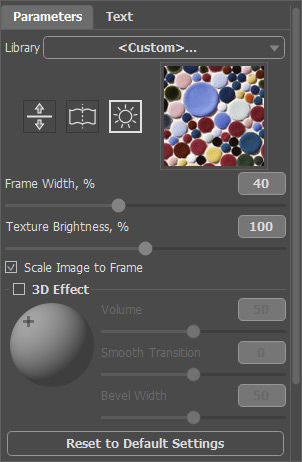
- Passaggio 4. Spuntare la casella Adatta immagine alla cornice e lasciare invariati gli altri parametri.
- Passaggio 5. Il risultato verrà mostrato nella scheda Dopo. Premere su
 per applicare il risultato e chiudere la finestra del plugin. Ora abbiamo la foto incorniciata:
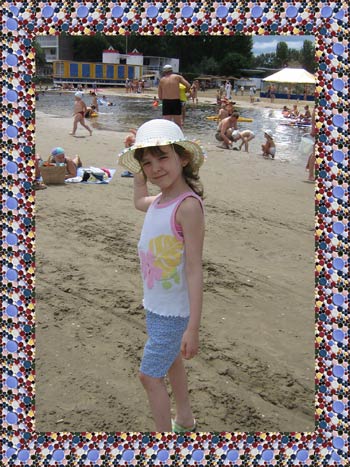
- Passaggio 6. Nel menu principale scegliere Seleziona ->Seleziona Tutto per selezionare l'intera immagine, poi copiarla andando su Modifica -> Copia.
- Passaggio 7. Creare un nuovo file da File -> Nuovo dagli appunti. Impostare le dimensioni dell’immagine a piacimento, ma di certo deve essere più grande della foto incorniciata.
- Passaggio 8. Cliccare su Modifica -> Trasformazione libera per regolare la posizione della foto. Cliccare sul parametro per modificarne il valore.
Si dovrebbe ottenere questo risultato:
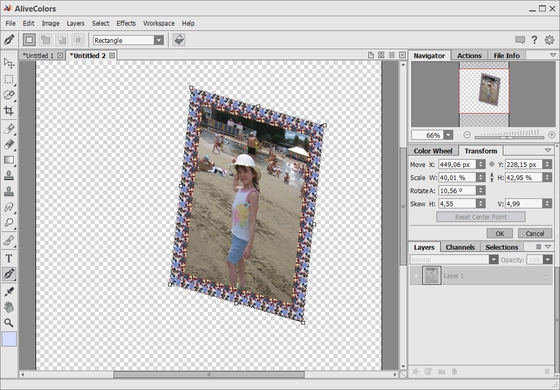
- Passaggio 9. È necessario costruire un sostegno per la nostra struttura creando un nuovo livello: Livelli -> Nuovo -> Livello raster.
- Passaggio 10. Nella barra degli strumenti scegliere lo strumento Matita colore
 . Scegliere il colore del sostegno.
- Passaggio 11. Disegnare un triangolo. Tracciare delle linee orizzontali o verticali mantenendo premuto Maiusc + tasto sx. Per creare in triangolo (o qualsiasi altra forma) basta mantenere premuto Maiusc + un clic del tasto sx all'inizio e alla fine di ogni linea. Ecco il risultato:
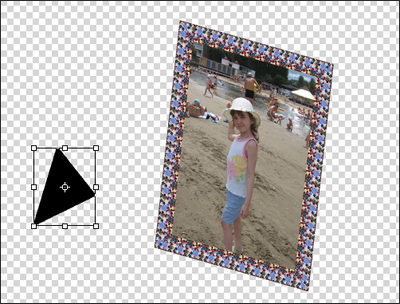
- Passaggio 12. Ora cambiare l’ordine dei livelli. Nella paletta Livelli trascinare il secondo livello (con cornice) in l'alto.
- Passaggio 13. Spostare il supporto della cornice. Nella paletta Livelli selezionare il terzo livello (con supporto), premere il pulsante Sposta
 nella Barra degli strumenti e, con il tasto sx del mouse, spostare il supporto nella posizione adeguata dietro alla cornice.
- Passaggio 14. Nel menu scegliere Livello -> Unisci tutto.
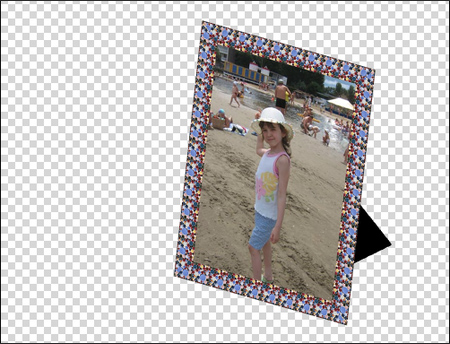
La struttura è pronta.
- Passaggio 15. Ora aprire l'immagine dell'interno nell'editor di foto. Noi useremo solo una parte dell'immagine.
- Passaggio 16. Dalla Barra degli strumenti scegliere lo strumento Selezione rettangolare
 e tracciare la parte interessata.
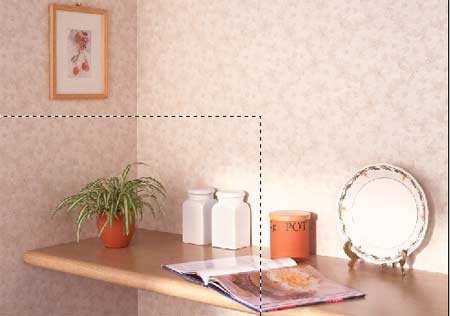
- Passaggio 17. Copiare l'area selezionata dal menu Modifica -> Copia.
- Passaggio 18. Passare all'immagine con la cornice.
- Passaggio 19. Incollare il ritaglio selezionato, dal menu Modifica -> Incolla.
- Passaggio 20. L'immagine dell’interno e quella con la cornice si sovrappongono. Nella paletta Livelli cambiare l'ordine dei livelli in modo tale che la cornice diventi visibile.
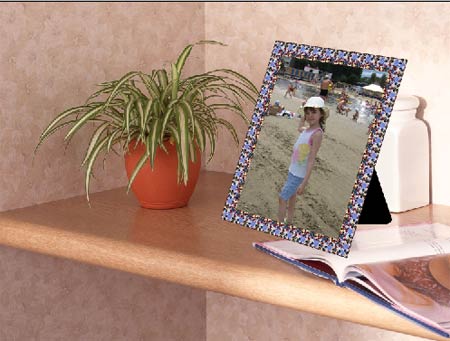
Sulla mensola ci sono alcuni oggetti inutili che impediscono il giusto collocamento dell'immagine, quindi è meglio rimuoverli.
- Passaggio 21. Per lavorare con maggior maneggevolezza, disattivare nella paletta Livelli la visibilità del secondo livello (con cornice) cliccando sull'indicatore di visibilità del livello.
Ora è possibile occuparsi dell'interno.
- Passaggio 22. Nella Barra degli strumenti scegliere il Timbro clona
 . Disattivare la casella Allineato. Iniziare ad eliminare i due vasetti; perciò regolare la dimensione del timbro e selezionare la superficie idonea per la clonazione sulla carta da parati.
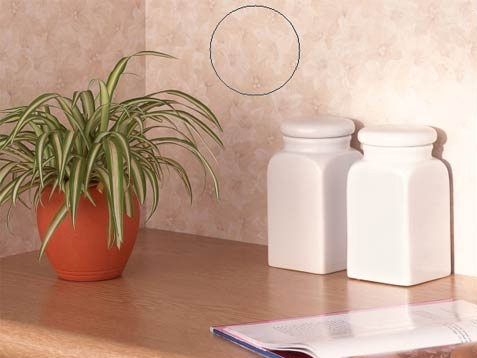
- Passaggio 23. Tenendo premuto il tasto Alt, cliccare con il tasto sx del mouse sulla zona che si desidera clonare ed applicare con piccoli colpi fino a rimuovere completamente i vasi.
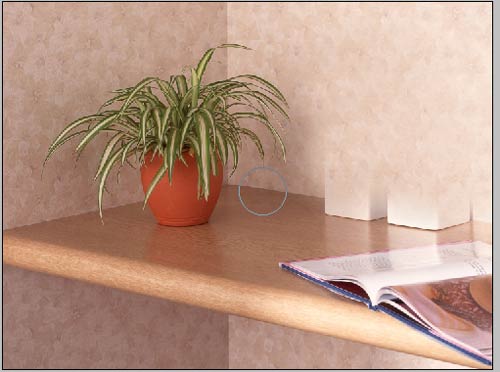
- Passaggio 24. Allo stesso modo sbarazzarsi de la rivista.
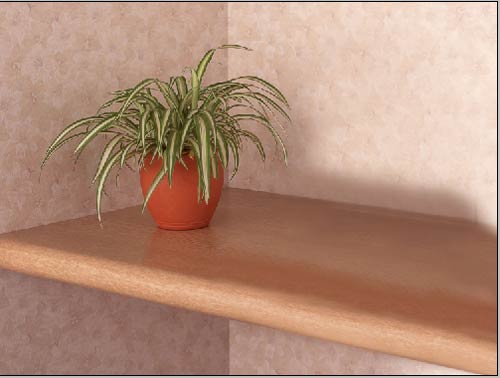
Ora il ripiano è vuoto e si può posizionare la foto incorniciata.
- Passaggio 25. Nella paletta Livelli attivare la visibilità del secondo livello (con cornice), cliccando sull'indicatore di visibilità, e selezionarlo.
- Passaggio 26. Scegliere lo strumento Sposta, nella barra degli strumenti, per posizionare la cornice.
- Passaggio 27. Il lavoro è terminato ed è necessario unire tutti i livelli selezionando dal menu Livelli -> Unisci tutto.
Ecco posizionata sul ripiano la foto incorniciata.
Consiglio: Per dare un effetto più realistico, è preferibile aggiungere agli oggetti una leggera ombra che si riflette sulla mensola.
ArtSuite v. 21.0 - 10-giorni di prova gratuita
