Si aggira una tigre
L'autore dell’esempio è Sanjeev Saha, Nuova Delhi, India.
Anche se le tigri cacciano di giorno, esse sono il cosiddetto simbolo della notte. I movimenti della tigre sono lenti e cauti, il suo incontro suscita paura e sgomento in ogni essere vivente. Cercheremo di creare l’immagine di una tigre che si aggira nella notte, incorniciandola con AKVIS ArtSuite.
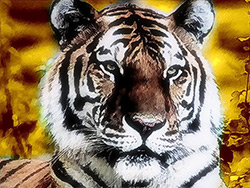
Immagine originale
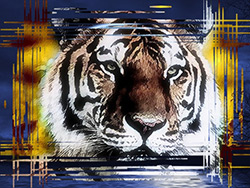
Risultato
Innanzitutto aggiungeremo una cornice all’immagine della tigre.
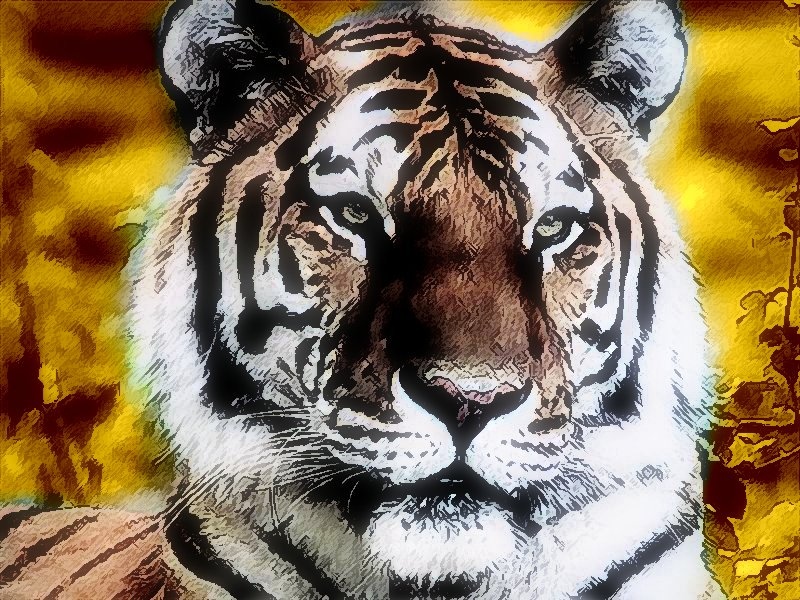
Cliccare sull'immagine per aprire la copia più grande
- Passaggio 1. Aprire l’immagine in PaintShop Pro.
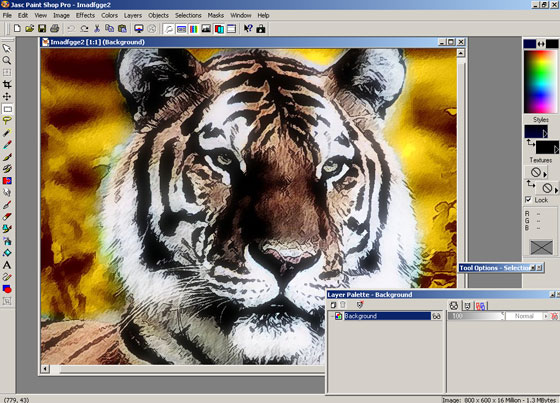
- Passaggio 2. Creare il Livello dallo sfondo andando nella scheda Livello.
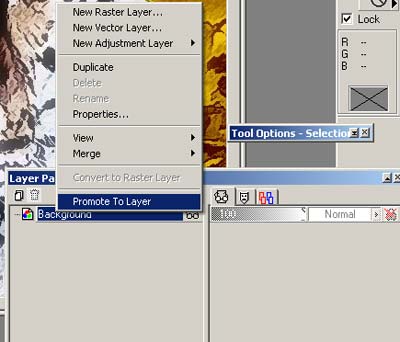
Ora possiamo lavorare con l'immagine.
- Passaggio 3. Lanciare AKVIS ArtSuite dal menu Filtri -> Plugins -> AKVIS -> ArtSuite. Scegliere la Cornice Incisa dal menu a discesa.
- Passaggio 4. Selezionare la casella trasparente. Impostare Larghezza cornice al 100%, Larghezza Margine a 0%, Larghezza Incisione al 2%, Numero di Incisioni al 78%, Lunghezza Incisioni al 41% ed Effetti Casuali a 6719.
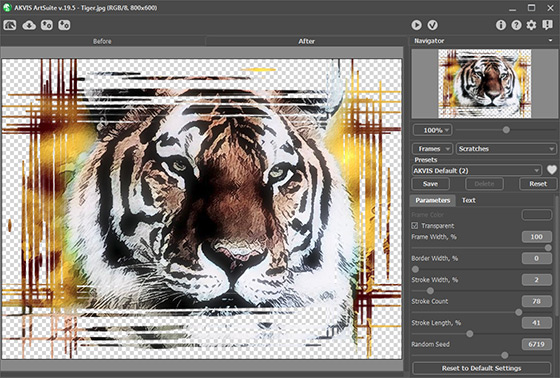
- Passaggio 5. Premere il pulsante
 per applicare il risultato e chiudere la finestra del plugin.
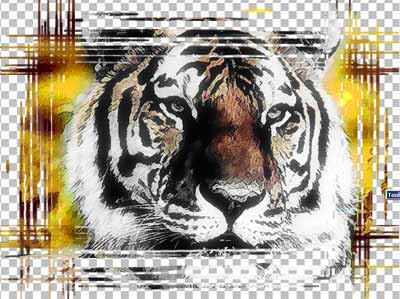
L'immagine apparirà nella finestra di Paint Shop Pro con uno sfondo trasparente.
- Passaggio 6. Cercare un'immagine adeguata per lo sfondo e aprirla nel foto editor.
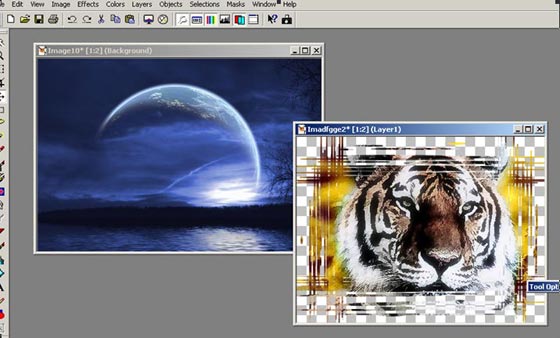
- Passaggio 7. Copiare l'immagine con la tigre. Dal menu principale scegliere Selezioni -> Seleziona tutto, successivamente Modifica -> Copia.
- Passaggio 8. Selezionare ora la foto con lo sfondo, continueremo il lavoro con questa immagine.
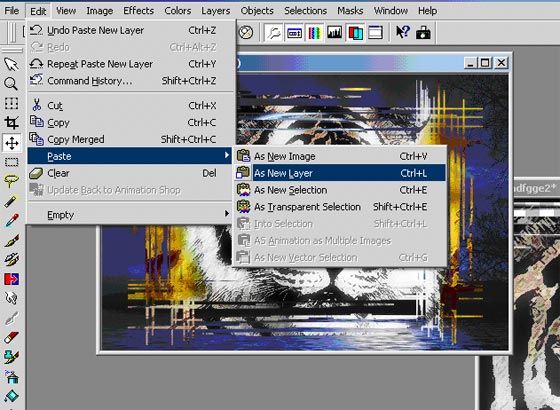
- Passaggio 9. Incollare l’immagine della tigre sul paesaggio notturno come un nuovo livello, selezionando dal menu Modifica -> Incolla -> Come Nuovo livello.
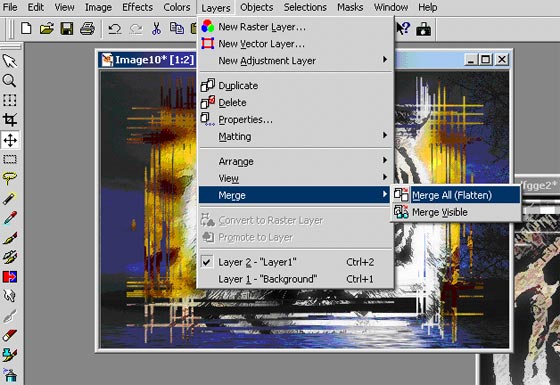
- Passaggio 10. Quindi unire tutti i livelli selezionando Livelli -> Unisci -> Unisci tutto.
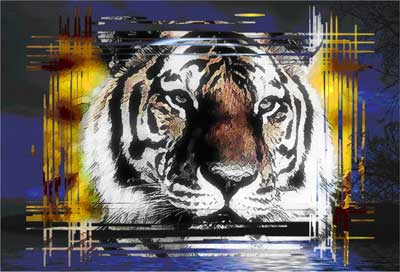
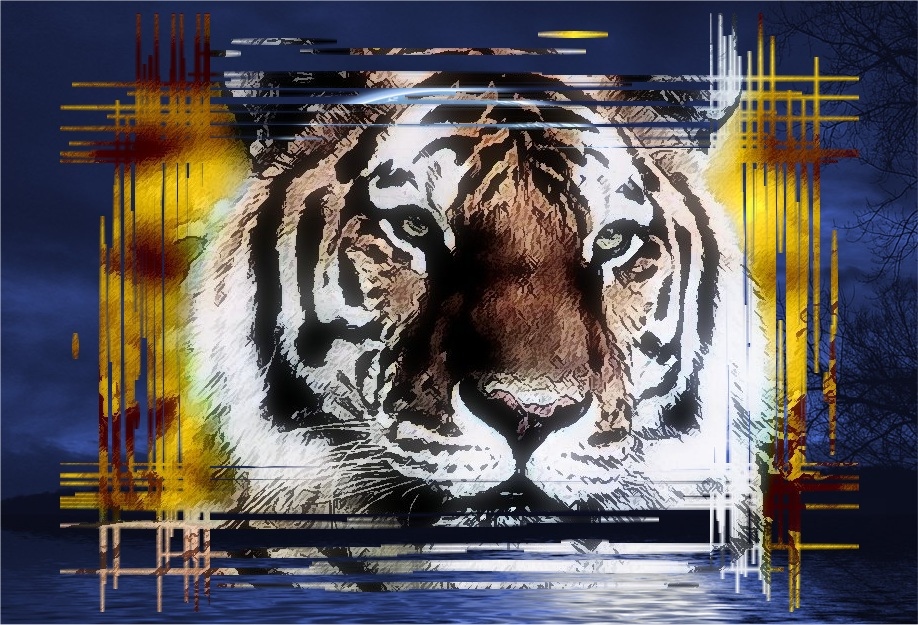
Ecco il risultato:
È possibile inserire diverse cornici utilizzando AKVIS ArtSuite. Ad esempio, se non viene selezionata la casella Trasparente, è possibile utilizzare per lo sfondo un qualsiasi colore. In questo caso non sarà necessario convertire la base dell’immagine in un livello.
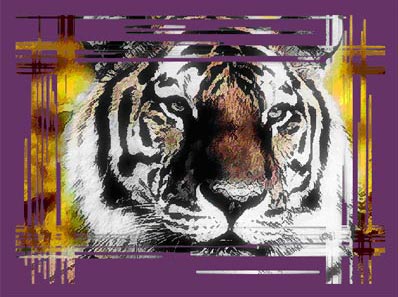
Qui è visibile la Cornice Incisa con il Colore viola:
La stessa cosa può essere effettuata con le cornici: Striata, Arricciatura pagina, Mosaico, Frastagliata, Spray e Artistica. È possibile creare all’immagine una cornice trasparente che permette di sovrapporla ad uno sfondo, oppure si può aggiungere una cornice di colore aprendo la finestra Seleziona colore.
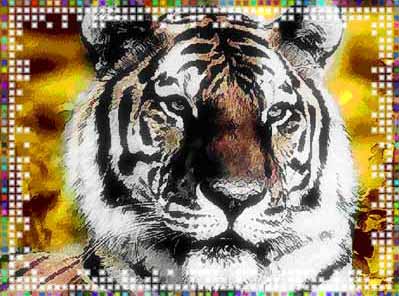
Cornice Mosaico:
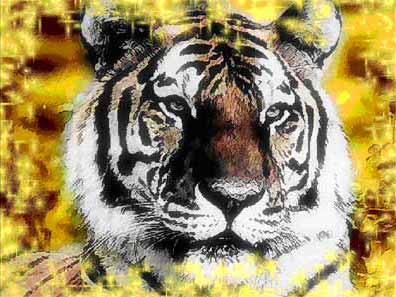
Cornice Spray:
ArtSuite v. 21.1 - 10-giorni di prova gratuita
