Cornice classica
La Cornice classica è adatta per la decorazione delle foto in stile classico.
Essa offre una vasta gamma di pezzi indispensabili per realizzare una vera e propria cornice, dal classico telaio in legno alle cornici natalizie, o in tessuto, o mattoni, o campioni d’animali (piume di pavone, pelle di leopardo, ecc). Le texture sono disponibili in entrambe le versioni, sia standalone che plugin, e consentono di generare varie cornici. Inoltre, si può caricare la propria texture per creare una cornice unica.
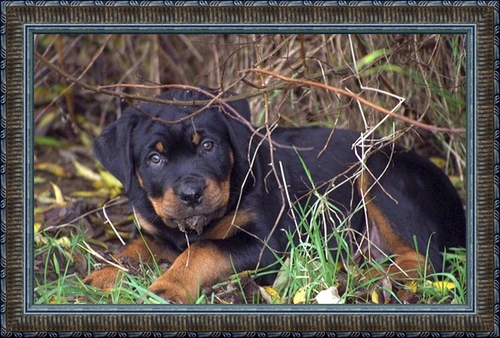
Cornice classica
Il Pannello impostazioni permette di scegliere una texture per generare una cornice e regolare i parametri per il campione selezionato.
Texture. Selezionare un gruppo dall'elenco e una texture dalla Libreria.
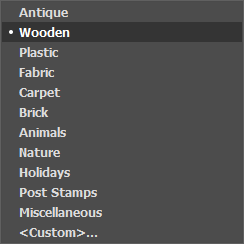
Il programma viene fornito con una ricca collezione di texture. I campioni per le cornici classiche si trovano nella sezione Cornice classica della Libreria e sono raggruppate in diversi set. Qui è possibile trovare il gruppo con i classici telai in legno, così come i gruppi con texture animali (piume di pavone, pelle di leopardo, ecc.), mattoni, elementi di festa, ecc.
La texture scelta (quella corrente) viene visualizzata in un pulsante quadrato, che permette anche l'apertura della Libreria.
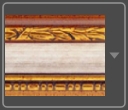
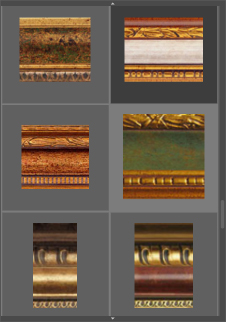
Per aprire la Libreria con tutte le texture del gruppo selezionato (ad esempio Legno), fare clic con il tasto sinistro del mouse sulla casella del campione. Ora è possibile selezionare quella desiderata cliccando su di essa.
Nota: È possibile anche applicare le proprie texture (immagini JPEG, BMP, TIFF o PNG).
Per caricarla, in AKVIS ArtSuite, selezionare <Texture utente>… nell'elenco.
Regolare i seguenti parametri per creare la cornice classica:
Larghezza cornice (0-100%). Questo parametro imposta la larghezza della cornice. Allo 0% non vi è nessuna cornice, al 100% la larghezza del telaio è pari a un quarto della dimensione minima dell’immagine (o larghezza o altezza). Ad esempio, per un'immagine 600x800 pixel al 100% la larghezza della cornice è calcolata come segue: ¼ della dimensione minima (600 px) è di 150 pixel.
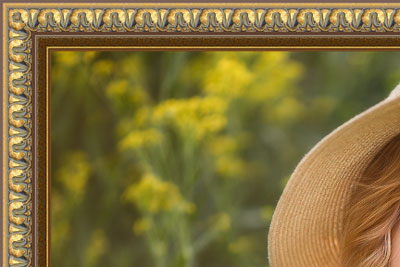
Larghezza cornice = 30%
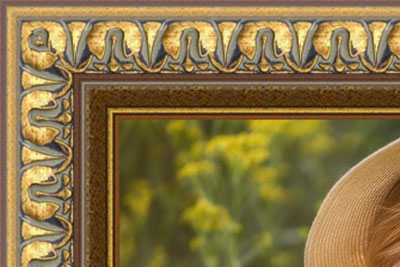
Larghezza cornice = 70%
Cornice esterna (solo nel programma standalone). Selezionare la casella di controllo per aggiungere la cornice all'immagine senza coprire la foto e nasconderne i bordi. Disabilitare la casella di controllo per posizionare la cornice sopra l'immagine.
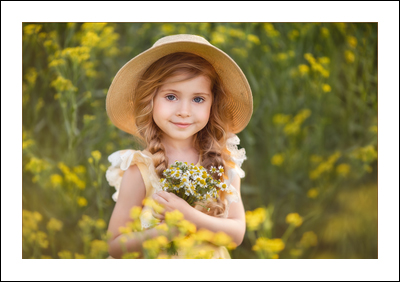
Immagine originale
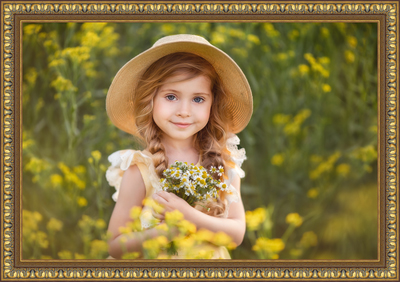
Casella selezionata
Adatta immagine (alla cornice). Quando la casella è selezionata, l'immagine viene rimpicciolita per adattarla alla cornice. Quando la casella è disattivata, la cornice ricopre la parte esterna dell’immagine.
Attenzione! Una parte dell'immagine verrà ritagliata per mantenere le proporzioni.
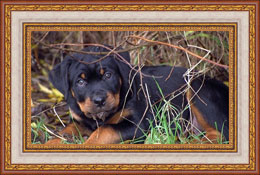
Casella disattivata
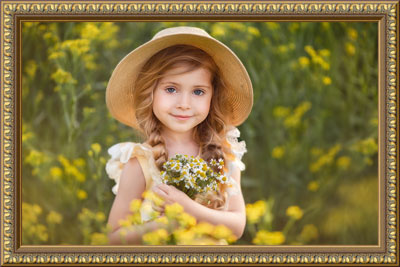
Casella selezionata
Luminosità texture (0-200%). Questo parametro permette di cambiare la luminosità della texture originale. La luminosità della cornice originale è pari al 100%, per scurirla impostare un valore inferiore al 100%, per schiarirla superiore al 100%.
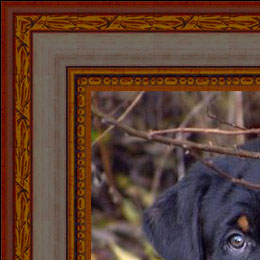
Luminosità texture = 50%
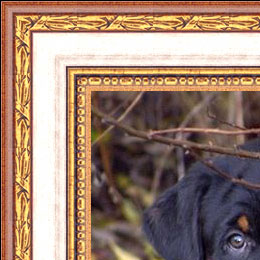
Luminosità texture = 130%
Inversione verticale texture  . Quando questo pulsante è attivato la struttura è riflessa verticalmente, dall’alto verso il basso, cioè il bordo esterno viene spostato all’interno.
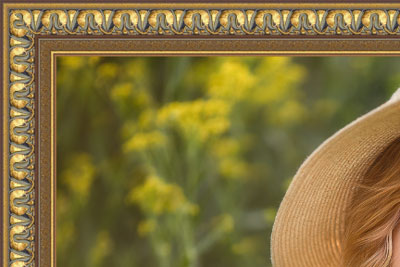
Inversione verticale disattivata
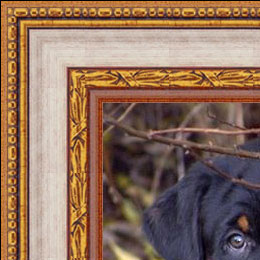
Inversione verticale selezionata
Se la texture originale non è perfetta, le giunture sono visibili e la struttura non è uniforme. Per smussare i collegamenti utilizzare le modalità: Allineamento texture  e Luminosità uniforme . Queste opzioni possono essere utilizzate separatamente o insieme.
- Il pulsante Allineamento texture tiene conto della luminosità della texture unendo la fine della trama luminosa con quella luminosa e quella scura con quella scura. Le texture sono speculari, in questo modo si ottiene un passaggio morbido.
- Il pulsante Luminosità uniforme rende omogenee le giunture visibili della texture, armonizzando la loro luminosità.
Attenzione! Utilizzare l'opzione Luminosità uniforme per le texture orizzontali senza oggetti per equalizzare la luminosità della cornice. Se la texture presenta motivi e ornamenti evidenti, potrebbero essere persi o sfocati quando l'opzione è selezionata.
Prendiamo una texture con luminosità irregolare, la parte sinistra è più luminosa rispetto alla destra.
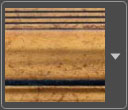
Se si genera una cornice utilizzando questa texture con entrambe le modalità (Allineamento texture e Luminosità uniforme) disattivate, si avrà la seguente immagine:
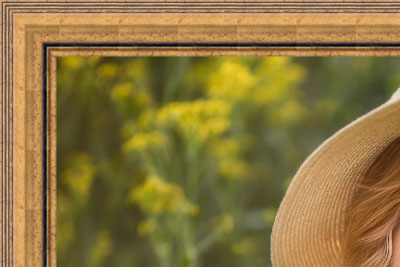
Opzioni disattivate
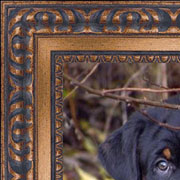
Allineamento texture
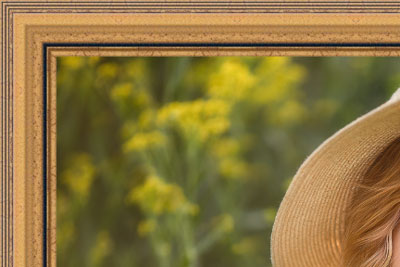
Allineamento texture e
Luminosità uniforme
Facciamo un altro esempio per dimostrare come lavorano le opzioni Allineamento texture e Luminosità uniforme.
Prendiamo la seguente texture:
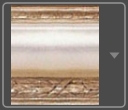
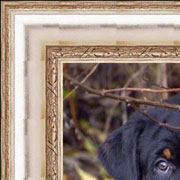
Opzioni disattivate
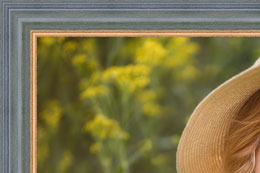
Allineamento texture
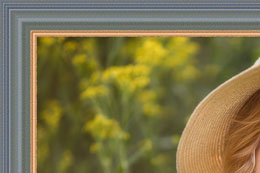
Luminosità uniforme
In questo caso è sufficiente attivare la modalità Luminosità uniforme per ottenere un buon risultato.
Effetto 3D:
Seleziona la casella di controllo per conferire alla cornice un aspetto tridimensionale.
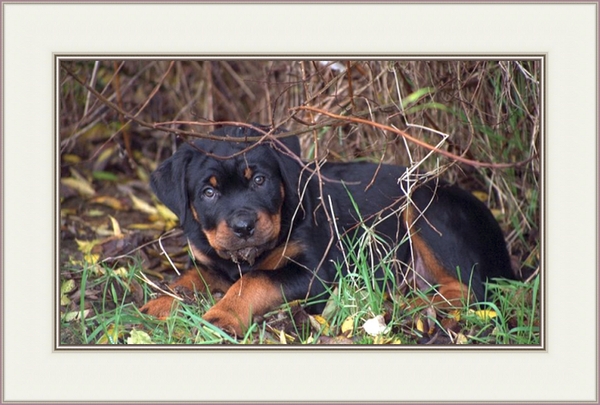
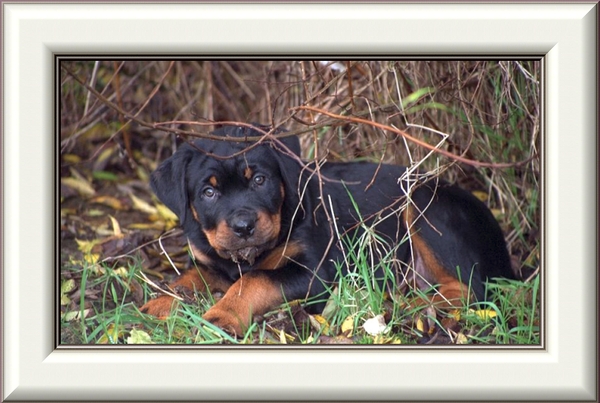
(Confronta i risultati con la casella disabilitata e selezionata.)
Fonte di luce. Utilizzare il cursore "+" sulla sfera per impostare la presunta sorgente di luce che influisce sull'aspetto di ombra.

Volume (0-100). Il parametro modifica la profondità e la sporgenza della cornice. Al valore = 0 la trama è piatta.
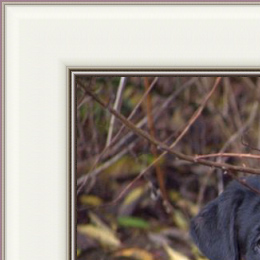
Volume = 20
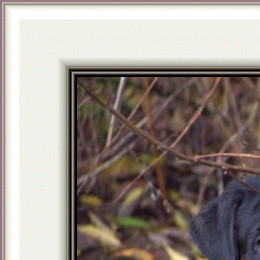
Volume = 100
Transizione graduale (-50..50). Il parametro regola l'attenuazione del bordo tra la parte convessa ed il bisello.
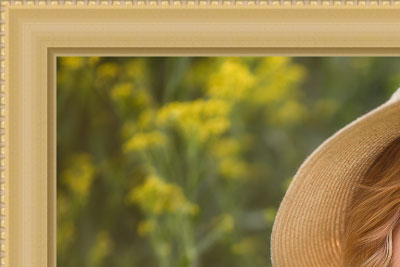
Transizione graduale = -50
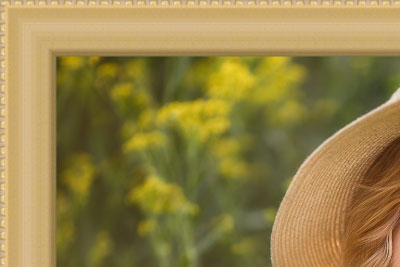
Transizione graduale = 50
Larghezza bisello (0-100). Il parametro imposta la dimensione del bisello.
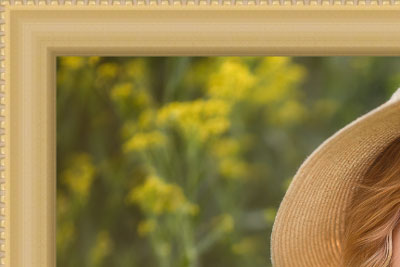
Larghezza bisello = 35
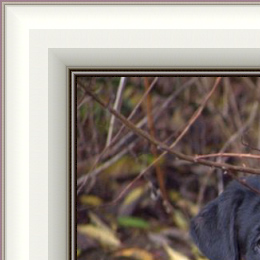
Larghezza bisello = 75
ArtSuite v. 21.1 - 10-giorni di prova gratuita
