Come funziona
AKVIS ArtSuite può lavorare come programma standalone oppure come plugin in un editor di foto.
Seguire le istruzioni riportate di seguito per aggiungere una cornice o applicare un effetto alle tue foto con AKVIS ArtSuite.
- Passaggio 1. Aprire un’immagine.
- Se si lavora con la versione standalone:
La finestra Seleziona file per l’apertura si apre facendo doppio clic sull’area di lavoro vuota del programma o cliccando sull’icona
 nel Pannello di controllo. E’ possibile anche trascinare l'immagine direttamente nell’area di lavoro.
Il programma standalone supporta i file in formato BMP, JPEG, PNG, TIFF, WEBP e RAW.
- Se si lavora con il plugin:
Aprire un’immagine nell’editor di grafica selezionando il comando File -> Apri.
Poi lanciare il plugin dal menu Filtri/Effetti dell'editor di foto:
In AliveColors selezionare dal menu Effetti -> AKVIS -> ArtSuite;
in Adobe Photoshop selezionare dal menu Filtro -> AKVIS -> ArtSuite;
in Corel PaintShop Pro selezionare dal menu Effetti –> Plugin -> AKVIS –> ArtSuite;
in Corel Photo-Paint selezionare dal menu Effetti -> AKVIS -> ArtSuite.Attenzione! Alcune cornici in ArtSuite hanno la trasparenza. Consigliamo di iniziare a lavorare con il plugin sbloccando il livello di sfondo o effettuando la copia del livello. In caso contrario, il risultato ottenuto con ArtSuite non sarà visibile.
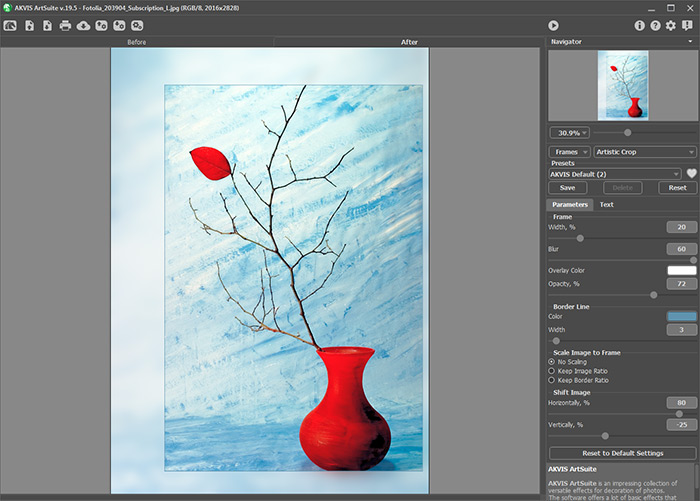
- Passaggio 2. Selezionare Cornici o Effetti, quindi scegliere una delle cornici/effetti disponibili nel menu a discesa nel Pannello impostazioni. È possibile applicare uno dei Preset AKVIS o regolare le impostazioni a piacimento.
- Passaggio 3. Scegliere la modalità d'elaborazione. Per impostazione predefinita è selezionata la modalità Esecuzione automatica, cioè si visualizzano le modifiche in tempo reale. È possibile disattivare questa modalità nelle Preferenze
 e avviare il processo d’elaborazione dell’immagine premendo su
  .
.
L'immagine con la cornice/effetto applicato verrà visualizzata nella scheda Dopo. Passare tra le schede cliccando sull'immagine premendo/rilasciando il tasto sinistro del mouse.
- Passaggio 4. È possibile aggiungere un testo, una filigrana o un logo all'immagine. Passare alla scheda Testo e selezionare una delle opzioni: Testo o Immagine.
- Passaggio 5. È possibile salvare come preset le impostazioni che vi servono al fine di usarle successivamente.
Per salvare un preset digitare il nome nel campo Preset sopra le impostazioni e premere Salva.
Se cambieranno i valori dei parametri si potrà sempre ritornare alle impostazioni del preset selezionato premendo Ripristina.
Per cancellare un preset utente selezionarlo nell'elenco e premere Elimina.
L'icona
 /
/ accanto al campo Preset consente di aggiungere il preset selezionato ai Preferiti o rimuoverlo da questo gruppo di preset.
Per esportare i preset utente in un file con estensione .arts premere su
 . Per caricare un preset precedentemente salvato premere su
  .
.
- Passaggio 6. La versione standalone permette di stampare l'immagine con il pulsante
 .
.
- Passaggio 7. Salvare l’immagine trasformata.
- Se si lavora con il programma standalone:
Salvare l'immagine premendo su
 . Nella finestra di dialogo Salva con nome digitare un nome per il file, impostare il formato (BMP, JPEG, TIFF, WEBP o PNG) ed indicare la cartella di destinazione.
- Se si lavora con il plugin:
Premere il pulsante
 per applicare il risultato.
Il plugin ArtSuite verrà chiuso e l'immagine elaborata sarà visualizzata nell'area di lavoro dell’editor di grafica (ad esempio Photoshop).
Salvare il risultato nel programma di grafica (ad esempio Photoshop). Selezionare il comando File -> Salva con nome.
ArtSuite v. 21.1 - 10-giorni di prova gratuita
