Utilizando o programa
AKVIS ArtSuite pode trabalhar como um programa standalone (autônomo) e como um plugin em editores de imagens.
Siga as instruções abaixo para adicionar uma moldura/efeito à imagem com AKVIS ArtSuite.
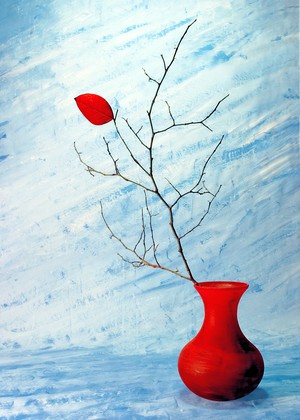
- Passo 1. Abra uma imagem para editar.
- Se você estiver trabalhando com a versão standalone:
A caixa de dialogo Selecione arquivo para abrir aparecerá se você der um clique duplo na área de trabalho vazia do programa ou se você clicar no botão
 no Painel de controle.
Você também pode arrastar a imagem desejada para a área de trabalho do programa.A versão standalone do AKVIS ArtSuite suporta os formatos de arquivos BMP, JPEG, PNG, TIFF, WEBP e RAW.
- Se estiver trabalhando com o plugin:
Abra uma imagem em seu editor de imagens usando o comando Arquivo -> Abrir ou use a combinação de teclas Ctrl+O no Windows, ⌘+O no Mac.
Execute o plugin AKVIS ArtSuite. Para esta ação no editor de imagens:
No AliveColors: Efeitos -> AKVIS -> ArtSuite;
no Adobe Photoshop: Filter -> AKVIS -> ArtSuite;
no Corel PaintShop Pro: Efeitos -> Plugins -> AKVIS -> ArtSuite;
no Corel Photo-Paint: Efeitos -> AKVIS -> ArtSuite.Atenção! Algumas molduras têm Transparência. Se você trabalha com tal molduras, começar por desbloquear a imagem, fazendo uma cópia desta camada. Se você não seguir essas etapas, o resultado de AKVIS ArtSuite não será visível.
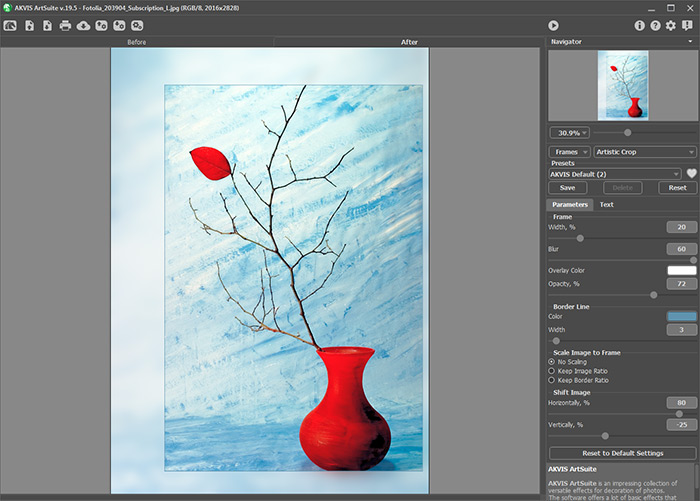
- Passo 2. Seleccione Efeitos o Molduras e escolhe um efeito do menu Painel de ajustes. Você pode aplicar uma das Predefinições de AKVIS ou ajustar as configurações de acordo com sua preferência.
- Passo 3. A imagem será processada automaticamente. Se quiser, você pode desativar a caixa Execução automática na caixa de diálogo Opções (chamada pressionando o botão
 ). Em seguida, o processo será iniciado manualmente pressionando o botão
  . É melhor não usar o modo de Execução automática em computadores mais lentos.
Para comparar a imagem original com o resultado você pode simplemente colocar o cursor sobre a imagem na janela Visão antecipada e dar um clique com o botão esquerdo do mouse para alternar entre a imagem original — Antes e o resultado — Depois.
Ajuste os parâmetros da moldura/efeito.
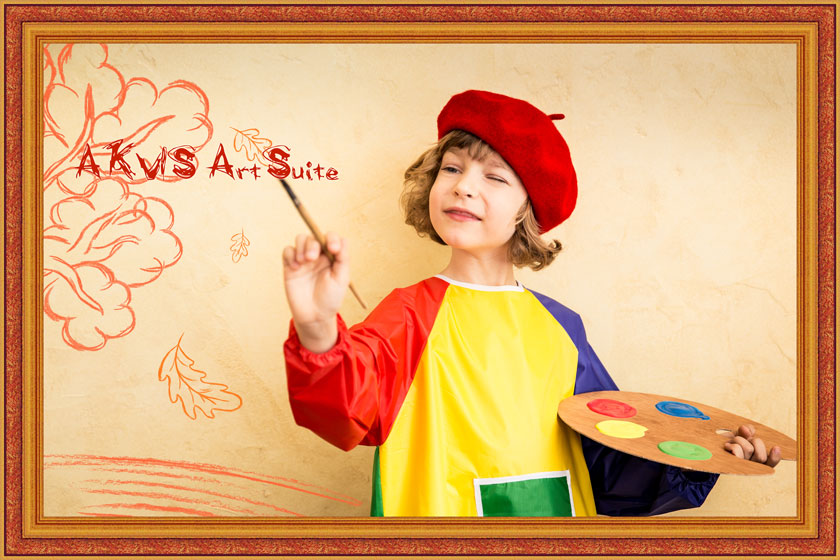
- Passo 4. Você pode adicionar texto, marca d'água ou logotipo para a imagem na aba Texto. Mude para a aba Texto e habilite uma das opções: Texto ou Imagem.
- Passo 5. É possível salvar os ajustes que você gostar como ajuste predefinido e usá-los no futuro. Para salvar seus ajustes como um ajuste predefinido, vá até a lista dos ajustes predefinidos, e insira um nome para os seus ajustes predefinidos e pressione o botão Salvar.
Se você mudar os valores dos parâmetros, você poderá sempre voltar ao ajuste padrão do preset clicando em Reiniciar.
Para apagar um ajuste predefinido, escolha-o da lista suspensa e pressione o botão Apagar.
O ícone
 /
/ ao lado do campo Predefinições adiciona a predefinição selecionada a Favoritos ou remove-a deste grupo de predefinições.
Para exportar uns arquivos ajustes predefinidos em um arquivo separado com a extensão .arts, pressione o botão
 . Para carregar um preset anteriormente salvo, pressione o botão
  .
.
- Passo 6. Na versão autônoma você também pode imprimir a imagem com
 .
.
- Passo 7. Salve a imagem processada.
- Se você estiver trabalhando com o a edição standalone:
Clique no botão Salvar imagem
 para abrir a caixa de dialogo Salvar como. Insira um nome para o arquivo, escolha o formato (TIFF, BMP, JPEG, WEBP ou PNG) e indique a pasta de destino.
- Se você trabalha com o plugin:
Clique no botão
 para aplicar o resultado e fechar a janela do plugin. O plugin do AKVIS ArtSuite será fechado e a imagem aparecerá na área de trabalho do editor de imagem.
Abra a caixa de dialogo Salvar como usando o comando Arquivo -> Salvar como. Insira um nome para o arquivo, escolha o formato indicado e indique a pasta de destino.
ArtSuite v. 21.1 - Teste gratuito 10 dias
