Criar pacotes de molduras personalizados
Além das molduras pintadas à mão disponíveis na Biblioteca ArtSuite e dos pacotes de molduras temáticos disponíveis para download, você pode criar sua própria coleção de molduras.
Aprenda a criar molduras personalizadas para AKVIS ArtSuite com el uso do editor de imagens AliveColors. Você pode usar qualquer programa que permita usar seleções e transparência.
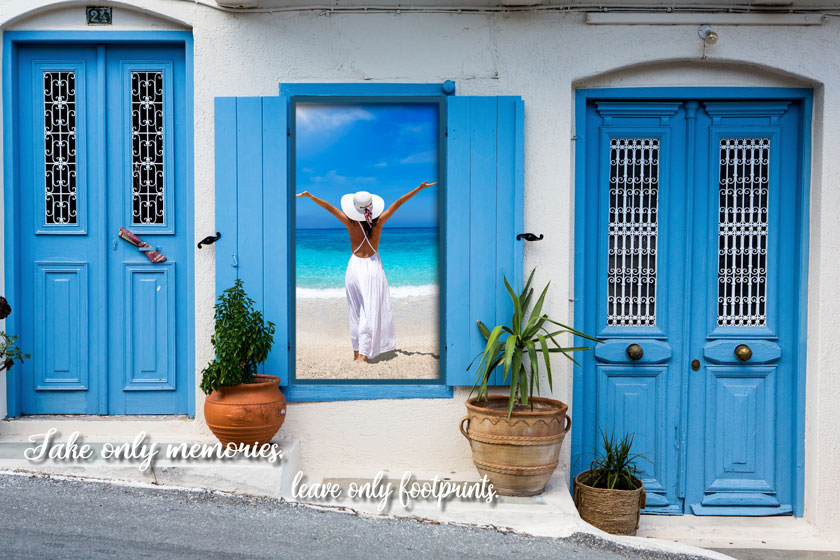
Moldura personalizada
Criar molduras
-
Passo 1. No editor de gráficos AliveColors abra uma imagem que você deseja transformar numa moldura (File -> Open).
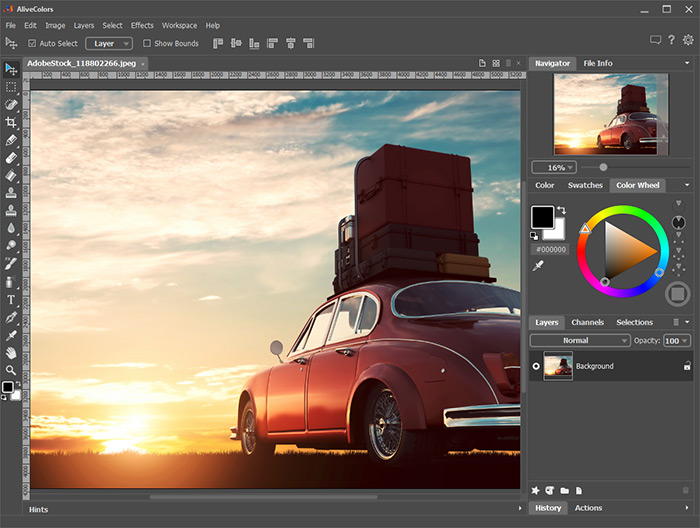
Imagem no AliveColors -
Passo 2. Crie um buraco para uma foto na moldura.
Escolha uma das ferramentas de seleção, por exemplo, Rectangular Selection
 , crie uma seleção na imagem e exclua a área selecionada com a tecla Delete ou com o comando Edit -> Erase.
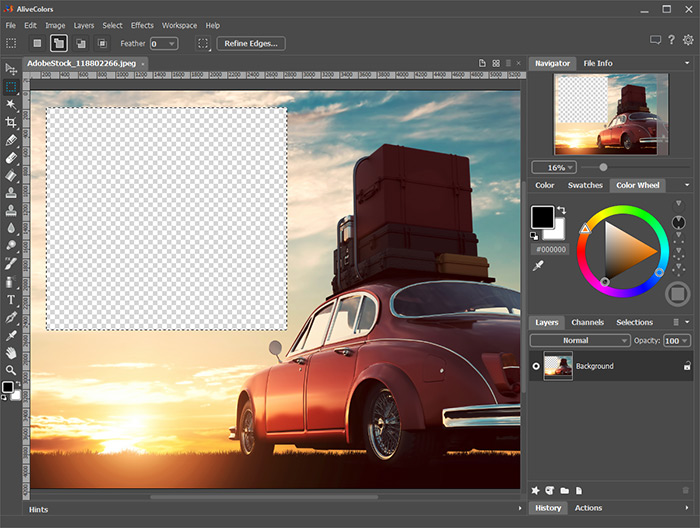
Buraco para fotoNota: Para fazer vários buracos para várias fotos na moldura, crie novas seleções no modo Add
 e exclua todos os fragmentos.
Remova a seleção com o comando Select -> Deselect ou pressionando Ctrl+D.
-
Passo 3. Desenhe uma moldura colorida ao redor do buraco. Para fazer isso, adicione o efeito de camada Stroke (Layers -> Layer Effects) com as seguintes configurações:
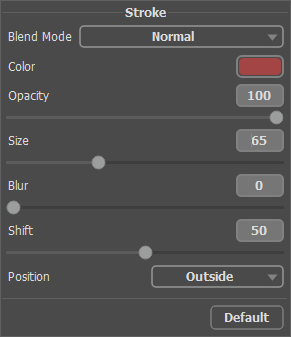
Efeito de camada StrokePara adicionar um volume, aplique o efeito de camada Outer Shadow e ajuste os parâmetros:
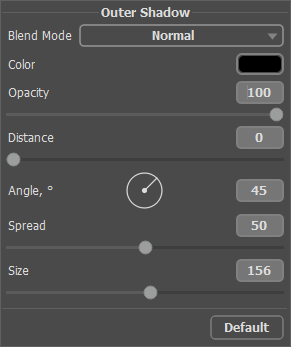
Efeito de camada Outer Shadow -
Passo 4. Se você quiser, pode adicionar uma inscrição adequada á moldura usando a ferramenta Text
 e organizar ela usando os efeitos de camada.
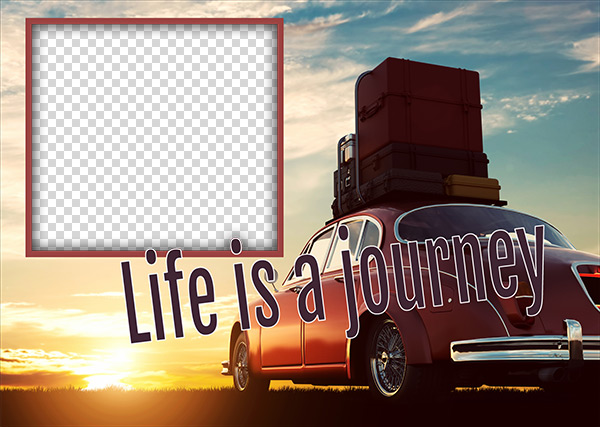
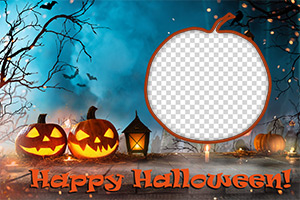
Moldura pronta para usoSalve a moldura numa pasta especialmente criada. Selecione o formato PNG e verifique, se a transparência está ativada!
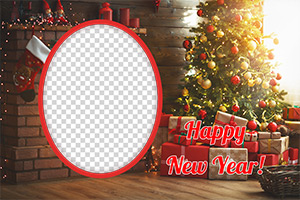
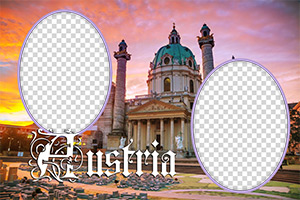
Da mesma maneira, crie as outras molduras e salve como arquivos PNG nessa pasta.
Criar um pacote
É possível criar e usar pacotes de molduras apenas na versão standalone de AKVIS ArtSuite o no programa livre AKVIS Frames.
-
Passo 5. Execute AKVIS ArtSuite.
Escolha Molduras -> Pintada à mão e clique em Gerenciador de pacotes de molduras. Na janela que aparece, clique no botão Pacote personalizado.
No primeiro campo da caixa de diálogo, insira um nome para o grupo de molduras, por exemplo, Minhas molduras. Depois clique em Escolher... e selecione sua nova pasta com molduras. Clique OK.
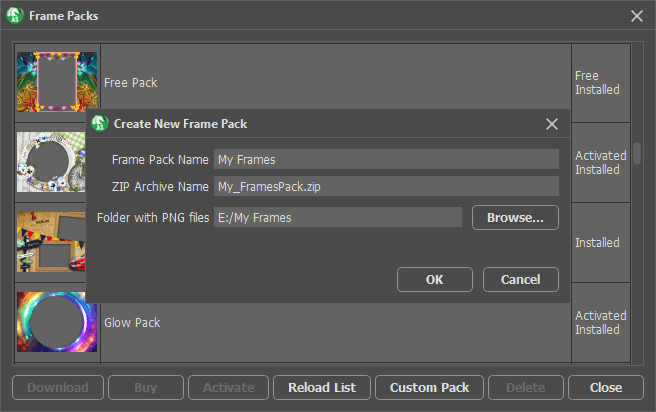
Criar um pacote -
Passo 6. Na lista dos pacotes selecione Minhas molduras. Um das suas novas molduras será exibida na janela de visualização quadrada na parte inferior do Painel de ajustes. Clique para abrir uma lista com todas as molduras do conjunto. Selecione a moldura desejada com um clique do mouse.
No Painel de controle, clique em
 e selecione fotos para tratamento.
As miniaturas das imagens são exibidas na janela principal. A primeira imagem será automaticamente colocada na moldura. Clique duas vezes na miniatura para escolher outra foto.
e selecione fotos para tratamento.
As miniaturas das imagens são exibidas na janela principal. A primeira imagem será automaticamente colocada na moldura. Clique duas vezes na miniatura para escolher outra foto.
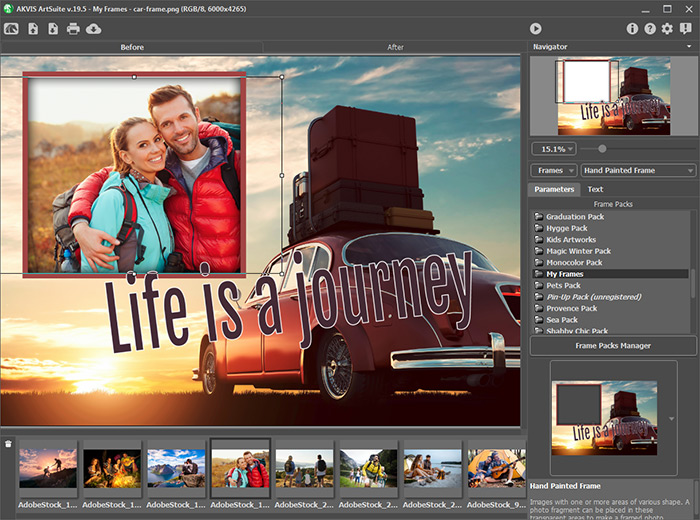
Adicionar fotos -
Passo 7. Ajuste a posição da foto na moldura para obter o melhor resultado. Em seguida, inicie o processamento da imagem com
 .
.
Foto na molduraVocê pode salvar o resultado usando
 e imprimir com
  .
.
Agora você tem sua própria coleção de molduras que está sempre disponível para uso no programa ArtSuite!
Decorar fotos
ArtSuite v. 20.0 - Teste gratuito 10 dias

