Convite de casamento feito a mão
A preparação para um casamento é um desafio. Para fazê-lo um evento especial, você quer fazer de tudo para torná-lo original, memorável, e que todos os elementos trabalhem juntos harmoniosamente. Isso requer muito tempo e atenção.
O importante não é somente comprar um vestido de casamento ou planejar a recepção, mas também desenvolver o convite de casamento. Você deseja criar algo único que seus convidados irão adorar. E esse tutorial é dedicado à criação de convites de casamento. Nós iremos criar um convite impresso em dois lados da folha.
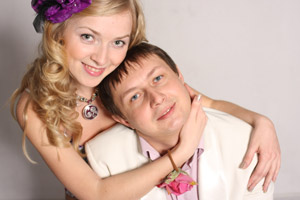
Imagem original
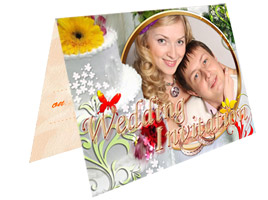
Resultado
O convite consiste em duas partes: a capa e o conteúdo. Nós iremos trabalhar em cada parte separadamente.
A capa
A capa de nosso convite irá ser feito com o ArtSuite, e já que nossa ideia envolverá o uso de uma moldura pintada a mão, iremos utilizar a versão autônoma do programa.
- Passo 1. Abra o programa, e abra uma imagem (com
 ).
).
Escolha moldura Pintada à mão na lista suspensa do Painel de ajustes. Por padrão, a foto irá ser colocada na primeira moldura da Biblioteca.
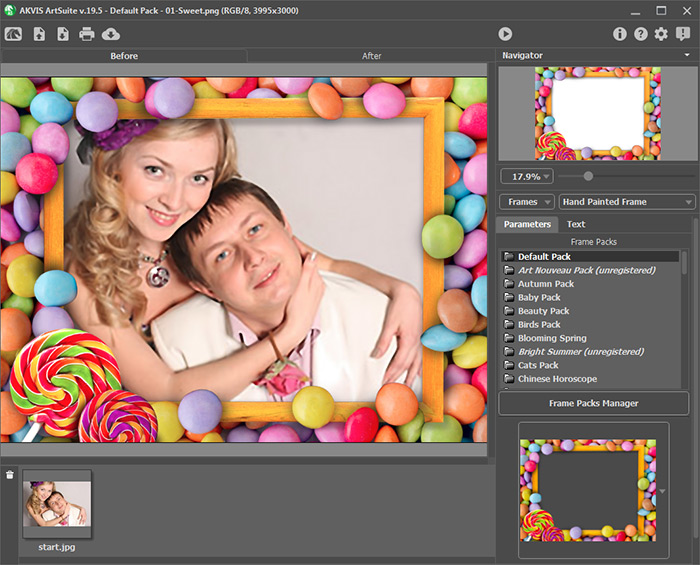
- Passo 2. Nós não iremos usar essa moldura. Vamos retornar à Biblioteca e escolher uma das Pacote de casamento.
Nota:
Esse pacote de imagens de molduras é vendido separadamente. Olhe aqui para informações de compra e registro... Mas não se preocupe.
Quando você instala o ArtSuite, sua Biblioteca já vem com molduras grátis, das quais você pode escolher para combinar com qualquer gosto. Há também pacotes de molduras grátis que você pode baixar aqui.
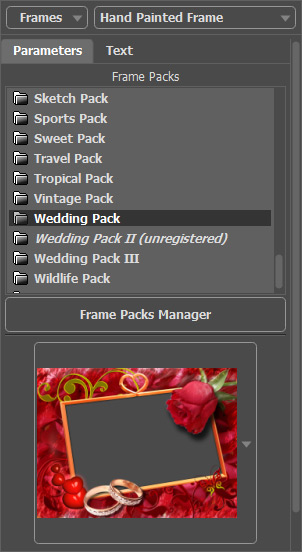
Encontramos uma escolha adequada. O programa automaticamente insere a foto na moldura.
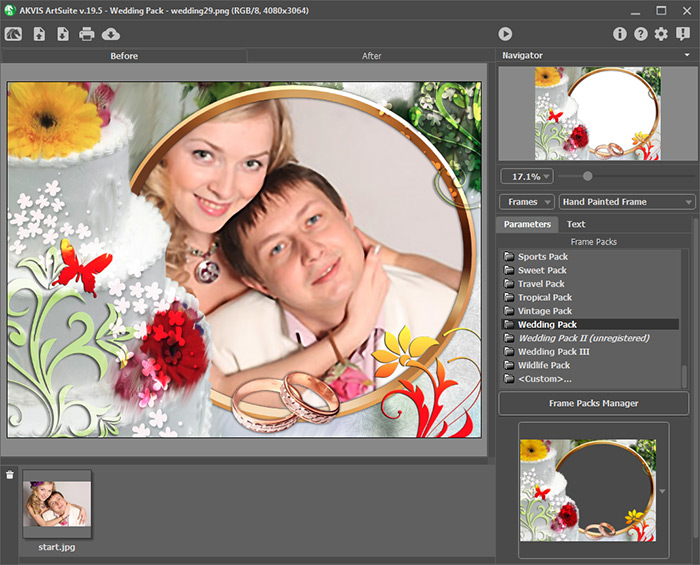
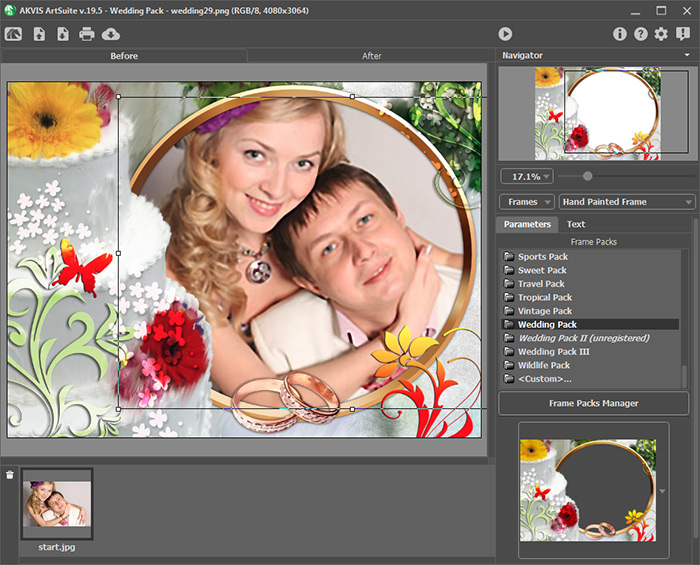
- Passo 3. Ajuste o tamanho e posição da foto na moldura.
- Passo 4. Comece o processamento da imagem (clicando em
 ), e logo depois a foto terá o seguinte aspecto.
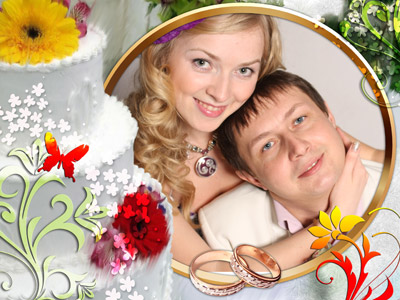
A foto da capa está pronta! Iremos salvar o resultado (clicando em
 ).
).
- Passo 5. Iremos agora utilizar do nosso editor gráfico. Nós usamos o AliveColors.
Abra a imagem que acabamos de fazer no ArtSuite.
A foto precisa caber no convite. Nós queremos que nosso convite tenha 10 cm de largura. Então reduzimos a imagem para esse tamanho (selecionando Imagem -> Tamanho da imagem na barra de menu).
- Passo 6. Adicione o texto e vários efeitos.
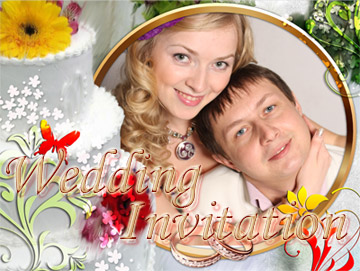
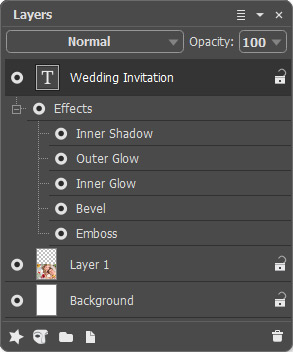
Adicionando texto ao convite Efeitos aplicados ao texto - Passo 7. Duplique a altura do espaço da imagem em (Imagem -> Tamanho da tela de pintura) de forma que a imagem fique na parte inferior do espaço.
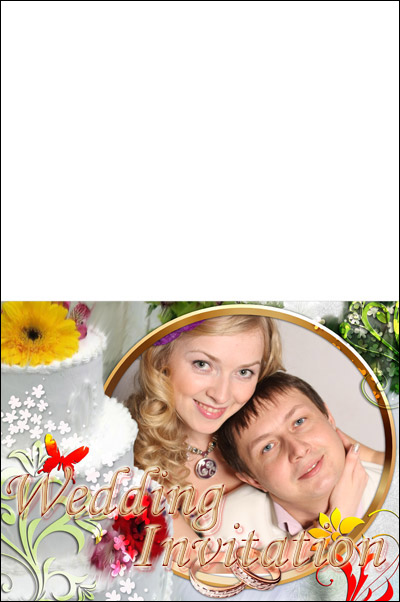
A capa do convite está pronta.
Parte interna
- Passo 1. Crie um novo documento com o mesmo tamanho do primeiro.
- Passo 2. Crie uma nova camada (Camadas -> Nova -> Camada Raster) e desenhe algo nessa camada ou preencha com uma textura.
Logo após, use a ferramenta Lápis de cor
 para desenhar uma linha horizontal atravessando a imagem, dividindo-a na metade. Essa linha irá marcar onde o cartão será dobrado, tornando mais fácil para fechá-lo depois.
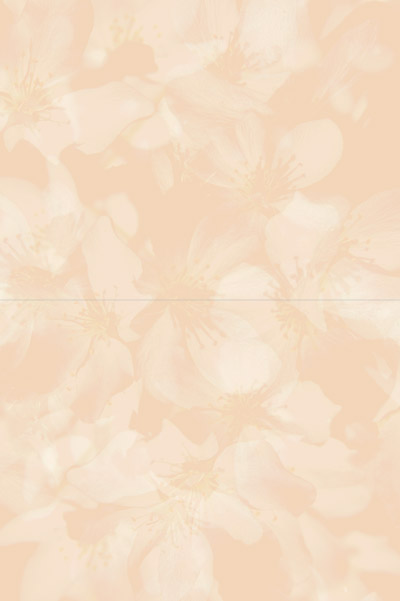
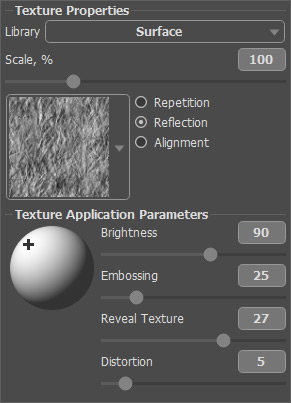
- Passo 3. Carregue o AKVIS ArtSuite (Efeitos -> AKVIS -> ArtSuite) e adicione a textura para dar ao papel uma aparência de relevo.
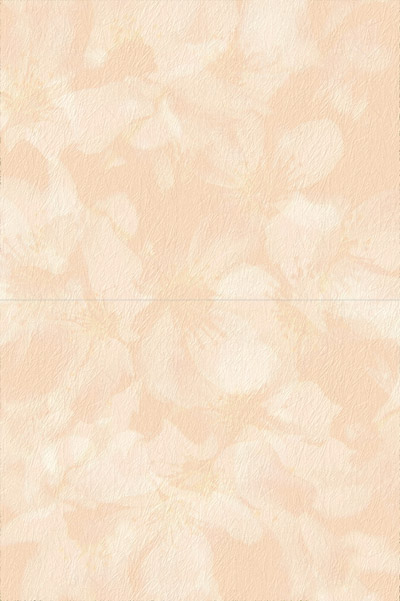
O padrão da textura e suas configurações são mostrados abaixo.
- Passo 4. Última etapa. Selecione a ferramenta Texto
 e preencha o convite com a mensagem para todos os convidados.
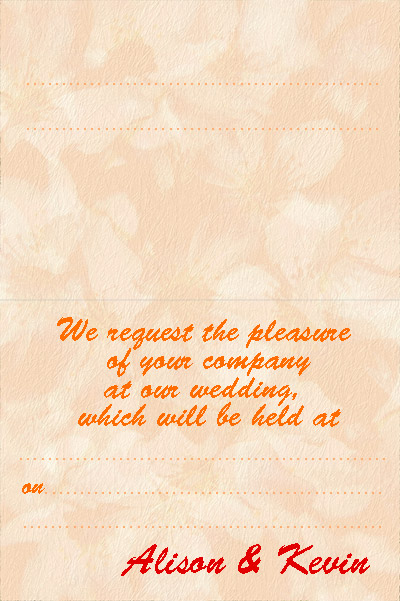
Ambos os lados estão prontos. Agora é só imprimir e enviar aos seus convidados!
ArtSuite v. 21.1 - Teste gratuito 10 dias
