Selbstgemachte Hochzeitseinladung
Die Planung und Vorbereitung einer Hochzeit ist für jedes Brautpaar eine echte Herausforderung. Alle Kleinigkeiten sollten berücksichtigt werden, damit das Fest ein voller Erfolg wird. Dies erfordert viel Zeit und gegenseitige Partizipation.
Ein wichtiger Bestandteil jeder Hochzeit ist die Erstellung von Einladungskarten. Liebespaare möchten etwas Einzigartiges schaffen, das noch lange im Gedächtnis der Gäste bleibt. In diesem Tutorial wird demonstriert, wie man eine einzigartige zweiseitige Hochzeitseinladungskarte selbst gestalten kann.

Original
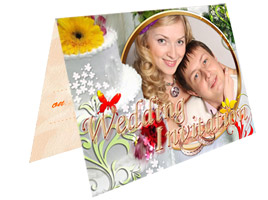
Ergebnis
Die Einladungskarte wird aus zwei Teilen bestehen: eine Titelseite und eine Innenseite. An jedem Teil wird einzeln gearbeitet.
Titelseite
Zur Erstellung der Titelseite der Karte benutzt wir die Standalone-Version von ArtSuite und einen handgemalten Rahmen.
- Schritt 1. Starten Sie das Programm. Öffnen Sie das Bild durch einen Klick auf
 .
.
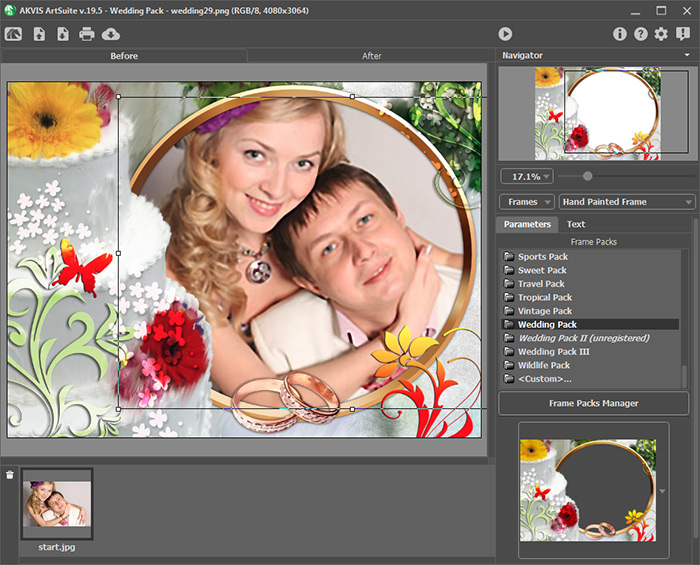
Wählen Sie Rahmen -> Handgemalte Rahmen in der Drop-down-Liste in der Einstellungsleiste. Standardmäßig wird das Foto in den ersten handgemalten Rahmen der Bibliothek eingefügt.
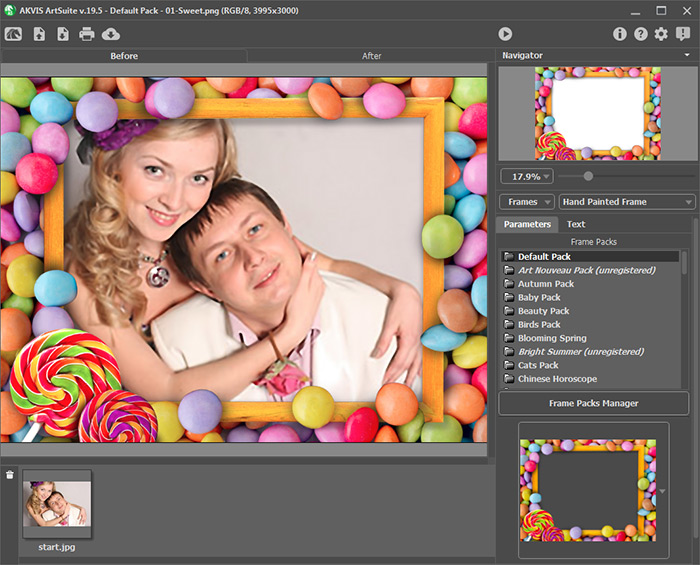
- Schritt 2. Dieser Rahmen für unsere Zwecke nicht geeignet. Wählen Sie einen Rahmen in dem Hochzeitspaket aus.
Hinweis:
Dieses Rahmenpaket ist zahlungspflichtig. Weiter lesen... Machen Sie sich aber deswegen keine Sorgen.
Bei Installation des Programms werden in die Bibliothek kostenlose Rahmen zu jedem Anlass automatisch hochgeladen. Ein anderes kostenloses Rahmenpaket kann hier heruntergeladen werden.
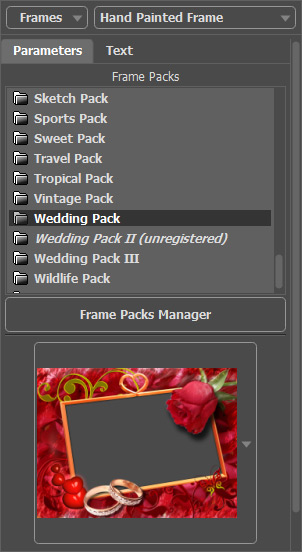
Wählen Sie den passenden Rahmen. Das Programm fügt das Foto in den Rahmen automatisch ein.
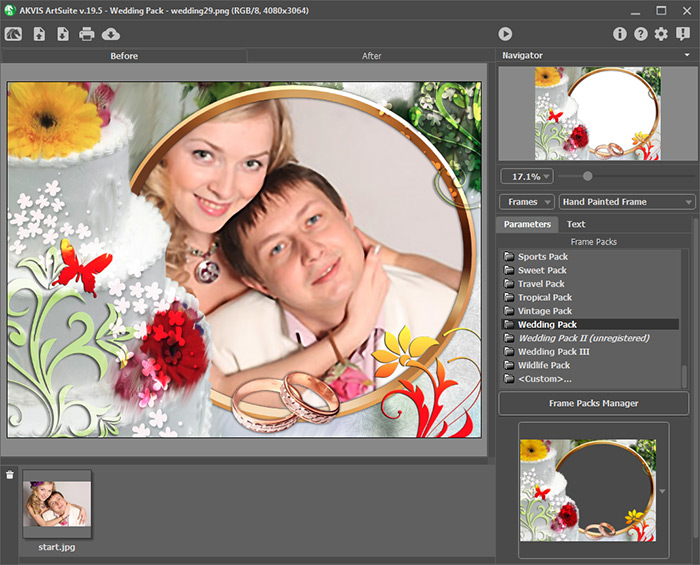
- Schritt 3. Passen Sie die Größe und Position des Fotos in dem Rahmen an.
- Schritt 4. Starten Sie die Bildbearbeitung mit einem Klick auf
 . Das Foto wird wie folgt aussehen:

Das Foto für die Titelseite ist fertig! Wir speichern das Ergebnis mit einem Klick auf
 .
.
- Schritt 5. Nun starten Sie ein Bildbearbeitungsprogramm. Wir benutzen AliveColors.
Öffnen Sie das eben bearbeitete Bild in dem Bildbearbeitungsprogramm.
Man muss das Foto an die Größe der Einladungskarte anpassen. Wir möchten die Breite von 10 cm zuweisen. Reduzieren Sie die Größe des Bildes mit dem Befehl Bild -> Bildgröße.
- Schritt 6. Fügen Sie einen Einladungstext mit verschiedenen Effekten hinzu.

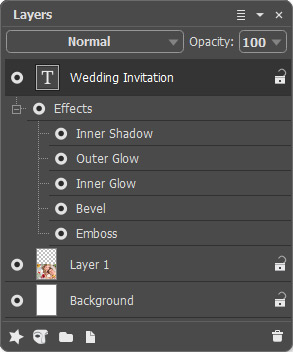
Einladungstext hinzufügen Effekt auf Text anwenden - Schritt 7. Verdoppeln Sie die Höhe des Arbeitsbereichs (Bild -> Arbeitsfläche) und platzieren Sie das Hauptbild unten.
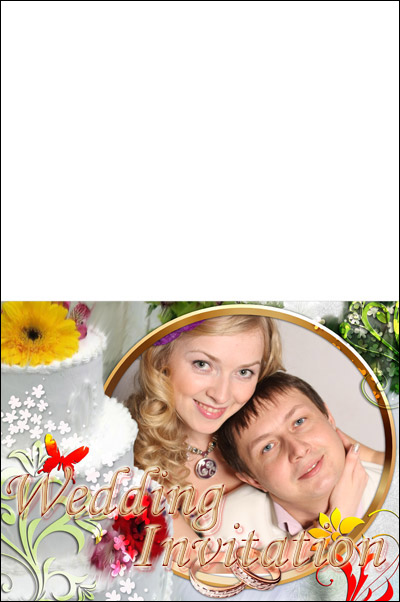
Das Titelbild der Einladungskarte ist fertig.
Innenseite
- Schritt 1. Legen Sie ein neues Dokument in der gleichen Größe an.
- Schritt 2. Erstellen Sie eine neue Ebene (Ebenen -> Neu -> Rasterebene) und füllen Sie diese mit einer Textur.
Danach benutzen Sie das Farbstift-Werkzeug
 , um eine horizontale Linie zu ziehen, die die Arbeitsfläche in zwei Hälften teilt und somit die Faltlinie markiert, entlang deren die Karte umgebogen wird.
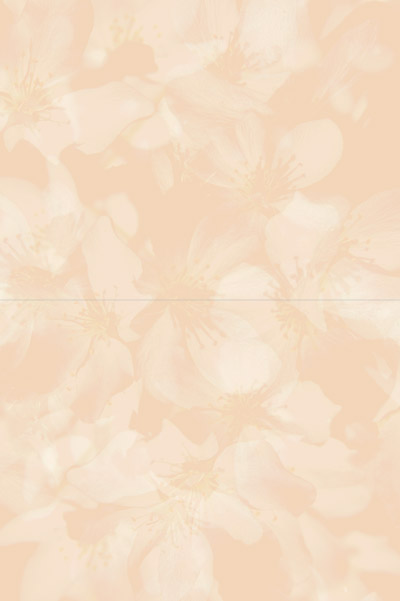
- Schritt 3. Rufen Sie AKVIS ArtSuite (Effekte -> AKVIS -> ArtSuite) auf und fügen Sie eine Textur hinzu, um gedrucktes Papier zu imitieren.
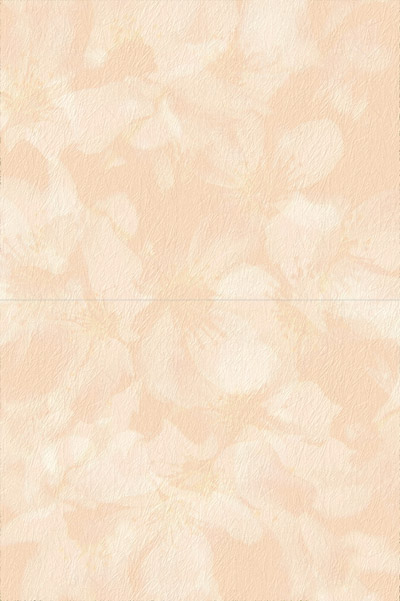
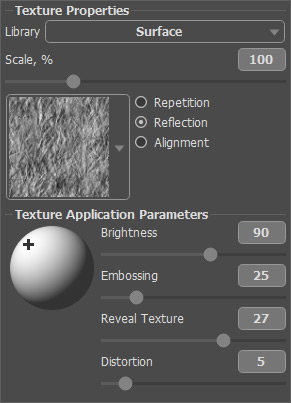
Hier sind die Einstellungen der Textur:
- Schritt 4. Der finale Schritt. Aktivieren Sie das Text-Werkzeug
 und fügen Sie Ihrer Einladungskarte einen Text hinzu.
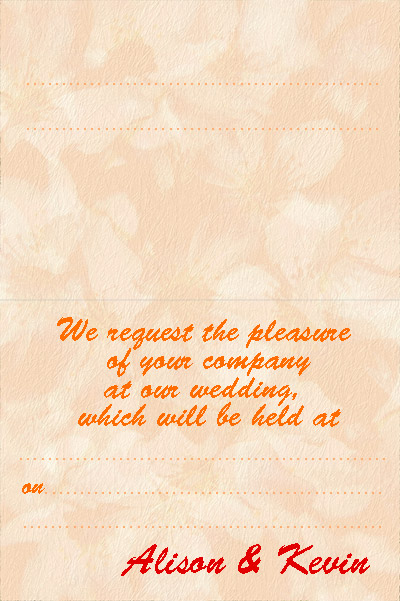
Die beiden Seiten sind fertig. Jetzt können Sie die Einladungskarten drucken und Ihre Gäste überraschen.
ArtSuite v. 20.0 - 10-Tage-Testversion

