Invitation de mariage à la main
La préparation au mariage est une tâche complexe qui implique beaucoup de détails. Il y a une forte pression pour que tout soit parfait ! Les époux futurs devraient passer beaucoup de temps pour s'assurer que tout a été préparé avant du grand jour.
La partie importante est non seulement l'achat d'une robe de mariée ou la planification des repas, mais aussi la conception des cartes d'invitation. Vous voulez créer quelque chose d'unique que vos invités se souviendront. Ce tutoriel est dédié à la création d'invitations de mariage.

Image originale
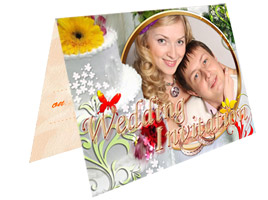
Résultat
L'invitation sera composé de deux parties : la couverture et la place pour le contenu. Nous allons travailler sur chaque partie séparément.
La couverture
La couverture de notre carte sera faite avec ArtSuite, et puisque nous voulons utiliser un cadre peint à la main, nous allons travailler dans la version autonome.
- Étape 1. Ouvrez le logiciel. Ouvrez l'image (avec
 ).
).
Choisissez le style Paint à la main à partir de la liste déroulante dans le panneau Paramètres. Par défaut, la photo sera placée dans le premier cadre paint à la main dans la Bibliothèque.
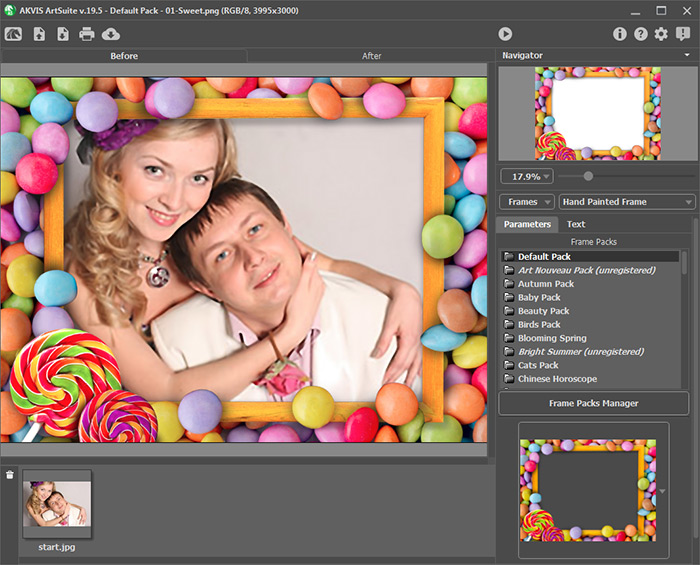
- Étape 2. Nous n'allons pas utiliser ce cadre. Revenons à la Bibliothèque et choisissez l'un des cadres de mariage.
Note :
Le paquet de cadres de mariage est vendu séparément. En savoir plus sur l'achat et l'enregistrement...
Si vous ne voulez pas acheter les cadres supplémentaires, vous pouvez utiliser les cadres par défaut ou télécharger le Paquet gratuit.
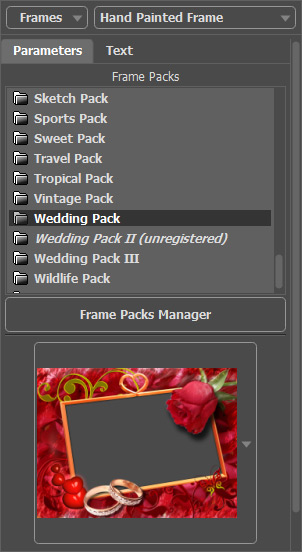
Nous avons fait un choix approprié. Le logiciel insère automatiquement la photo dans le trou.
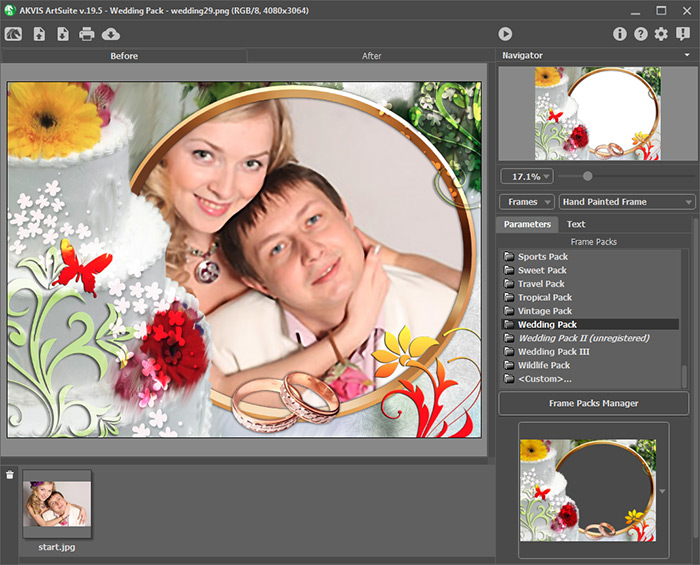
- Étape 3. Ajustez la taille et la position de la photo dans le cadre.
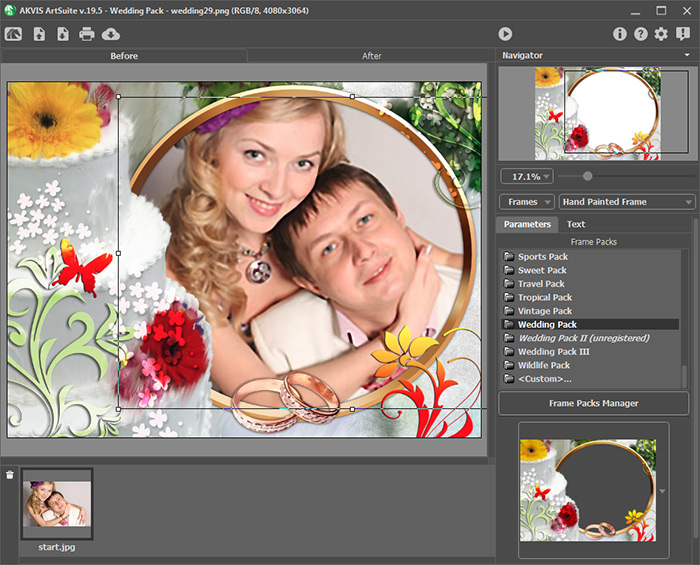
- Étape 4. Démarrez le traitement de l'image (en appuyant sur
 ), et voici le résultat :

La photo pour la couverture est prête ! Nous allons enregistrer le résultat (en appuyant sur
 ).
).
- Étape 5. Maintenant nous avons besoin de notre éditeur graphique. Nous avons utilisé AliveColors.
Ouvrez l'image que nous venons de traiter dans l'éditeur.
La photo doit s'adapter à la taille de l'invitation - 10 cm de large. Donc, nous allons réduire l'image à cette taille (en sélectionnant Image -> Taille de l'image dans le menu).
- Étape 6. Ajoutez du texte et des effets différents.

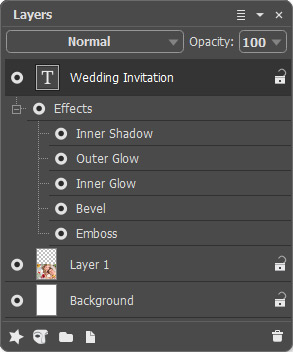
Ajouter du texte à l'invitation Effets appliqués au texte - Étape 7. Augmentez la hauteur de la toile (Image -> Taille de la toile) deux fois, de telle sorte que l'image principale est au bas.
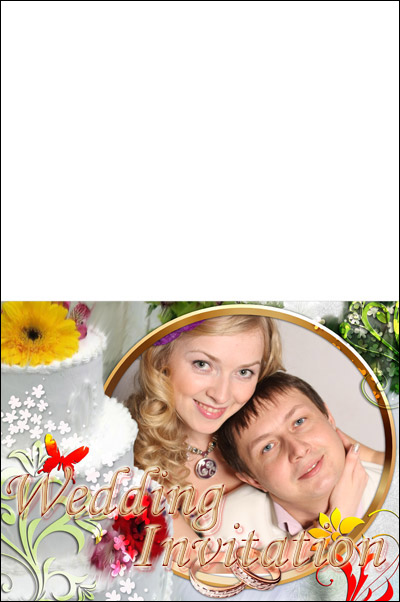
Le couverture d'invitation est prêt.
Le contenu
- Étape 1. Créez un nouveau document de la même taille que le premier.
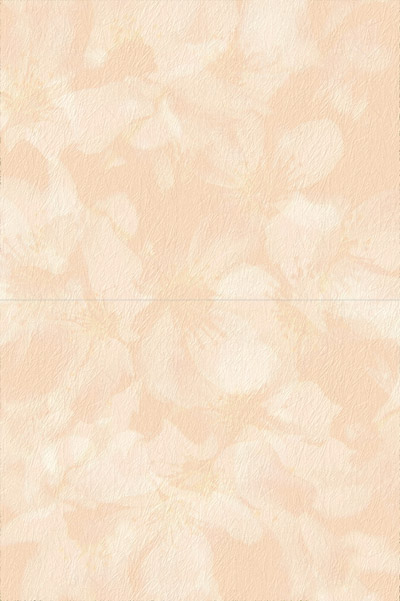
Créez un nouveau calque et dessinez n'importe quel fond ou utilisez un motif prêt à l'emploi.
Ensuite, utilisez l'outil Crayon de couleur
 pour dessiner une ligne horizontale à travers l'image en la divisant en deux. Cette ligne marquera où les invitations doivent être pliées.
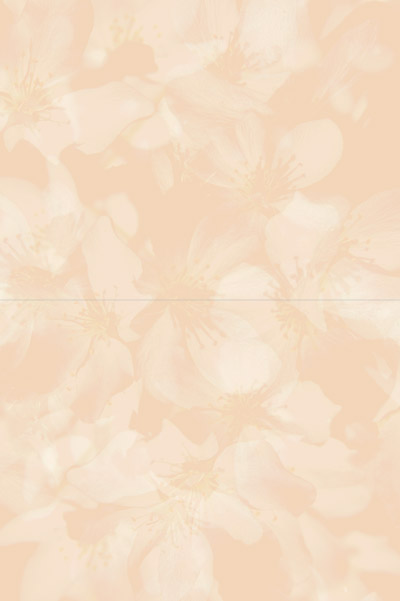
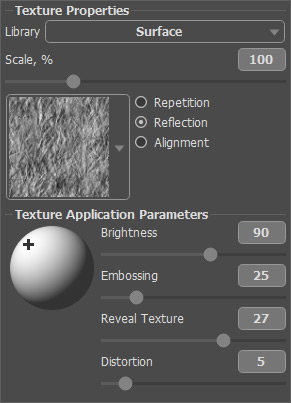
- Étape 2. Appelez le plugin AKVIS ArtSuite (Effets -> AKVIS -> ArtSuite) et ajoutez une texture pour donner le papier un aspect gaufré.
Le motif et les paramètres de la texture sont représentés ci-dessous.
- Étape 3. L'étape finale. Sélectionnez le Texte
 et écrivez un message pour les invités.
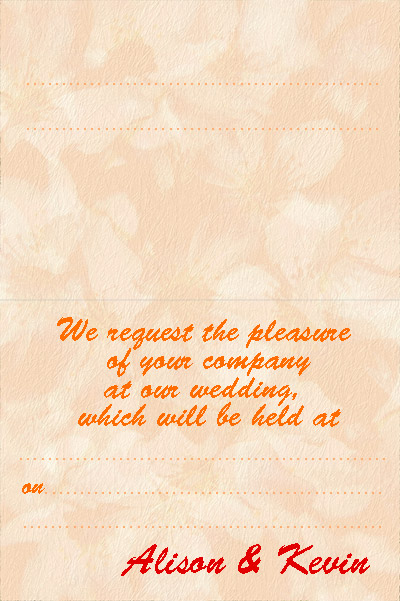
Les deux parties sont prêtes. Maintenant, il suffit d'imprimer l'invitation et l'envoyer à vos invités !
ArtSuite v. 21.1 - 10 jours d'essai
